4230 Flow Meter
Section 5 Maintenance and Service
5-18
• The instructions in the following section, Running
FLASH UPDATE, assume you are running the program
from the update disk. However, you may prefer to copy
the disk’s contents to your hard disk. Before copying the
disk, create a new directory for the FLASH UPDATE
program and the update files. The program and the
update files must be in the same directory. Furthermore,
that directory must be the current directory when you
run the program.
If you receive several update disks over time, copy the update
files and the program when copying the contents of a disk. This
ensures that you have a current version of FLASH UPDATE as
well as the new update files. Depending on your selection in the
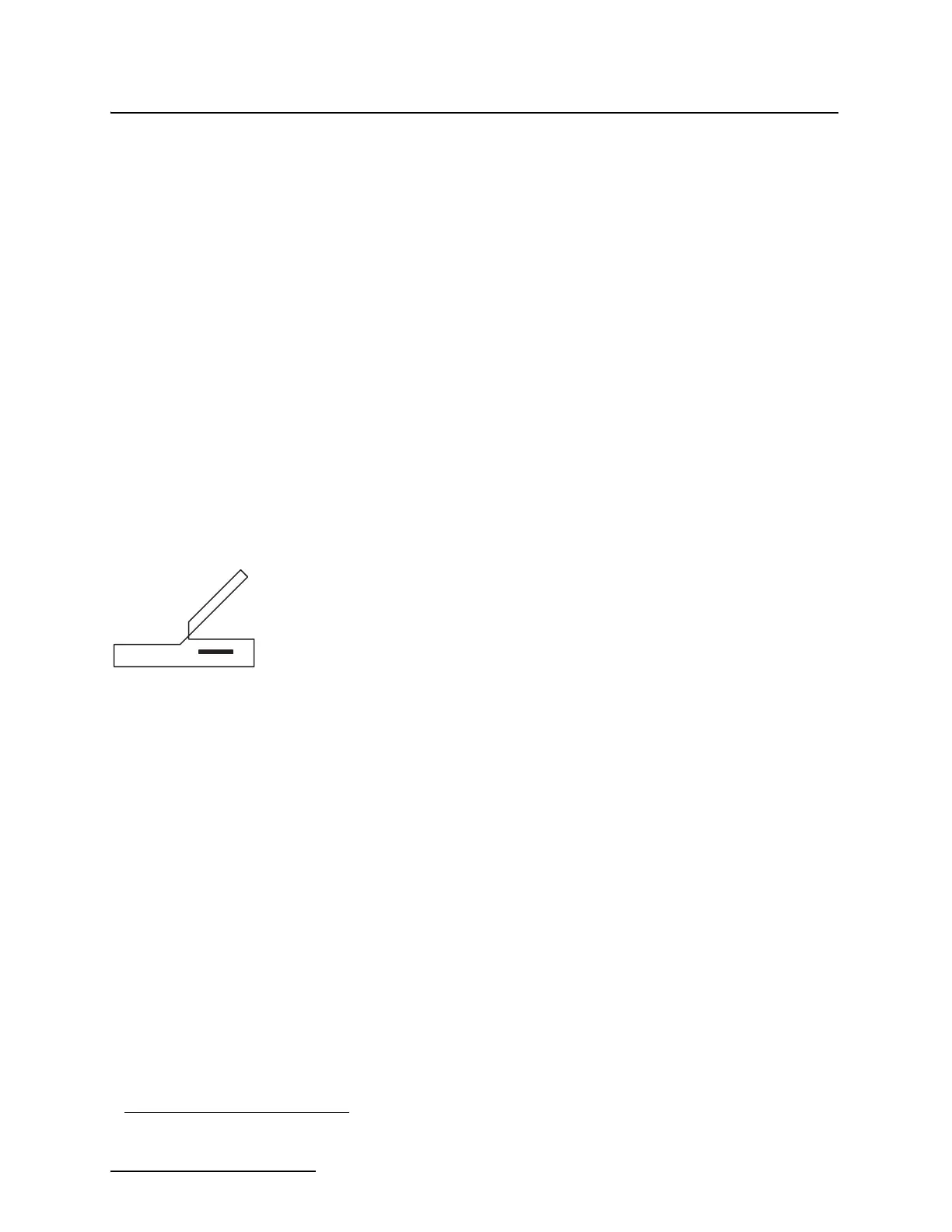
preferences window, you may see the window in the margin (left)
listing all files in the directory. This window appears only when
the directory or disk contains more than one version of the
update files and the Preferences option for Show Update File is
“All Update Files.” (See About Preferences.)
5.10.3 Running FLASH
UPDATE
1. Connect the Computer Connect Cable to your computer’s
serial port and the instrument’s interrogator connector
(marked with the Interrogator icon).
1
2. Insert the update disk in the floppy disk drive.
3. Change the DOS prompt to the floppy disk letter prefix.
4. At the DOS command line, type: FLASHLD. The first win-
dow in FLASH UPDATE will be the Introduction window.
Read it carefully before continuing.
5.10.4 About Preferences FLASH UPDATE has a set of factory settings that appear in
Figure 5-10. Change them when your computer requires dif-
ferent settings.
To change preference settings:
1. Click Cancel in the Introduction window.
2. Select Preferences from the Options menu. The notes in
Figure 5-10 explain the selections in the window. When
you have selected your preferences, select OK.
Select Update Software from the Options menu, and follow the
instructions in each window.
1.
Interrogator Icon



 To Next Page