Patchingyourlights AddingtotheFixtureLibrary
6. When you are finished press the Save button at the top of the window. Stage
CL saves the new fixture in the My Fixtures folder.
 The Other feature is used for fixture channels that need to be set to a static
value for the fixture to operate correctly. There are no controls, on the Stage
CL, for these channels.
Copyinganexistingfixture
You can often save time, when creating a fixture, by copying an existing fixture
as a starting point. You’ll need to find a fixture that is similar to the one you want
to create. To do this:
1. Select fixtures from the Generic folder in the Patch - Library window.
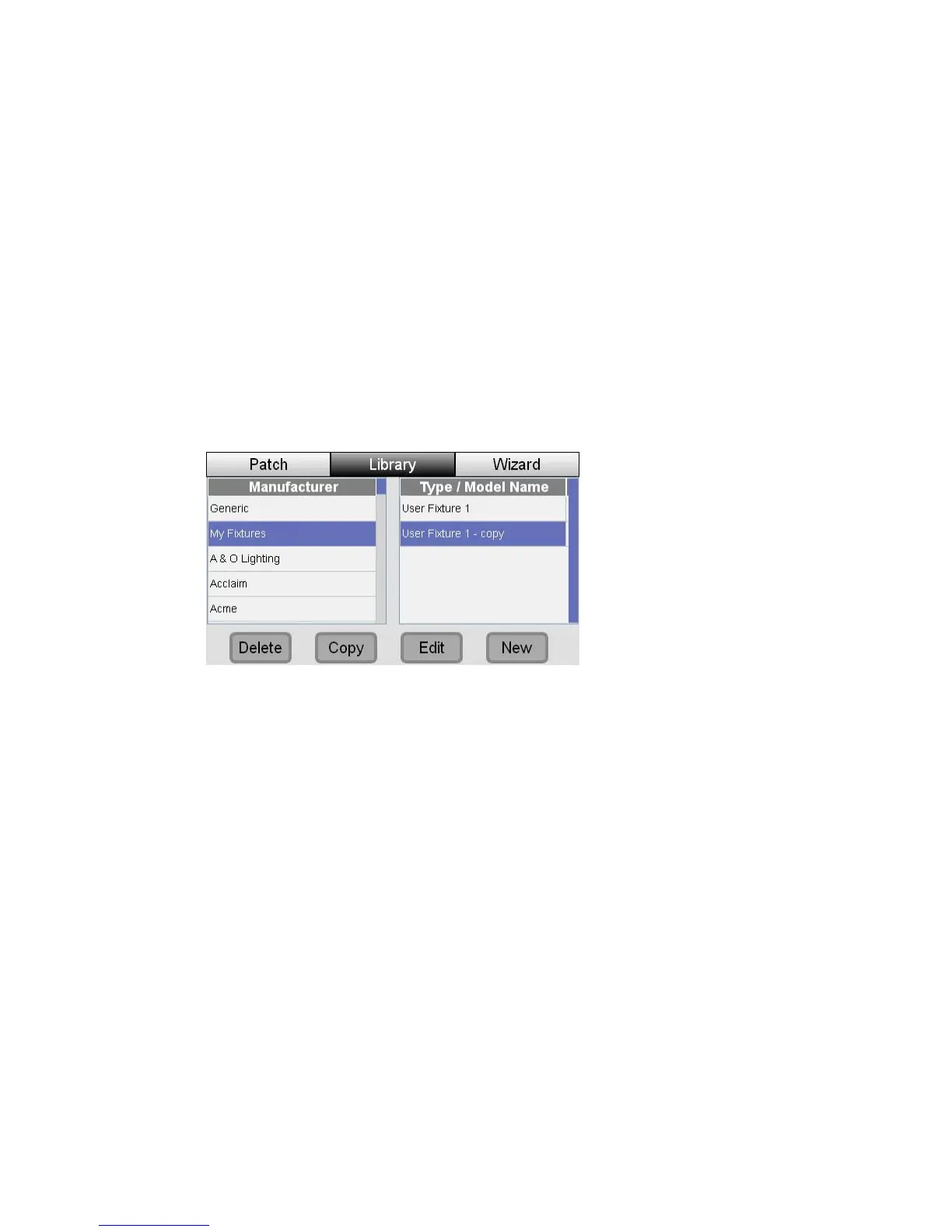
2. Press the Copy button at the bottom of the window. Stage Cl copies the
fixture and switches to the My Fixtures folder with the copy fixture selected.
3. Press the Edit button at the bottom of the window to make changes to the
fixture.
Editinganexistingfixture
You can edit a fixture that you’ve patched and save those changes to:
• just the patched fixture and / or
• all patched fixtures of the same type and/or
• a copy in your ‘My Fixtures’ folder
To do this:
1. Select a fixture from the in the Patch window.
2. Press the Edit button at the bottom of the window. Stage CL opens the Edit
Fixture window:
StageCLUserGuide,Version1.3 4‐7


 To Next Page