Scenes EditingandMonitoringScenes
4. Touch the confirm button or press the touchscreen dial to clear the scene.
P w tsofaScene
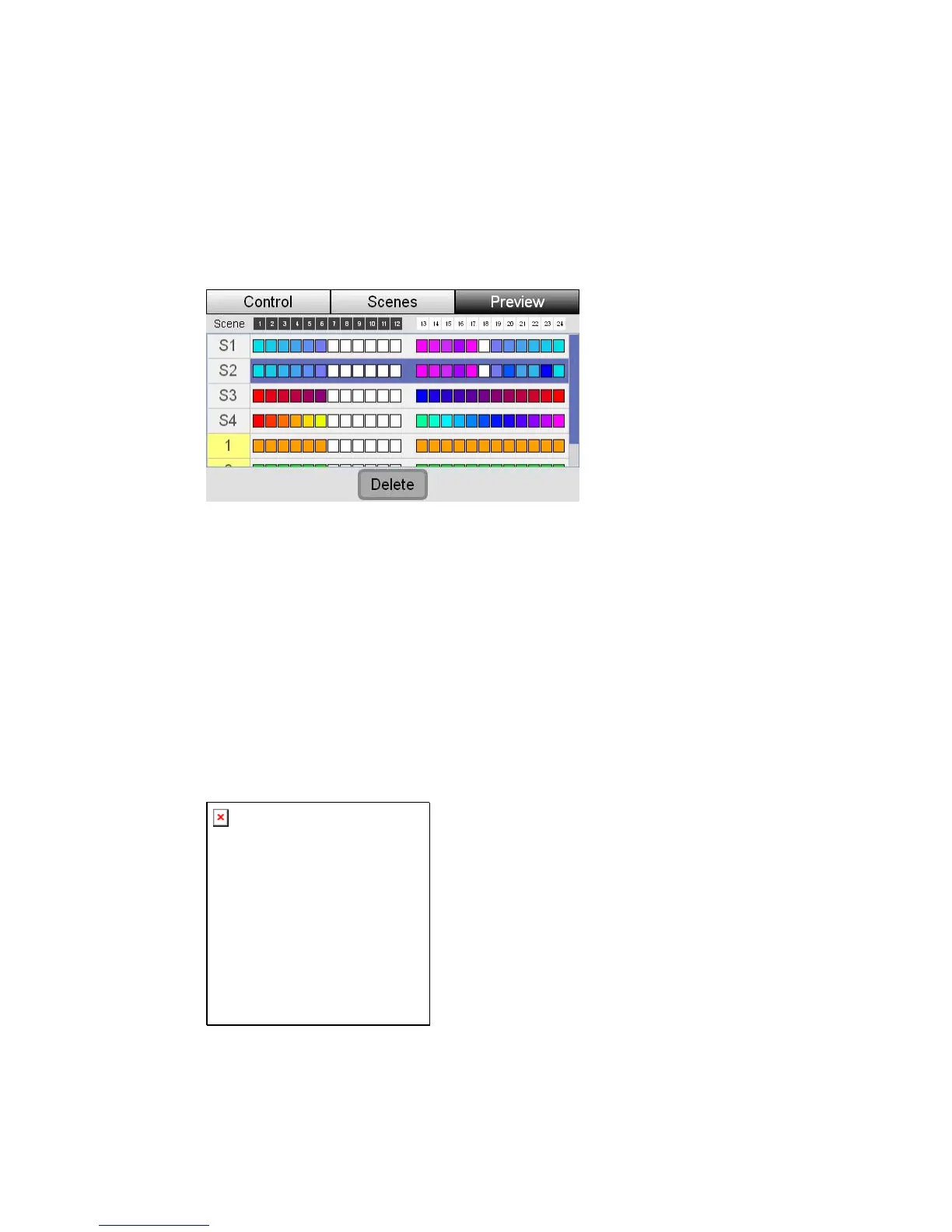
You can check what you have recorded into your scenes with the Preview tab. To
do this
n above the touchscreen or touch the Preview tab.
es window with the Preview tab selected:
revie ingtheconten
1. Press the right hand butto
Stage CL displays the Scen
2. e use the touchscreen dial to scroll up
or down the list of scenes.
The icons show the colour and intensity of each of the fixtures in each scene that
you have recorded. Fixtures with a ‘X’ icon are not included in the scene.
De
You can view more detailed information about the contents of each scene. To do
he
l. Stage CL opens the
detailed preview window:
If the scene you want to see is not visibl
tailedSceneinformation
this:
1. Use the touchscreen dial to scroll up or down the list of scenes. When t
want you want is highlighted press the touchscreen dia
re is a column with up to 4 rows of icons. If the fixture h
B, RGBW, RGBA, RGBAW) the top two rows are merge
For each fix
mixing
ture the as
color (i.e. RG d
and show the color and intensity of the fixture. Rows 3 and 4 show the setting for
e feature that has been assigned to the Shift+Hue and Shift+Saturation dials.
th
StageCLUserGuide,Version1.3 7‐5


 To Next Page