k) Notes. Free-form notes about this client may be entered.
l) Images (optional). Click Add Image to add a photo image. Follow
the steps below to take a photo using your computer.
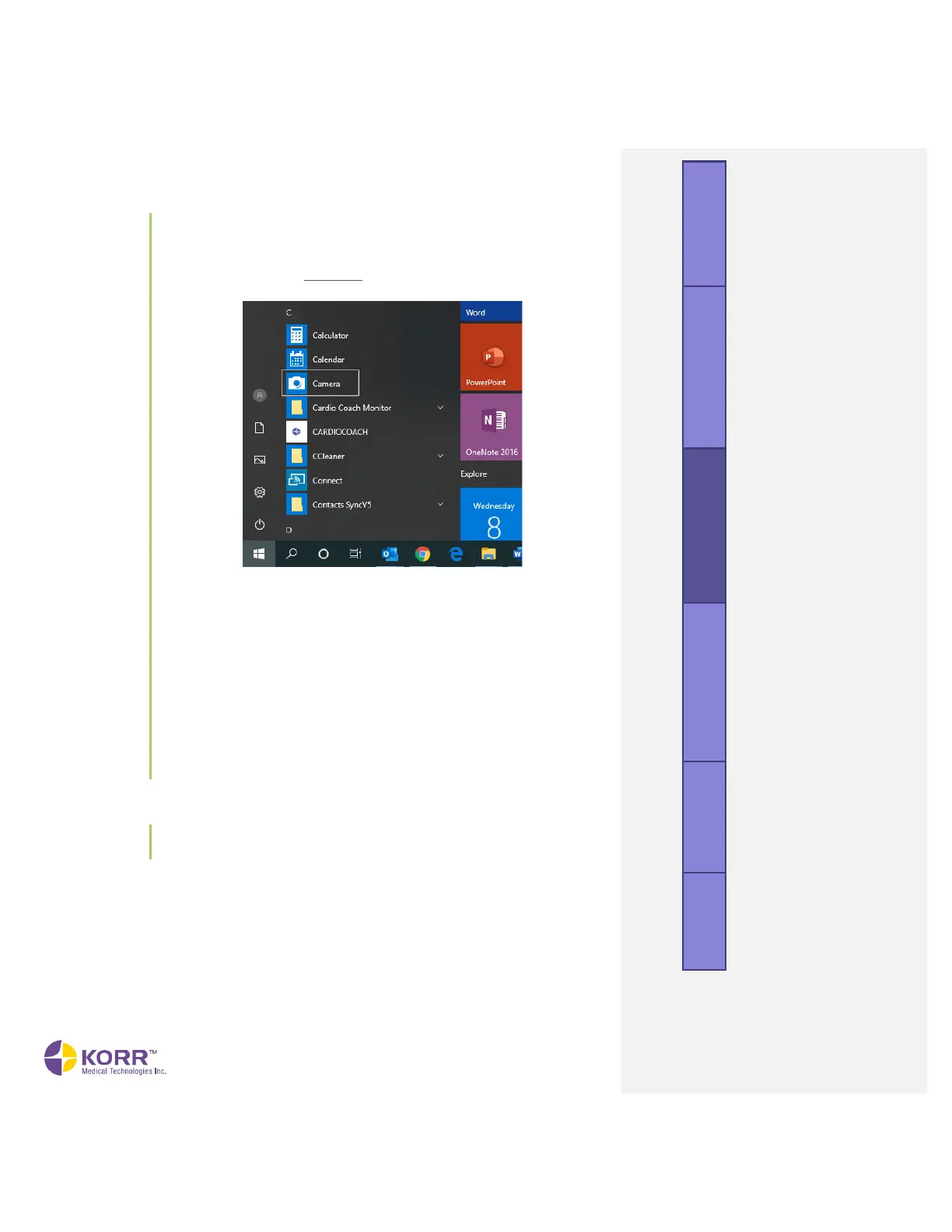
• Go to the Windows (not CardioCoach software) Start
screen and select the camera app from the app list.
• Have the client look at the camera lens at the top of the
screen and smile!
• Click the camera icon to take the photo.
• The photo will be saved to a file named Camera Roll in
your Pictures folder.
• To add the photo to the client’s profile, click the +Add
image button, then access the Camera Roll file on your
computer.
• Select the desired photo and then select Open.
• The image can be removed by clicking the Clear Image
option.
3. To begin testing, click the Start Test button.
4. Select the Existing Clients option from the New Test screen to display
a list of existing clients and select the client’s Account profile.


 To Next Page