EasyManua.ls Logo

Kyocera TASKalfa 221 - User Manual

Kyocera TASKalfa 221
149 pages
Print Icon
To Next Page IconTo Next Page
Loading...
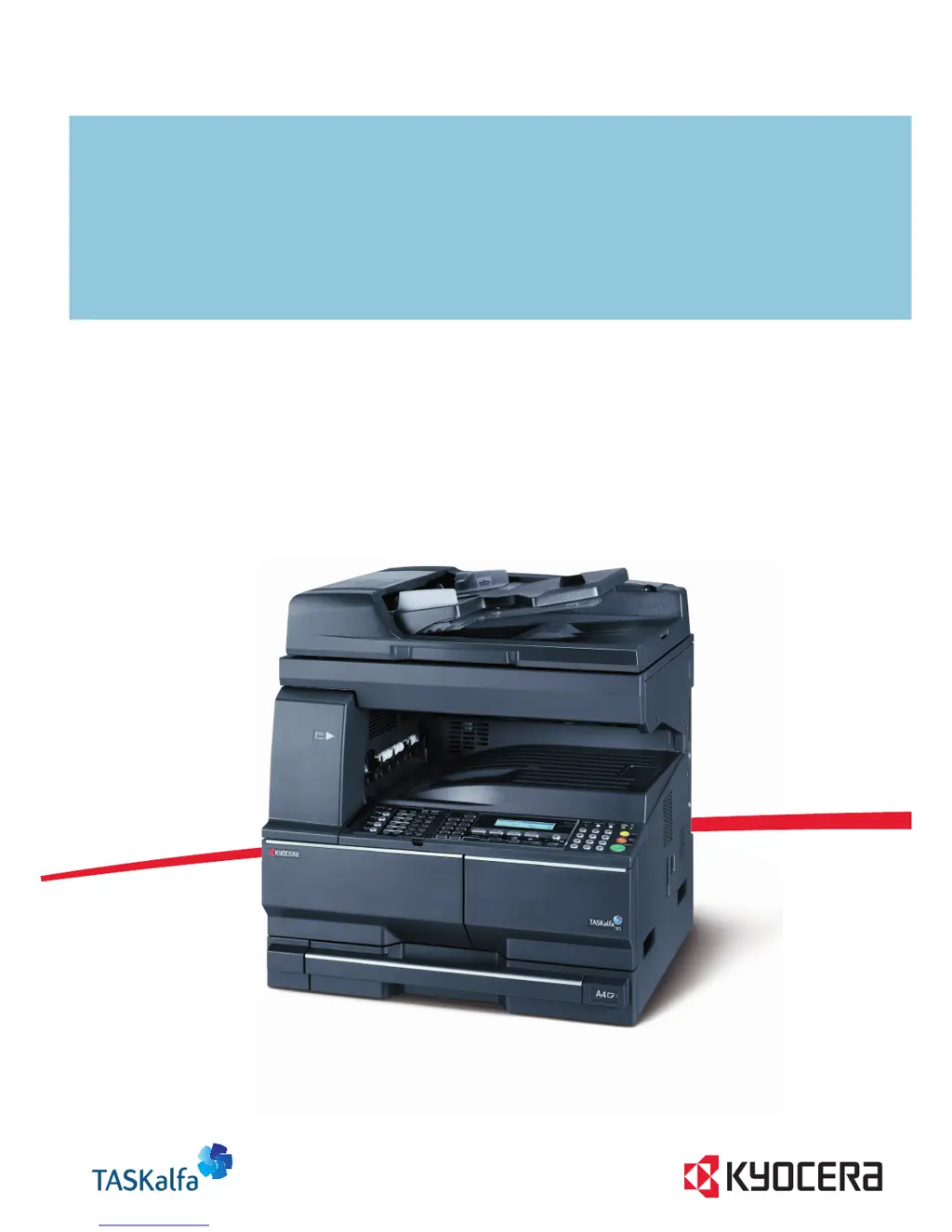
ADVANCED OPERATION GUIDE
TASKalfa 181/221

Table of Contents

Other manuals for Kyocera TASKalfa 221

Questions and Answers

  • C
    Christina VillarrealAug 29, 2025
    Why are the printouts from my Kyocera All in One Printer wrinkled?
    • B
      bmillerAug 30, 2025
      Wrinkled printouts from your Kyocera All in One Printer can be due to: * A dirty paper separator on the paper feed unit, so clean the paper separator. * Damp paper, so replace the paper with new paper. * Improper paper orientation, so change the orientation in which the paper is positioned.
  • J
    Jimmy McdonaldAug 29, 2025
    How to clean Kyocera TASKalfa 221 All in One Printer when printouts are dirty?
    • S
      Suzanne MaldonadoAug 29, 2025
      If your Kyocera All in One Printer produces dirty printouts, the platen or document processor may be dirty, so clean them. Alternatively, the transfer roller may be dirty; brush the transfer roller clean.
  • K
    Kayla BrownAug 29, 2025
    What to do if my Kyocera TASKalfa 221 All in One Printer says 'Add paper in cassette'?
    • W
      William PooleAug 29, 2025
      If your Kyocera All in One Printer displays 'Add paper in cassette', it means the print data does not match the size or type of paper in the cassette. To resolve this, press the Paper Selection key to select the desired paper source, and then press the Enter key.
  • B
    Blake HansenSep 10, 2025
    Why is Kyocera Software not discovering the printing system?
    • M
      Michael RubioSep 10, 2025
      The printing system might be turned off, so turn it on and try again. It could also be removed from the network, so ensure it's connected. If the system is currently printing, wait until it's finished and then try searching again. It is also possible that the TCP/IP settings on your PC are not configured properly, in that case contact your network administrator. Depending on the network router configuration, a printing system may be undetectable. In some rare cases, heavy network traffic may prevent this application from detecting the printing systems, so try again later or contact your network administrator.
  • R
    Ronald MillerSep 13, 2025
    What does 'System error. Main switch off / on.' mean on Kyocera TASKalfa 221 All in One Printer?
    • D
      Deborah ChapmanSep 13, 2025
      Follow the procedure below. 1 Turn the main power switch off. If printer output is being performed, cancel printing on the computer. 2 Wait more than five seconds and then turn the main power switch on ( | ). The error is cleared. If printing has been performed, perform output again.
  • W
    Walter ThomasSep 17, 2025
    What does 'Reposition original or change cassette' mean on Kyocera TASKalfa 221?
    • L
      Lauren McdonaldSep 18, 2025
      If your Kyocera All in One Printer displays 'Reposition original or change cassette', the orientations of the original and the selected paper are different. Change the orientation of the original. If you press the Start key without changing the orientation, copying will be performed at a 100 % (1:1) magnification ratio.
  • C
    codyhendrixSep 23, 2025
    What does 'Print overrun Press GO' mean on Kyocera TASKalfa 221 All in One Printer?
    • J
      janetcoffeySep 23, 2025
      If your Kyocera All in One Printer displays 'Print overrun Press GO', printing has not been performed properly because of insufficient memory. Press the Print key to display the following messages. GO: Continues printing. CANCEL: Cancels printing.
  • K
    Kara StewartAug 27, 2025
    What does 'Add toner' mean on Kyocera TASKalfa 221?
    • D
      Darren OlsenAug 27, 2025
      The 'Add toner' message on your Kyocera All in One Printer indicates that there is insufficient toner left in the indicated toner container, or the toner container has run out of toner.
  • T
    Teresa ValenciaAug 26, 2025
    What to do if Kyocera All in One Printer says 'Memory Full'?
    • W
      watsonmarissaAug 26, 2025
      If your Kyocera All in One Printer displays 'Memory Full', you have several options: * Press the Enter key and select Yes to transmit the documents that have already been completely scanned. * Select No to completely cancel the transmission. If you do not press the Enter key, the Auto Clear function will erase all data from memory after a certain time. After canceling, you can try the transmission again once memory is available.
  • R
    Robert OlsonAug 26, 2025
    What does 'Load XX paper in cass.' mean on my Kyocera TASKalfa 221 All in One Printer?
    • D
      davidandradeAug 26, 2025
      The 'Load XX paper in cass.' message on your Kyocera All in One Printer means that you need to load paper of the size indicated in the message display. This can occur because the Fixed Size mode is selected in the Paper Feed Selection setting or because the sizes of the received documents and the paper in the selected drawer are not compatible for printing. Load paper of the same size as that of the received documents.

Kyocera TASKalfa 221 Specifications

General IconGeneral
Print technologyLaser
Maximum resolution2400 x 600 DPI
Economical printingYes
Time to first page (black, normal)5.7 s
Print speed (black, normal quality, A3)10 ppm
Print speed (black, normal quality, A4/US Letter)22 ppm
Grayscale levels256
FaxingMono faxing
Fax memory4 MB
Modem speed33.6 Kbit/s
Fax coding methodsJBIG, MH, MMR (Fax coding method), MR
Fax speed dialing (max numbers)3s
Total input capacity300 sheets
Total output capacity250 sheets
Maximum input capacity1300 sheets
Multi-Purpose tray input capacity100 sheets
SafetyTÜV/GS, CE
Font stylesPCL, KPDL 3
Media thickness0.11 mm
Power supply typeAC
Custom media sizes98 x 148mm - 297 x 732 mm
Dimensions (WxDxH)568 x 594 x 607 mm
Power requirements220 - 240V, 50/60 Hz
Networking featuresFast Ethernet 10/100 Base-TX
All-in-one functionsCopy, Fax, Scan
Standard input trays2
Maximum internal memory1 GB
Supported media weight(s)64/105 g/m²
Compatible operating systemsWin 95, 98, Me, NT4.0, 2000, XP, Server 2003 Mac OS X 10.2 + UNIX LINUX
Internal memory128 MB
Processor familyPowerPC
Compatible memory cardsCF
Sound power level (standby)40 dB
Sound pressure level (printing)66.7 dB
Non-ISO print media sizesFolio
ISO A-series sizes (A0...A9)A3, A4, A5, A6
Maximum ISO A-series paper sizeA3
Standard interfacesUSB 2.0
USB 2.0 ports quantity1
Power consumption (standby)63 W
Power consumption (PowerSave)6.2 W
Power consumption (average operating)450 W
Market positioningBusiness

Related product manuals