EasyManua.ls Logo

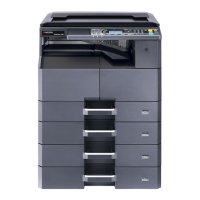
Kyocera TASKalfa 221 - User Manual

Kyocera TASKalfa 221
149 pages
Print Icon
To Next Page IconTo Next Page
Loading...
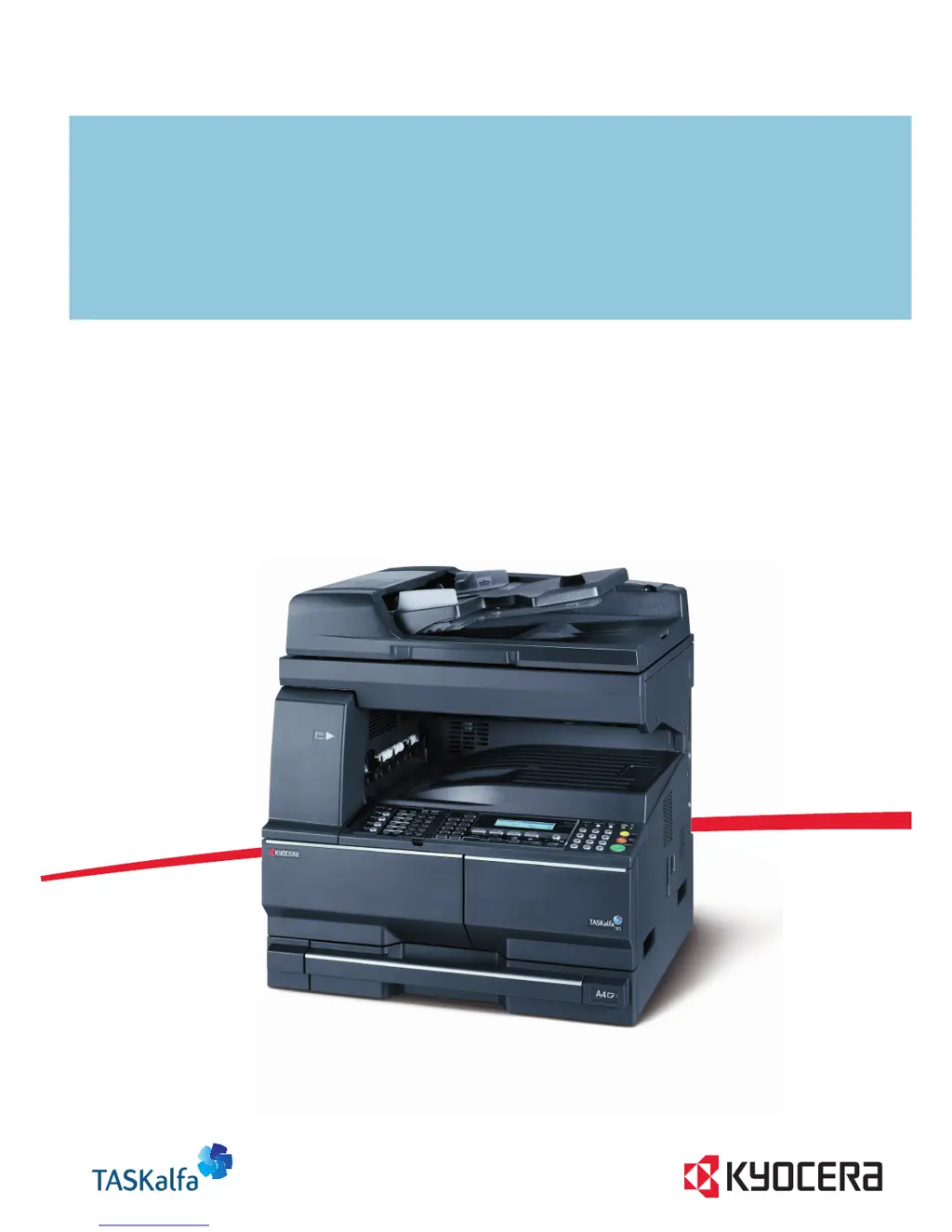
ADVANCED OPERATION GUIDE
TASKalfa 181/221

Table of Contents

Other manuals for Kyocera TASKalfa 221

Questions and Answers

  • K
    Kayla BrownAug 29, 2025
    What to do if my Kyocera TASKalfa 221 All in One Printer says 'Add paper in cassette'?
    • W
      William PooleAug 29, 2025
      If your Kyocera All in One Printer displays 'Add paper in cassette', it means the print data does not match the size or type of paper in the cassette. To resolve this, press the Paper Selection key to select the desired paper source, and then press the Enter key.
  • J
    Jimmy McdonaldAug 29, 2025
    How to clean Kyocera TASKalfa 221 All in One Printer when printouts are dirty?
    • S
      Suzanne MaldonadoAug 29, 2025
      If your Kyocera All in One Printer produces dirty printouts, the platen or document processor may be dirty, so clean them. Alternatively, the transfer roller may be dirty; brush the transfer roller clean.
  • C
    Christina VillarrealAug 29, 2025
    Why are the printouts from my Kyocera All in One Printer wrinkled?
    • B
      bmillerAug 30, 2025
      Wrinkled printouts from your Kyocera All in One Printer can be due to: * A dirty paper separator on the paper feed unit, so clean the paper separator. * Damp paper, so replace the paper with new paper. * Improper paper orientation, so change the orientation in which the paper is positioned.
  • R
    Ronald JonesAug 30, 2025
    What causes paper misfeed in Kyocera All in One Printer?
    • A
      Allison PetersenAug 30, 2025
      A paper misfeed, or paper jam, has occurred in your Kyocera All in One Printer. The location of the jam is indicated on the message display. Leave the main power switch on and follow the appropriate procedure to remove the jammed paper.
  • H
    Heidi Ruiz MDAug 30, 2025
    What to do if my Kyocera TASKalfa 221 says 'Unable to copy. Please Add Toner'?
    • A
      Austin OrtizAug 31, 2025
      If your Kyocera All in One Printer displays 'Unable to copy. Please Add Toner', it means no toner remains. Replace the toner container to add toner.
  • R
    Ryan CoxAug 31, 2025
    How to adjust print darkness on Kyocera TASKalfa 221 All in One Printer?
    • C
      Christina LynchAug 31, 2025
      If your Kyocera All in One Printer's printouts are too dark: * If the machine is in Auto Density mode, set the correct density level. * If the machine is in Manual Density mode, use the Image Quality key to set the correct density level.
  • K
    kayla16Aug 31, 2025
    How to fix skewed images from Kyocera TASKalfa 221?
    • A
      Anne OrtizSep 1, 2025
      Skewed images from your Kyocera All in One Printer can be corrected by: * Ensuring originals are aligned with the original size indicator plates when placing them on the platen. * Aligning the original width guides securely before placing originals in the optional document processor. * Checking the position of the paper width guides to ensure the paper is loaded correctly.
  • L
    Louis MillerAug 25, 2025
    Why does my Kyocera TASKalfa 221 say 'Add Paper'?
    • J
      Jonathan MorganAug 25, 2025
      The 'Add Paper' message on your Kyocera All in One Printer indicates that the selected drawer is empty. Make sure to add paper to the drawer indicated in the message display. This message can also appear if one or more of the drawers are not properly set. Ensure all drawers are securely inserted into the machine.
  • W
    Willie MccannSep 1, 2025
    What to do if Kyocera TASKalfa 221 All in One Printer operation panel doesn't respond?
    • H
      Helen PaulSep 1, 2025
      If the operation panel of your Kyocera All in One Printer does not respond when the main power switch is turned on, plug the power cord into an AC outlet.
  • A
    amandadodsonSep 2, 2025
    What does 'Misfeed in DP' mean on my Kyocera TASKalfa 221 All in One Printer?
    • A
      Allen BurnsSep 2, 2025
      The message 'Misfeed in DP' on your Kyocera All in One Printer indicates that originals have jammed in the optional document processor. Leave the main power switch on and follow the appropriate procedure to remove the jammed originals.

Kyocera TASKalfa 221 Specifications

General IconGeneral
Print technologyLaser
Maximum resolution2400 x 600 DPI
Economical printingYes
Time to first page (black, normal)5.7 s
Print speed (black, normal quality, A3)10 ppm
Print speed (black, normal quality, A4/US Letter)22 ppm
Grayscale levels256
FaxingMono faxing
Fax memory4 MB
Modem speed33.6 Kbit/s
Fax coding methodsJBIG, MH, MMR (Fax coding method), MR
Fax speed dialing (max numbers)3s
Total input capacity300 sheets
Total output capacity250 sheets
Maximum input capacity1300 sheets
Multi-Purpose tray input capacity100 sheets
SafetyTÜV/GS, CE
Font stylesPCL, KPDL 3
Media thickness0.11 mm
Power supply typeAC
Custom media sizes98 x 148mm - 297 x 732 mm
Dimensions (WxDxH)568 x 594 x 607 mm
Power requirements220 - 240V, 50/60 Hz
Networking featuresFast Ethernet 10/100 Base-TX
All-in-one functionsCopy, Fax, Scan
Standard input trays2
Maximum internal memory1 GB
Supported media weight(s)64/105 g/m²
Compatible operating systemsWin 95, 98, Me, NT4.0, 2000, XP, Server 2003 Mac OS X 10.2 + UNIX LINUX
Internal memory128 MB
Processor familyPowerPC
Compatible memory cardsCF
Sound power level (standby)40 dB
Sound pressure level (printing)66.7 dB
Non-ISO print media sizesFolio
ISO A-series sizes (A0...A9)A3, A4, A5, A6
Maximum ISO A-series paper sizeA3
Standard interfacesUSB 2.0
USB 2.0 ports quantity1
Power consumption (standby)63 W
Power consumption (PowerSave)6.2 W
Power consumption (average operating)450 W
Market positioningBusiness

Related product manuals