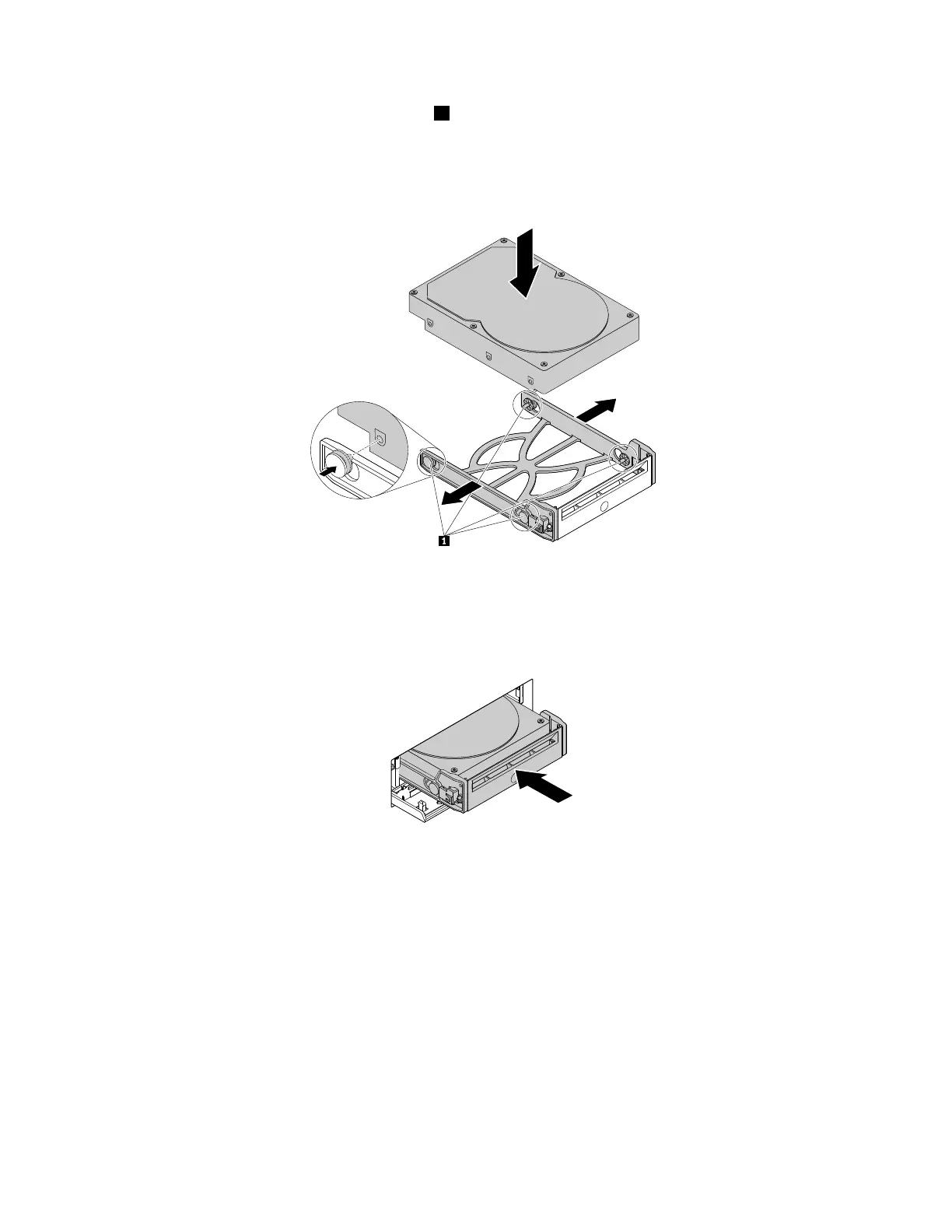
5.Flexbothsidesofthebracketandalignpins1onthebracketwiththecorrespondingholesinthenew
harddiskdrive.Donottouchthecircuitboardontheharddiskdrive.
Note:Ensurethatthecircuitboardfacesdownwardandtheconnectorsfacetowardtherearofthe
bracket.
Figure64.Installingtheharddiskdriveintothebracket
6.Slidethebracketwiththenewharddiskdriveintothefront-accessstorageenclosureuntilitsnapsinto
position.Pressthenotchtosecuretheenclosurecoverandlockitwiththekey.
Figure65.Installingthehard-disk-drivebracket
Whattodonext:
•Toworkwithanotherpieceofhardware,gototheappropriatesection.
•Tocompletetheinstallationorreplacement,goto“Completingthepartsreplacement”onpage166.
Installingorreplacingthefaninthefront-accessstorageenclosure
Toinstallorreplacethefaninthefront-accessstorageenclosure,dothefollowing:
1.Slidethefront-accessstorageenclosureoutofthechassis.See“Installingorreplacinganoptical
drive”onpage109.
2.Ifyouarereplacinganoldfan,cuttherubbermountsandliftthefanoutofthefront-accessstorage
enclosure.
122ThinkStationP310HardwareMaintenanceManual








 To Next Page