50
RC300RC300hNavi(EE)
2-2. Connectivity settings
played only for Miracast™ sup-
ported models.
When turned on, “Available networks”
and “Easy setup” can be selected.
1 Display the Wi-Fi
®
settings screen:
“MENU” button “Setup”
“Wi-Fi
*
”
2 Select “Wi-Fi
*
power”.
Each time it is selected, the “Wi-Fi
*
power” is turned on/off.
*
:Wi-Fi
®
is a registered trademark of
Wi-Fi Alliance
®
.
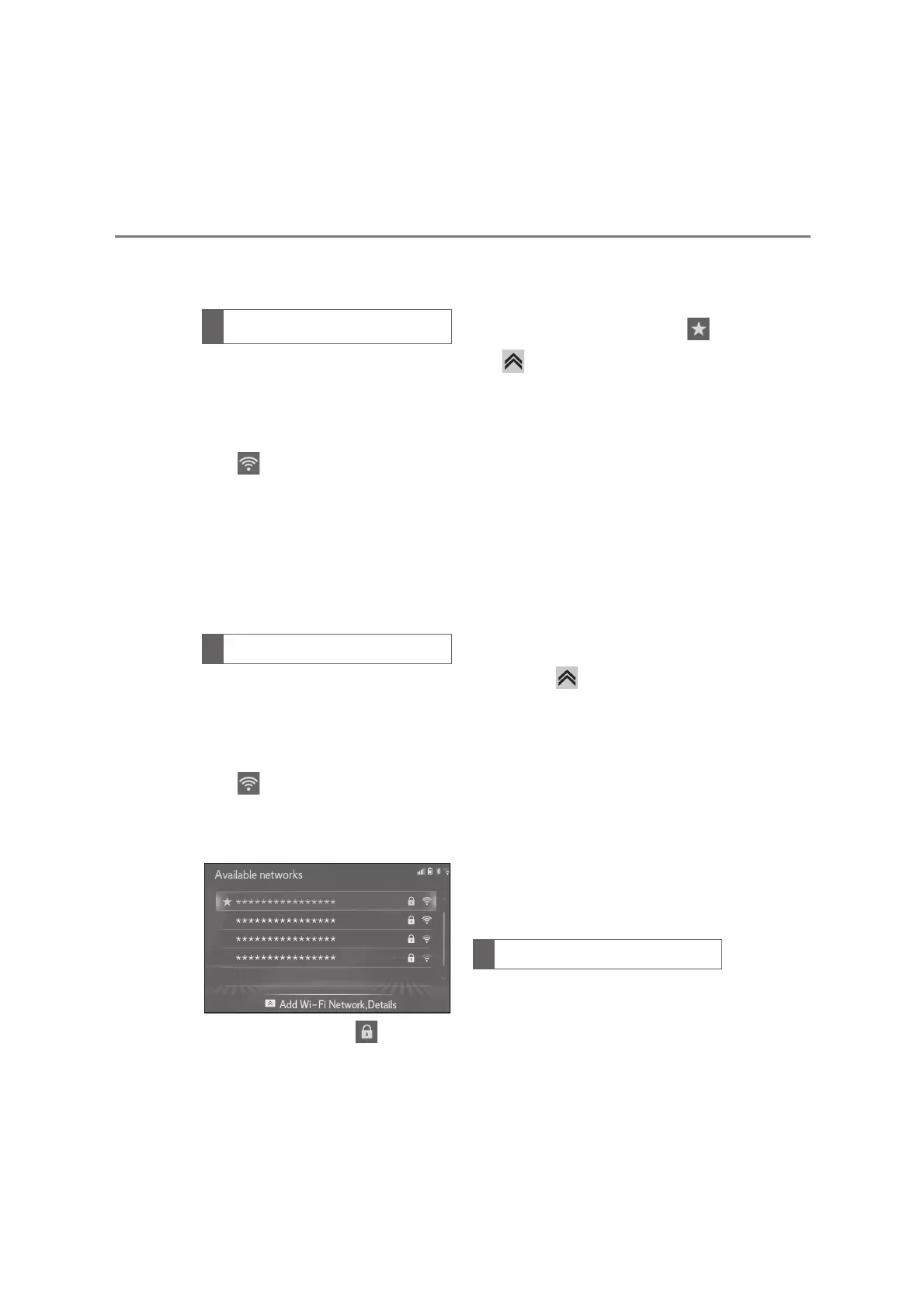
Available networks can be searched
for and connected to.
1 Display the Wi-Fi
®
settings screen:
“MENU” button “Setup”
“Wi-Fi
*
”
2 Select “Available networks”.
3 Select the desired network.
When a network with is selected
and the password enter screen is
displayed, enter the password then
select “OK”.
The network that was selected Pre-
ferred Network is marked with .
If button is pressed on Remote
Touch during displaying this screen,
the following function can be set up.
“Details”: Select to display details about the
network.
“Add Wi-Fi
*
network”: Select to add a
Wi-Fi
®
network that is not currently dis-
played.
*
:Wi-Fi
®
is a registered trademark of
Wi-Fi Alliance
®
.
■
Adding a Wi-Fi
®
network
Available networks which are not dis-
played by searching can be added.
1 Press the button on the Remote
Touch.
2 Select “Add Wi-Fi
*
network”.
3 Enter the network name and select
“OK”.
4 Select the security type.
5 Enter the password and select
“OK”.
*
:Wi-Fi
®
is a registered trademark of
Wi-Fi Alliance
®
.
If a Wi-Fi
®
device is Wi-Fi Protected
Setup™ compatible, it can be con-
nected to more quickly.
1 Display the Wi-Fi
®
settings screen:
Turning Wi-Fi
®
function on/off
Connecting to a network
Connecting quickly





 To Next Page