67
3
RC300RC300hNavi(EE)
3-1. Basic operation
Navigation system
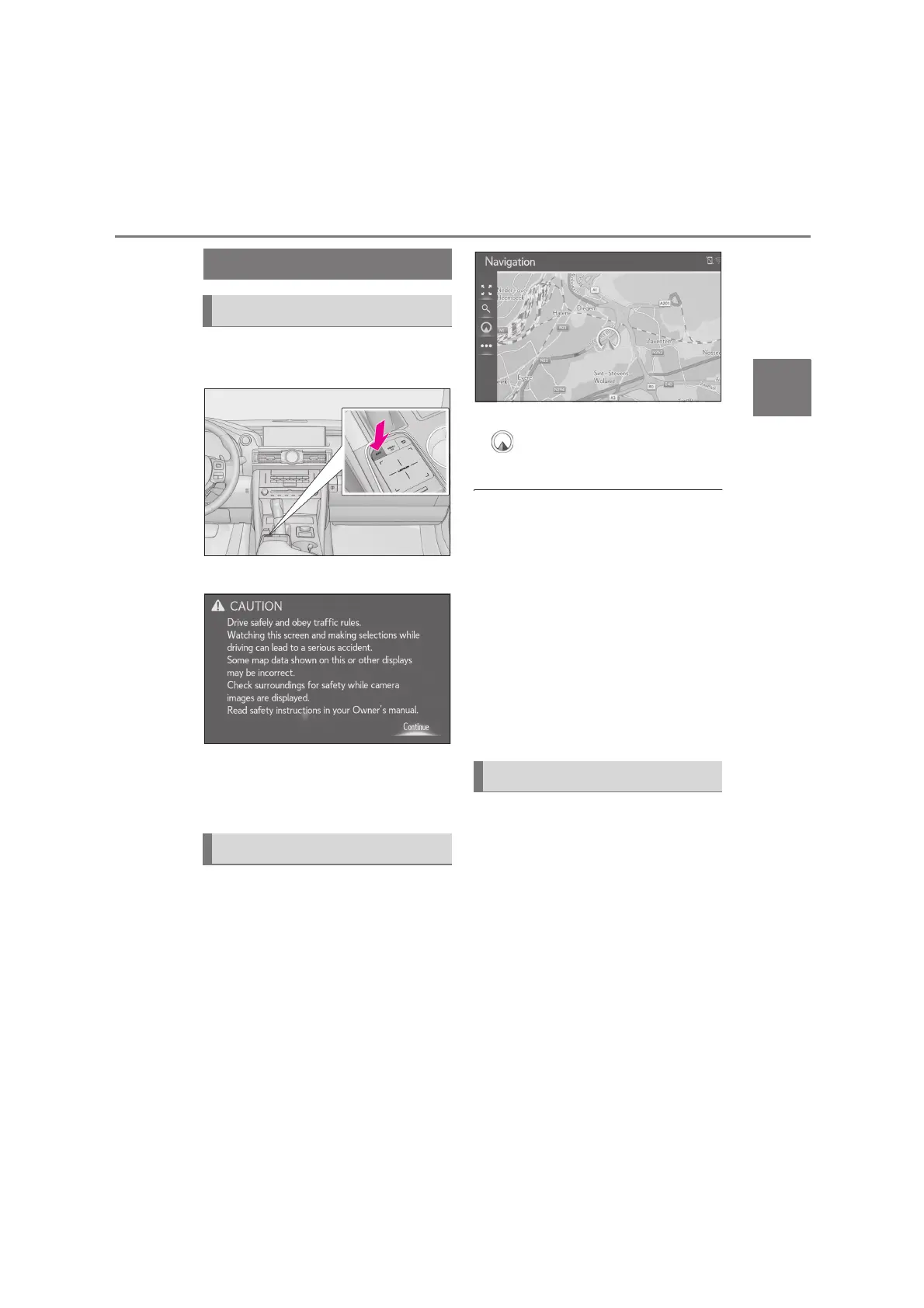
1 Press the “MAP” button on the
Remote Touch.
2 Select “Continue”.
After about a few seconds, the cau-
tion screen automatically switches
to the map screen.
When starting the navigation system,
the current position is displayed first.
This screen displays the current vehicle
position and a map of the surrounding
area.
1 Press the “MAP” button on the
Remote Touch.
The current vehicle position mark
appears in the centre of the map
screen.
●
While driving, the current vehicle posi-
tion mark is fixed on the screen and the
map moves.
●
The current position is automatically set
as the vehicle receives signals from the
GPS (Global Positioning System). If the
current position is not correct, it is auto-
matically corrected after the vehicle
receives signals from the GPS.
●
After the 12-volt battery disconnection,
or on a new vehicle, the current position
may not be correct. As soon as the navi-
gation system receives signals from the
GPS, the correct current position is dis-
played.
The map can be scrolled to view loca-
tions that are different than your cur-
rent position.
1 Select the desired point on the map
screen.
Move the desired point on the cen-
tre of the map screen.
After the screen is scrolled, it is pos-
sible to do the drag or flick opera-
tion on the touchpad.
Map screen operation
Displaying map screen
Current vehicle position display
Map scroll operation





 To Next Page