35
2
RC300RC300hNavi(EE)
2-1. Basic information before operation
Basic function
written character.
*
Select the candidate character that
is displayed to enter the next
desired character.
Depending on the input screen and
conditions, the following operations
can be performed.
• Back space: Draw a straight line from
the bottom right to the bottom left.
• Space: Draw a straight line from the bot-
tom left to the bottom right.
• Line Break: Draw a line from the top
right to the bottom right and then con-
tinue to the bottom left at a right angle.
*
: These functions are not available in
some languages.
●
To deselect the handwriting input range,
press the touchpad of the Remote Touch
or sub function button.
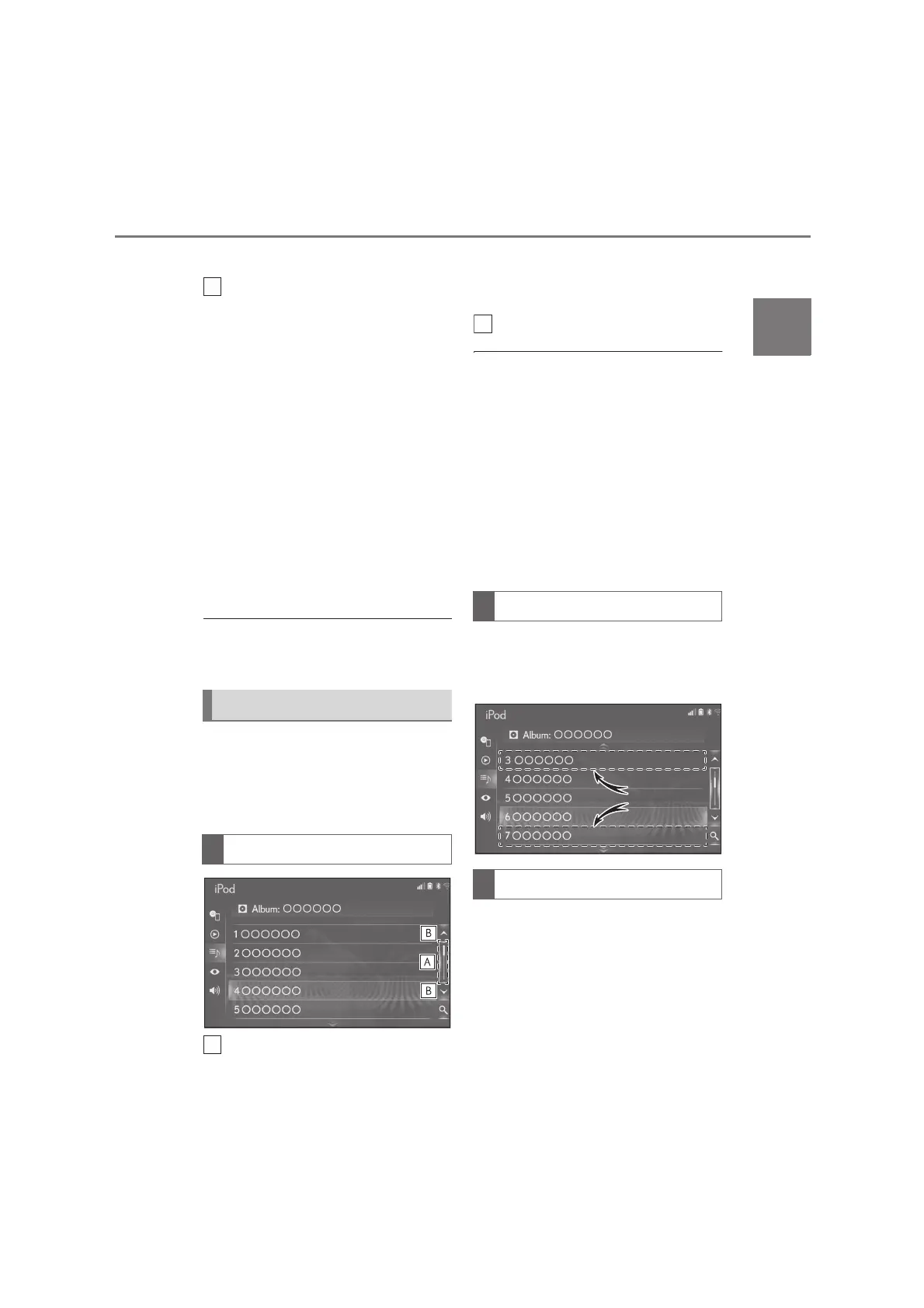
The list screen may be displayed after
entering characters. When a list is dis-
played, use the appropriate screen
button to scroll through the list.
Select this part to scroll the list by
operating the scroll bar.
To release scrolling the list, select
the scroll bar again.
Select to scroll the list.
●
With navigation function: Matching items
from the database are listed even if the
entered address or name is incomplete.
●
With navigation function: The list will be
displayed automatically if the maximum
number of characters is entered or
matching items can be displayed on a sin-
gle list screen.
●
With navigation function: The number of
matching items is shown on the right side
of the screen. If the number of matching
items is more than 999, the system dis-
plays “***” on the screen.
The list can be scrolled by flick opera-
tion when the cursor is over the top or
bottom part of the list.
Items are displayed in the list with the
most similar results of the search at the
top.
List screen
Scrolling list screen
List screen flick operation
Searching a list





 To Next Page