Configuration and Settings
81
The following information is displayed for each interface.
• Interface Status Icon: The icon appears green for each Wi-Fi
network that is connected and white otherwise.
• Name of the detected network.
• : This icon appears for secured Wi-Fi networks, meaning that a Network
Key (password) is required.
• Signal Strength: Wi-Fi signal strength.
The following options are available in this window:
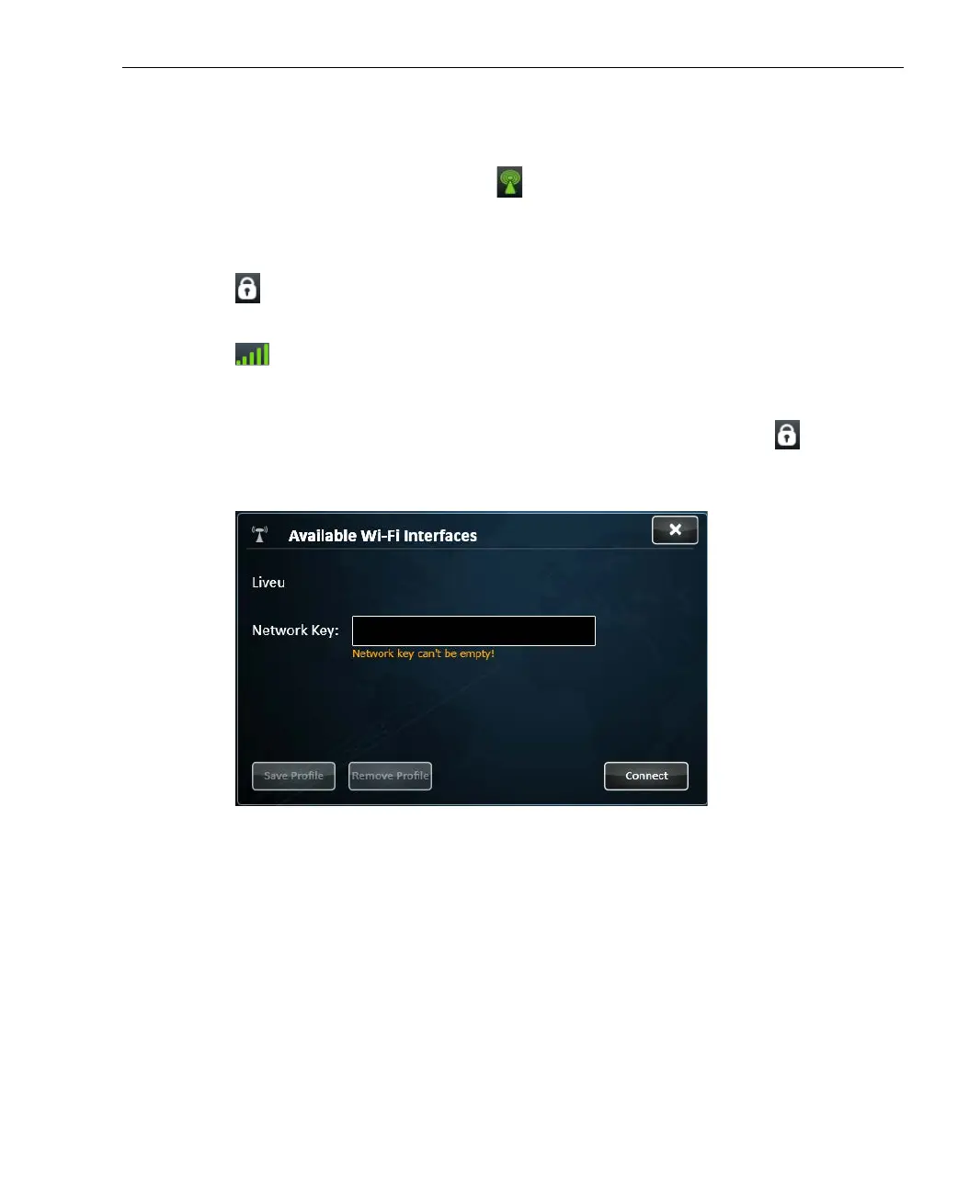
• Profile Window: Tap on any Wi-Fi network row that has an icon to
display the following window in which you can enter the Network Key
(password) that enables access to this Wi-Fi network.
Figure 60: Wireless Network Key
Once you click the Save Profile button, this Wi-Fi network is saved along
with its profile, meaning its Network Key. You can tap the Connect button
after you enter the Network Key to attempt to connect to that Wi-Fi
network immediately.
Tapping the Remove button, removes the Network Key that you defined
here and the definition of this Wi-Fi network. This means that you will have
to reenter the network’s password to connect to it.



 To Next Page