4To ungroup objects
1. Select the objects to be ungrouped.
2. From the Edit menu, click UnGroup or click the UnGroup icon from the Manager toolbar.
3. All objects within the group can now be copied, deleted, or moved separately.
Layering Ob jects
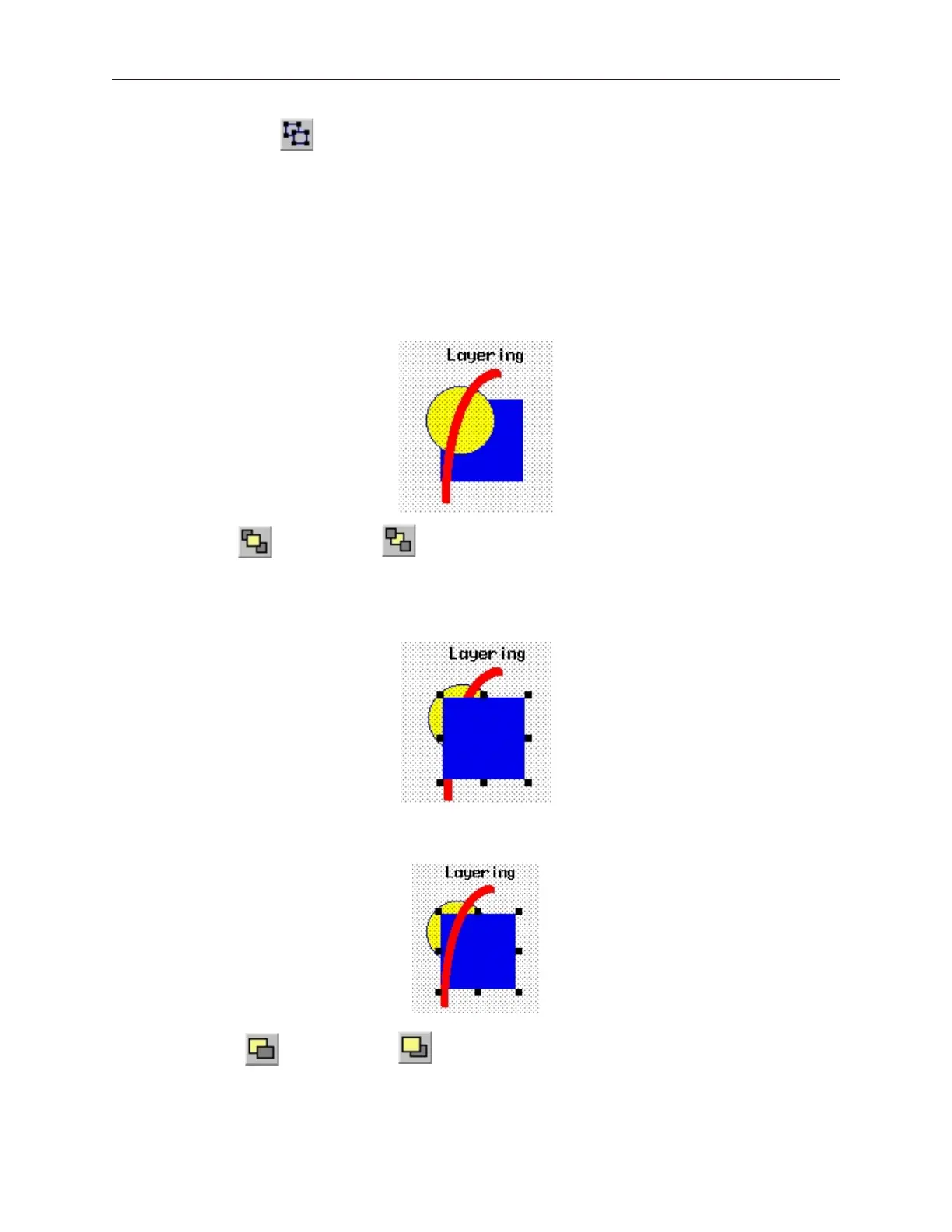
Graphics objects can be overlaid upon each other. When ‘layered’ the graphics object on the topmost layer will be
completely seen. How much of the other graphics objects are seen depends on what is on top of them. The
following layer commands help to position the overlaid objects exactly how you want them. To better illustrate how
layering works we will use a rectangle object, a circle object and an arc object that are overlaid on each other in
Window_12 of the sample project.
4Using the top and bottom layer commands
1. Select one of the layered objects. In this example, select the layered rectangle from
Window_12.
2. From the Edit menu, click Layer, then TopLayer or click the TopLayer icon from the
Manager toolbar. Note that the rectangle completely overlaps the circle and the arc.
3. From the Edit menu, click Layer, then BottomLayer or click the BottomLayer icon from
the Manager toolbar. Note that the rectangle recedes behind the circle and the arc.
4Using the next and previous layer commands
1. These two commands can move an object through the various layers of other objects.
2. Select one of the layered objects. Again, select the layered rectangle from Window_12.
1010-1001a, Rev 02
50 Sil ver Se ries In stal la tion & Op er a tion Man ual



 To Next Page