User Manual for the Meca500 Industrial Robot (for rmware 10.1) 33
THE MECAPORTAL
icon. The messages, which all start with a unique four-digit code enclosed in brackets, are explained
in the Programming Manual.
The control buttons at the bottom of the event log panel are self-explanatory:
Clear the event log
Insert a text bookmark
Toggle the word wrapping
Toggle the listing of new request commands (robot responses are always listed)
Detailed robot logs can also be downloaded as a single text file from the configuration menu, .
6.6. The 3D view panel
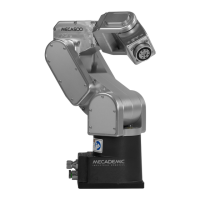
The 3D view window shows a perspective projection of the robot in its current position, as well as the
current WRF (World Reference Frame) and TRF (Tool Reference Frame). To zoom in and out, place your
mouse cursor over the 3D view window and use your mouse wheel. To change the view angle, press
the primary mouse button (if the button is highlighted) or the secondary mouse button (if the
button is highlighted) inside the 3D view window, hold it down and drag the mouse. To pan, press the
primary mouse button (if the button is highlighted) or the middle mouse button (if the button is
highlighted) inside the 3D view window, hold it down and drag the mouse. You can also select one of
several preset views from the menu.
Finally, you can show/hide the TRF, WRF, or the floor, and switch between perspective and orthographic
projection from the menu. You can also download a high-resolution screen capture of the current 3D
view by pressing the button.
6.6.1 The robot position display
As soon as the MecaPortal appears, the current robot position appears at the top of the 3D view panel.
By default, we show:
• the six joint angles (θ
1
, θ
2
, θ
3
, θ
4
, θ
5
, θ
6
), in degrees,
• the position and orientation (in the XY'Z'' Euler angle convention) of the TRF with respect to the
WRF, in mm and degrees, respectively, and
• the robot configuration parameters.
One of the main limitations, when operating a robot, is its joint limits, which are different for each joint.
We have therefore added various visual cues (patent pending), that represent the approximate joint
position, relative to the corresponding joint limits. These cues are the up-pointing triangles under each
joint position text field. The horizontal position of each triangle relative to the left and right limits of the
corresponding text field, is proportional to the position of the corresponding joint relative to the joint
limits. Furthermore, when the joint position is within 5 degrees of the joint limit, the corresponding text
field is highlighted in yellow, while if the joint limit is attained, the text field turns red. Similarly, when
the angle of joint 3 is close to or equal to 72.429° (elbow singularity), or the angle of joint 5 is close to or
equal to 0° (wrist singularity), the corresponding text field is highlighted in yellow. Finally, then the wrist
center point is too close to or lies on the axis of joint 1 (shoulder singularity), the text fields of joints 2, 3,


 To Next Page