8 Logging
41
6. Press the 'P' key again.
Ê If an output medium has yet to be chosen, the display will
show the Log output - No output medium notification.
7. Navigate using the '+' or '-' key until the display shows Output
medium Computer.
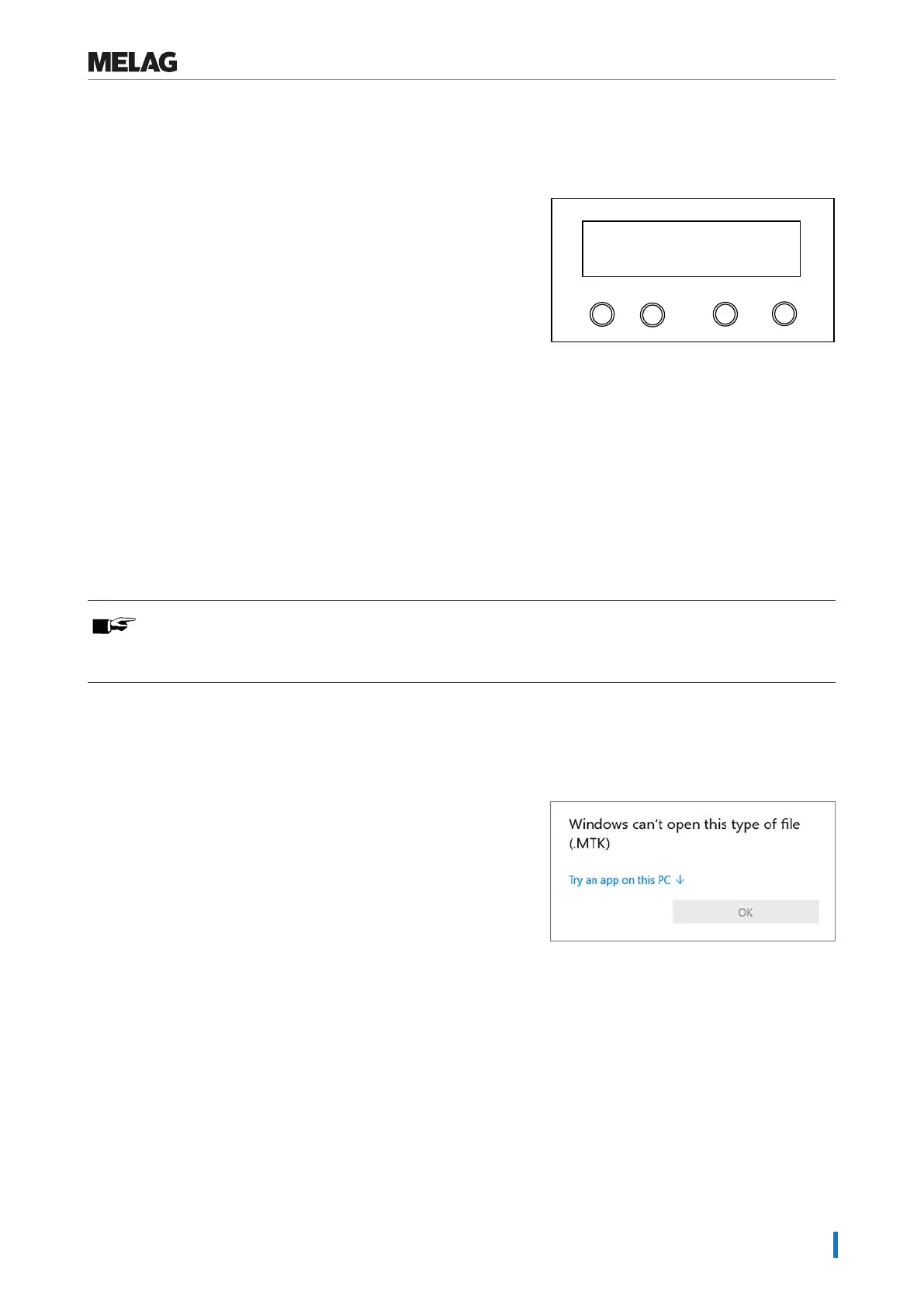
Programm
Start-Stop
-
+
Output medium
Computer
8. Press the 'P' key to confirm.
Ê The display switches back to the submenu Log output:
Output medium.
9. Press the 'S' key to return to the menu Function: Log
output.
10. After repeated pressing of the 'S' key, the display returns to its
initial state.
Opening text logs on the computer
All text logs can be opened and printed using a text editor, a word processing program or a spreadsheet program.
PLEASE NOTE
Graphic logs can only be displayed with the MELAtrace/MELAview (from MELAview3) documentation
software.
Each text log (e.g. .PRO, .STR, .STB etc.) must be linked with the text editor to enable the operating system of your com-
puter to open them automatically with a text editor. The meanings of the endings are outlined in the section Subsequent
log output [}page43]. The following examples show how you can link the Windows 10 editor with a specific text log.
1. In Windows Explorer double click on the log file.
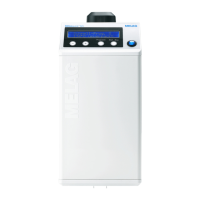
2. If the file ending is unfamiliar, Windows 10 will display the following
message:
3. Select “Try an app on this PC”.


 To Next Page