94
Note: GPIO is subject to change as it is currently disabled and under development.
9. Each Monitor can be configured to receive a Talkback or not. Configure your Monitor by going
to Settings>Monitors and select the Monitor you wish the talker to communicate with.
10. In the example here the Engineer is using the Talkback built-in microphone to communicate
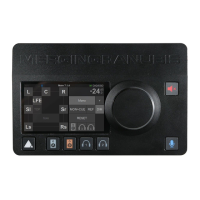
with a Musician or technician that would be monitoring the Headphones 2. So, let’s open the
Phone 2 Monitor settings.
11. At the bottom of the Monitor settings (Phone 2) find the Talk A and B settings. Select which
one of the Talkbacks will communicate to this Monitor. If a Talk is set to None it will prevent a
Talkback from communicating to the monitor.
For details on the Sources Dim and Talker Dim refer to the Manuel Talkback settings description.
Note: You can enable up to 2 talkbacks for a chosen Monitor set.
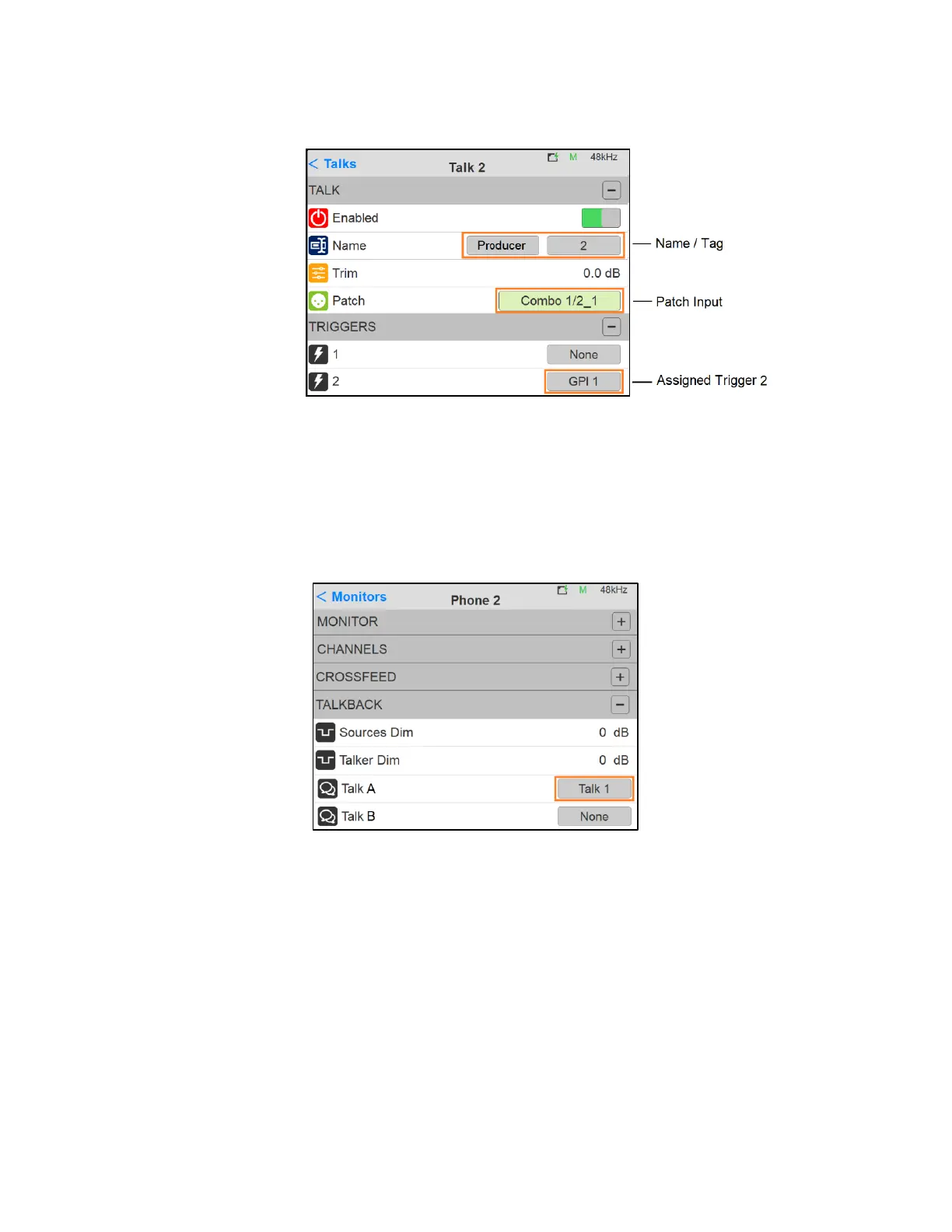
12. Configure your second Monitor set to use the Talkback using Talk B. If you wish to use a
second RAVENNA/AES67 device, first make the connection in ANEMAN, and then patch Talk 2.
You are now ready to communicate using the Anubis Talkback


 To Next Page