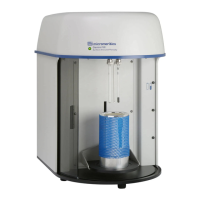
Starting an Analysis AccuPyc II 1340
4-4 June 2013
Starting an Analysis
Before you start your analysis, be sure you have:
• specified analysis and report parameters, refer to pages 3-11 and 3-14
• prepared and loaded your sample, page 4-2
The prompts that display for an analysis depend on the options you choose in Set Up >
Analysis Parameters and Report Options; therefore, your analysis may not display all of the
prompts referenced in this procedure.
1. Press
Alt + 4; the Sample ID prompt is shown; enter an appropriate identification. You
can enter up to 20 numbers and dashes; press
. (decimal) to insert a dash.
2. Press
ENTER; the Description prompt is displayed. You can enter up to 20 numbers and
dashes on each line; press
. (decimal) to insert a dash.
Most users display this prompt only when a computer keyboard is attached to the
pycnometer.
3. Press
ENTER; the Sample mass prompt is displayed if you have chosen Density at the
Anls display mode prompt in Set Up > Report Options. Enter the mass (weight) of your
sample.
If you have an analytical balance connected to the RS232 port, press the appropriate
button on the balance to transfer the sample mass while this prompt is displayed.
4. Press
ENTER; the Chamber insert prompt is displayed if you are using an insert. Press
CHOICE until the appropriate insert is displayed.
5. Press
ENTER to choose the insert.
6. Press
ENTER to begin the analysis; operational status messages display during analysis.
7. When the analysis has finished, the pycnometer beeps three times and the display returns
to the Reload prompt.
8. Be sure the pressure reads approximately 0 (zero) on the display, then remove the cell
chamber cap and remove the sample from the chamber.
9. Replace the cell chamber cap, or load another sample.
Do not remove the cell chamber cap when the pycnometer is pressurized. Sample may
be discharged from the chamber.



 To Next Page
 Loading...