EasyManua.ls Logo

Micromeritics TriStar II 3020 - User Manual

Default Icon
439 pages
Print Icon
To Next Page IconTo Next Page
Loading...
TriStar
®
II 3020
Operators Manual
V3.00
302-42828-01
Dec 2013

Table of Contents

Other manuals for Micromeritics TriStar II 3020

Questions and Answers

  • C
    Carolyn GarciaAug 4, 2025
    What to do if Micromeritics TriStar II 3020 Measuring Instruments sample is not within specifications?
    • R
      Richard MooreAug 4, 2025
      If your Micromeritics Measuring Instruments sample is not within specifications, there might be a leak in the manifold. You can refer to Inspecting and Changing Vacuum Pump Oil, page 9-7. Another cause could be contaminated gas. You can perform a blank analysis; if the results are good, perform a reference material analysis. You may need to replace the tank. Check for line leaks that could cause contamination and flush the lines occasionally to prevent contamination. Also, ensure the gas line is all metal, preferably the one shipped with the instrument. Avoid polymer gas lines or flexible gas lines that may be internally coated with a polymer.
  • B
    barnesyvetteAug 10, 2025
    Why is the vacuum pump noisy in Micromeritics TriStar II 3020 Measuring Instruments?
    • N
      narnoldAug 10, 2025
      A noisy vacuum pump in Micromeritics Measuring Instruments can be due to several reasons. It could be that the sample tube connector is loose, in which case you should tighten the fitting and replace the O-ring. Alternatively, the sample tube O-ring might be worn or cracked, requiring replacement; refer to Replacing the Sample Tube O-ring, page 9-6. A cracked sample tube should also be replaced. If no sample tube is loaded on a selected port, install a plug or an empty sample tube. Finally, the gas inlet valve might be open while the vacuum valve is also open; with manual control enabled, use the instrument schematic to close the gas inlet valve.
  • A
    anthony42Aug 18, 2025
    What to do if analysis valves cannot be operated in Micromeritics TriStar II 3020 Measuring Instruments?
    • H
      Heather WilkersonAug 18, 2025
      If the analysis valves on your Micromeritics Measuring Instruments cannot be operated, ensure the cable from the computer to the instrument is connected properly. A loose connection can prevent the valves from functioning.
  • R
    Robert WalkerAug 26, 2025
    What to do if analysis Dewar cannot be raised (or lowered) in Micromeritics Measuring Instruments?
    • L
      Laura HernandezAug 26, 2025
      If the analysis Dewar on your Micromeritics Measuring Instruments cannot be raised or lowered, check for any obstructions that may be hindering the movement of the elevator that moves the Dewar.

Summary

1. GENERAL INFORMATION

Conventions

Defines icons and formatting used to identify notes, warnings, and cautions throughout the manual.

Equipment Description

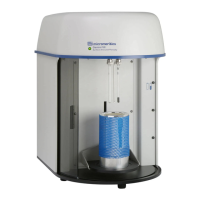
Provides a general description of the TriStar II 3020 analyzer, its features, and capabilities.

2. USER INTERFACE

Instrument Components and Connectors

Details the various physical components and connection points of the analyzer.

Turning the Analyzer On and Off

Explains the procedure for powering the analyzer system on and off.

3. OPERATING PROCEDURES

Specifying Sample Defaults

Covers how to specify default parameters for sample and parameter files in different formats.

Defining Sample Information Files

Details the process of creating and defining sample information files for analysis.

Preparing for Analysis

Outlines the tasks required to properly prepare the analyzer and samples for an analysis.

4. SOFTWARE AND SETUP MODIFICATIONS

Installing the Software

Provides step-by-step instructions for installing the TriStar II 3020 software on a computer.

Adding an Analyzer

Guides users through the process of adding a new analyzer to the system.

Moving an Analyzer from One PC to Another PC

Explains how to transfer an analyzer configuration from one computer to another.

5. FILE MENU

Sample Information Files

Details how to create, open, and manage sample information files.

Report Options Files

Explains how to specify and customize report options for analysis results.

Converting Files

Describes how to convert StarDriver files to sample information files.

6. UNIT MENU

Sample Analysis

Guides users on scheduling and performing sample analyses.

QuickStart Analysis

Explains how to perform rapid analyses with default conditions.

Blank Analysis

Details how to perform a blank analysis for diagnostic purposes.

7. REPORTS MENU

Start Report

Instructions on generating reports based on sample analysis data.

Regression Report

Explains how to generate SPC regression reports to analyze variable dependencies.

Heat of Adsorption Report

Describes how to generate reports for isosteric heat of adsorption.

8. OPTIONS MENU

Sample Defaults

Covers specifying default parameters for sample and report option files.

Units

Explains how to specify data display units on application windows and reports.

Graph Grid Lines

Details how to select the appearance of grid lines on reports.

9. TROUBLESHOOTING AND MAINTENANCE

Troubleshooting

Lists common operational problems, their causes, and solutions.

Preventive Maintenance

Outlines recommended preventive maintenance procedures for the analyzer.

Replacing Port Filter (Frit) and O-ring

Provides instructions for replacing port filters and O-rings to maintain system integrity.

10. ORDERING INFORMATION

Analyzer Optional Equipment

Lists optional equipment available for the analyzer system.

Sample Tubes and Accessories

Lists various sample tubes and their associated accessories.

Vacuum Pump and Accessories

Lists vacuum pumps and related accessories for the system.

C. CALCULATIONS

Relative Pressure Calculations

Details the calculations for determining relative pressure based on measured or entered Po values.

Free Space

Explains methods for determining and calculating free space in the sample tube.

BET Surface Area

Presents the calculations for determining BET surface area and related parameters.

D. ETHERNET CONFIGURATION

Windows 7

Provides instructions for configuring the Ethernet port on Windows 7 systems.

Windows Vista

Provides instructions for configuring the Ethernet port on Windows Vista systems.

E. FREE SPACE CORRECTION

Measure

Describes the automatic method for determining free space, which is preferred for accuracy.

Calculate

Explains the rapid method for compensating for free space using blank analysis data.

F. DFT MODELS

Theoretical Background

Explains traditional and molecular-based adsorption theories.

Non-Local Density Functional Theory with Density-Independent Weights

Describes models for slit-like pore geometry using density-independent weights.

Kelvin Equation with Halsey Thickness Curve

Details the use of the Halsey equation for thickness calculations in Kelvin analysis.

G. MAINTAINING HIGH PURITY GASES

Purge Method

Describes the preferred method for removing trapped air from gas lines.

Evacuation Method

Details an alternative method for removing trapped air using evacuation.

1 ABOUT THE SMART VACPREP

Specifications for the Smart VacPrep

Lists the design and tested specifications of the Smart VacPrep degasser.

Smart VacPrep Components Table

Provides a list of Smart VacPrep components and their descriptions.

2 ABOUT THE SMART VACPREP SOFTWARE

ADD OR REMOVE A SMART VACPREP

Guides on adding or removing Smart VacPrep units from the analyzer software.

Smart VacPrep Configuration

Displays the Smart VacPrep configuration and software versions.

3 OPERATE THE SMART VACPREP

BACKFILL THE SMART VACPREP PORTS

Explains how to backfill Smart VacPrep ports with gas.

QUICKSTART DEGAS CONDITIONS

Covers entering common degas conditions without a sample file.

START SMART VACPREP DEGAS

Allows simultaneous degassing of up to six samples.

4 SMART VACPREP CALIBRATION

SMART VACPREP PRESSURE OFFSET

Describes how to calibrate the system and zero pressure transducers.

SMART VACPREP SERVO VALVE CALIBRATION

Guides on calibrating the servo valve to the manifold pressure transducer.

5 SMART VACPREP DIAGNOSTICS

DIAGNOSTIC TEST REPORT FOR SMART VACPREP

Explains how to display previously run diagnostic tests.

SCHEDULE SMART VACPREP DIAGNOSTIC TEST

Allows specification of one-time or periodic running of diagnostic tests.

6 MAINTENANCE AND TROUBLESHOOTING

ENABLE MANUAL CONTROL FOR SMART VACPREP

Explains how to enable manual control of system valves and elevator components.

REPLACE THE SMART VACPREP FUSE

Provides instructions for replacing the Smart VacPrep fuses.

SAMPLE TUBE INSTALLATION ON THE SMART VACPREP

Details the process of installing sample tubes onto the Smart VacPrep.

7 PARTS AND ACCESSORIES FOR THE SMART VACPREP

Heating Mantle and Accessories

Lists heating mantles and related accessories for sample preparation.

Sample Tubes and Accessories

Lists various sample tubes and their associated accessories.

8 ERROR MESSAGES

4407

Error message for issues with reading the registry during Smart VacPrep search.

4409

Error message for failing to find a free IP address on the network subnet.

4412

Error message indicating issues with servo calibration results.

Micromeritics TriStar II 3020 Specifications

General IconGeneral
ModelTriStar II 3020
TypeSurface Area and Porosity Analyzer
Analysis Ports3
Transducer Accuracy0.15% of reading
Analysis MethodStatic Volumetric
Measurement PrincipleGas adsorption
Degas Stations3
Analysis Stations3
Power Requirements100-240 VAC, 50/60 Hz
TechnologyGas Adsorption
Adsorptive GasesNitrogen, Argon, Carbon Dioxide
Vacuum SystemInternal vacuum pump
BET Surface Area0.01 m²/g and above
Pore Size Distribution3.5 Å to 5000 Å
Analysis TypesBET, BJH, Langmuir, DFT
Surface Area Range0.01 m²/g to no upper limit
Pore Size Range3.5 to 5000 Å
Adsorbate GasesNitrogen, Argon, Carbon Dioxide
Data Reduction ModelsBET, Langmuir, BJH, DFT
SoftwareTriStar II Software
Dimensions56 cm
Sample Capacity3 samples
Analysis Range0.01 m²/g to no upper limit
Data OutputDigital

Related product manuals