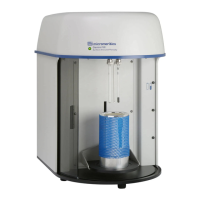
TriStar II 3020 Using the Software
302-42828-01 - Dec 2012 2-5
Turning the Analyzer Off
It is recommended that the analyzer be powered on at all times. If it does become necessary to turn it
off, perform the following steps:
1. Select File >
Exit (or use the Alt+F4 keyboard shortcut).
If an analysis is in progress, the following message is displayed:
Select Yes and the analysis program closes. The analysis continues and data continue to be
collected. Queued reports under the print manager will print. If a power failure occurs and an
uninterruptible power supply (UPS) is not attached to the analyzer, the data collected after exiting
the analysis program are lost.
2. Place the computer, monitor and printer ON/OFF switches in the OFF position.
3. Place the analyzer ON/OFF switch in the OFF position.
Using the Software
The analysis program operates in the Windows environment and requires familiarity with standard
Windows operations, for example, using the mouse, menus and dialog boxes. While this manual pro-
vides brief instructions for such standard operations, if necessary, refer to Windows documentation or
its online help system to clarify any Windows functions.
Shortcut Menus
Shortcut menus are available for:
• the instrument schematic when Manual Control is enabled. Refer to Enable Manual Control, page
6-8.
• onscreen graphs and tabular reports. Refer to Report Shortcut Menus, page 7-17.
Always exit the analysis program before turning off the computer. Failure to do so
could result in loss of data.
2459- An Instrument is busy. A delay in restarting this
application could result in loss of new data. Continue
program exit?
Yes No



 To Next Page
 Loading...