OM-281426 Page 43
F
Complete Parts List is available at www.MillerWelds.com
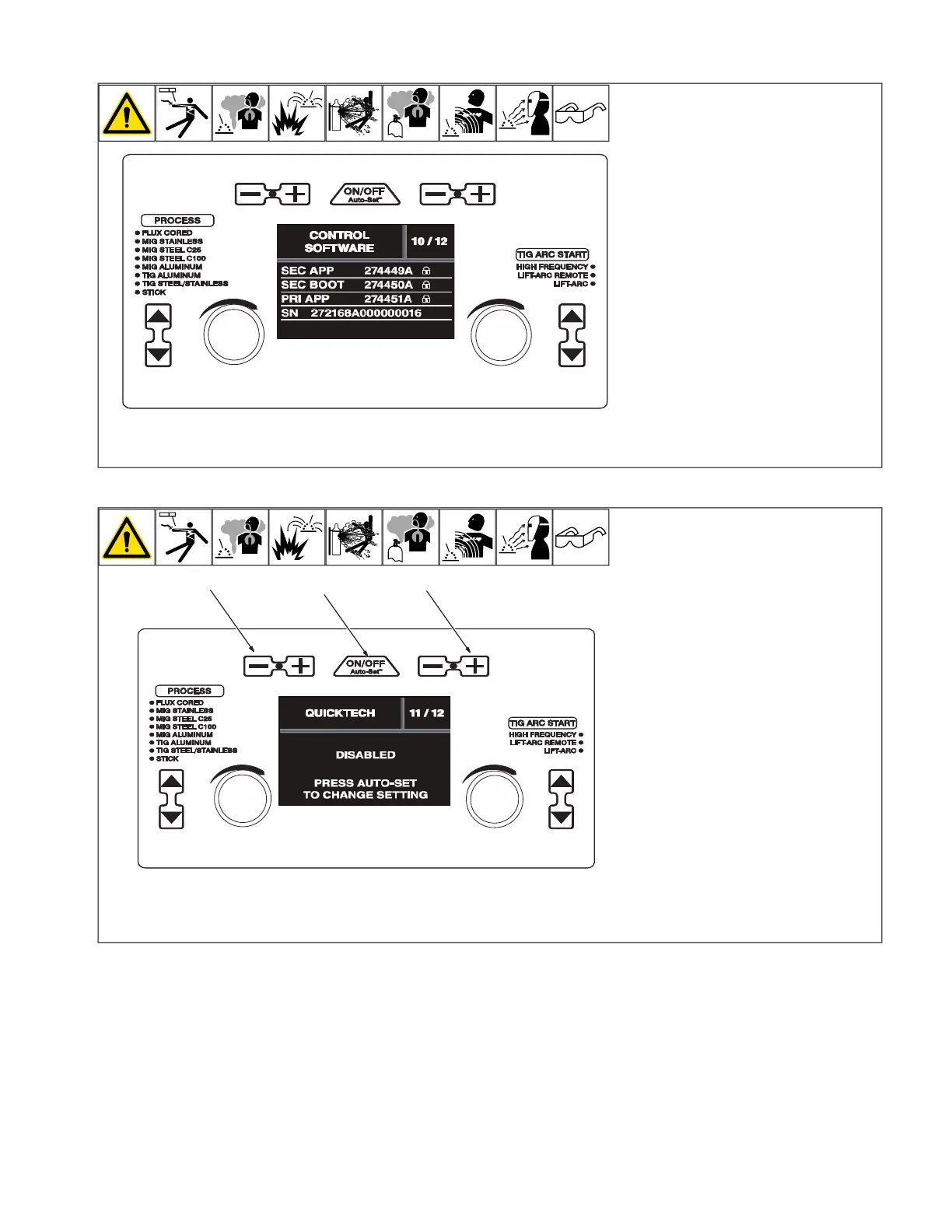
6-18. Control Software (Menu 10 Of 12)
A complete Parts List is available at www.MillerWelds.com
OM-281426 Page 32
3-18. Control Software (Menu 10 Of 12)
Ref. 281252A
Ref. 281252A
1
2
3
F
Control Software information is for fac-
tory and service use only. The displays
that are shown are for reference only.
Follow instructions in Section 6-8 to enter
the setup menu.
To exit menu, simultaneously press and re-
lease the Wire/Rod/Tungsten Minus (-) but-
ton and Material Thickness Plus (+) button,
or turn unit off and on.
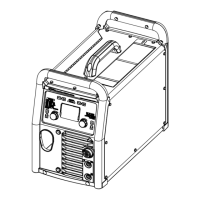
6-19. QuickTech
™
(Menu 11 Of 12)
A complete Parts List is available at www.MillerWelds.com
OM-281426 Page 32
3-18. Control Software (Menu 10 Of 12)
Ref. 281252A
Ref. 281252A
1
2
3
1 Wire/Rod/Tungsten Minus (-) Button
2 Auto-Set Button
3 Material Thickness Plus (+) Button
Follow instructions in Section 6-8 to enter
the setup menu.
To enable or disable QuickTech
™
, press the
Auto-Set button.
QuickTech automatically selects the right
process and polarity. Just hit the trigger or
foot control and the machine automatically
switches to the correct process recalling the
last process settings used.
To exit menu, simultaneously press and re-
lease the Wire/Rod/Tungsten Minus (-) but-
ton and Material Thickness Plus (+) button,
or turn unit off and on.



 To Next Page