6 Image Acquisition
Operator’s Manual 6 - 41
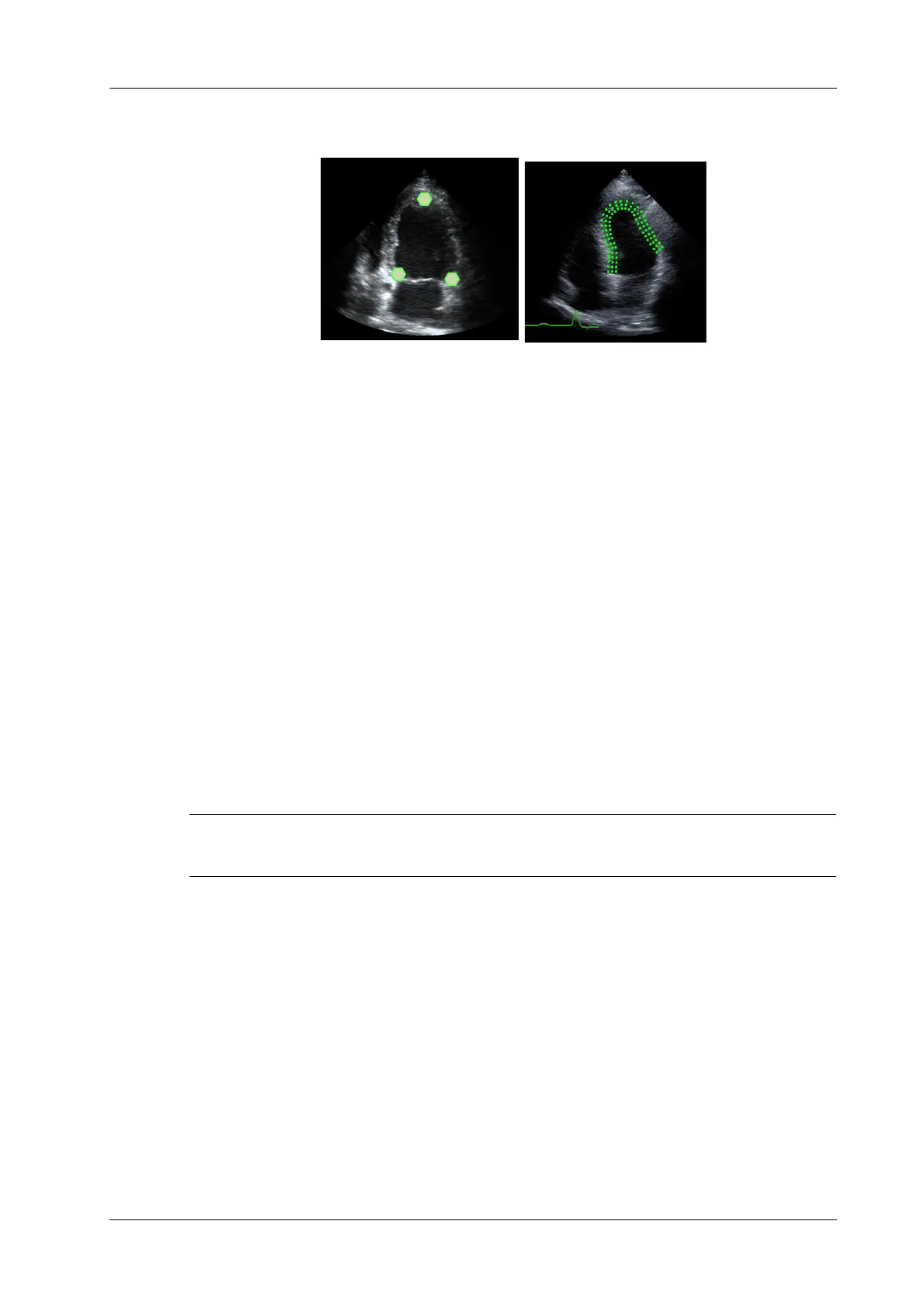
As shown in the following figure, after operation by tapping to place 3 points on the image, the
system generates the trace automatically.
• Manual trace method
Move the cursor along the boundary to add the trace points gradually, after trace is finished,
tap the cursor twice to finish tracing.
NOTE:
For the manual trace method, at least 6 points should be placed on the image. Taps the cursor
to make the traces on the image clockwise or anticlockwise, and the system generates the
trace automatically.
Retracing
If current trace is not satisfactory, tap [Reload] to clear the trace and to start another tracing.
Make fine adjustment to the trace
You can make fine adjustments to the trace after it is completed.
Perform the following procedure:
1. The system displays the cross cursor.
2. Move the cursor to the point to be adjusted, tap and drag the cursor to the correct boundary
position and tap the cursor to set the point to the correct position. And then the system displays
the point in the new position.
3. Repeat step 1~2 above to finish all points that need adjustment.
Under tracking status, tap [Edit] to enter the status.
6.21.5 Basic Operations of Smart TTQA
Switch among the operation controls
• [Start Tracking]: tap to start tracking.
• [Accept & Compute]: tap to start calculation and display the curve.
• [Exit]: tap to exit tissue tracking.
• [Parameter]: tap to select the curve type.
• [Bull’s Eye]: touch to turn on/off bull’s eye and peak data table.
• [Auto Play]: change the speed of the play.
View Selection
Before tracing, tap the corresponding button to select for the view.



 To Next Page