Preliminary
miniDSP Ltd, Hong Kong / www.minidsp.com / Features and specifications subject to change without prior notice 64
8.6.3 Saving and loading configurations
Configurations can be saved to and loaded from files. Each configuration is stored in a separate file. It is very
strongly recommended that each configuration programmed into the processor be saved to a file, to ensure that
the configuration is not lost if the processor is inadvertently reset.
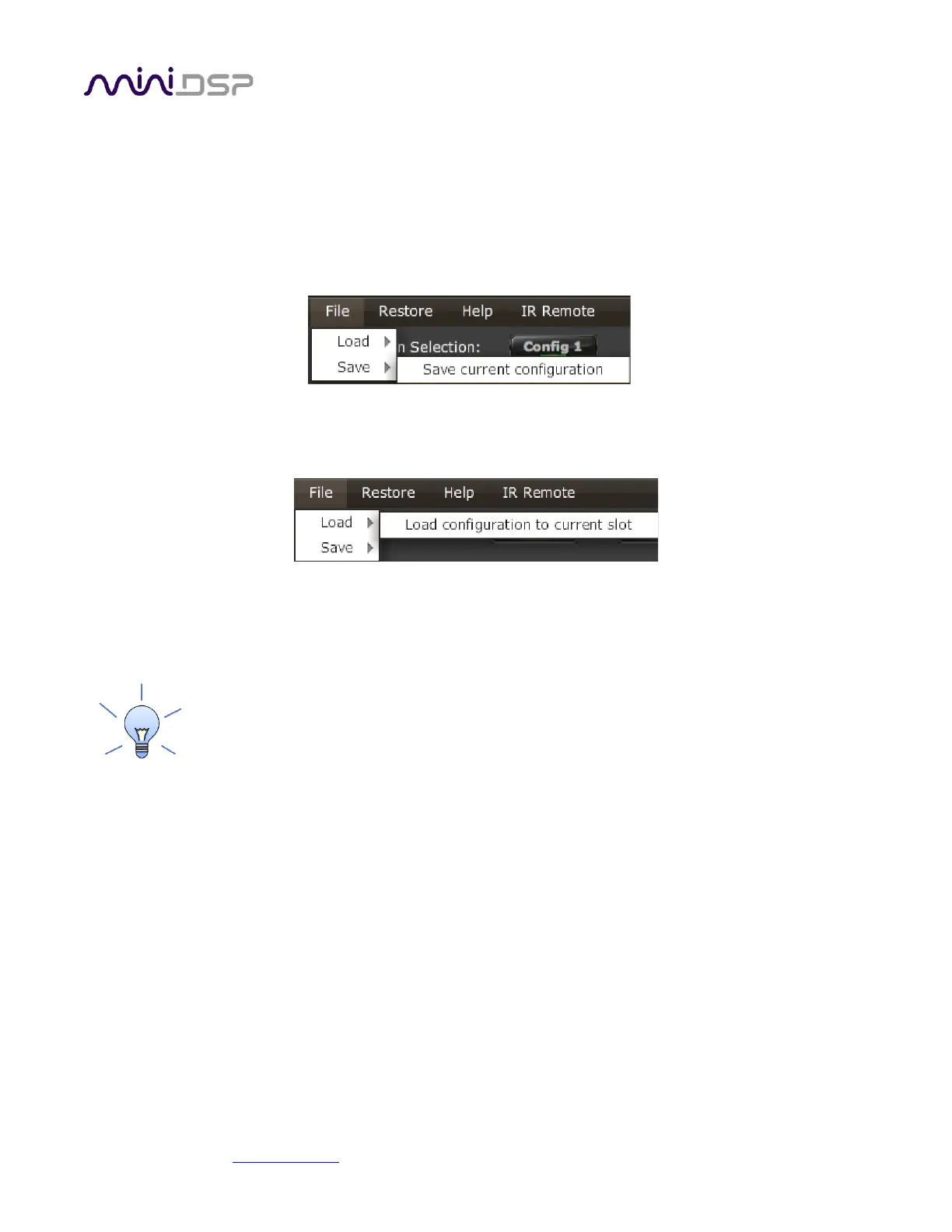
To save the currently selected configuration to a file, drop down the File menu, then select Save and then Save
current configuration. In the file box, select a location and name of the file, and save it.
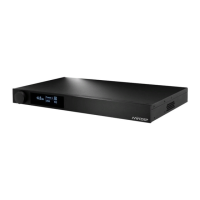
To load a configuration, first select the configuration preset that you wish to load into. Then drop down the File
menu, select Load, and then Load configuration to current slot.
If the plugin is connected, the new configuration data will be downloaded to the processor immediately.
Otherwise, the configuration will be loaded into the user interface only, and will be downloaded to the
processor the next time it is synchronized.
To copy a configuration from one preset to another, save the configuration to a file, then select
a different configuration preset and load the file.
8.6.4 Restoring to defaults
Configurations can be reset to the factory defaults from the Restore menu. There are two options:
Factory Default
Reset all four configuration presets to the factory default settings.
Current Configuration Only
Reset only the currently selected configuration preset to the factory default settings.
If the plugin is connected, the configuration data on the processor (all or just one configuration, as selected) will
also be reset to factory defaults. Otherwise, the reset will take place in the user interface only, and the new
configuration data will be downloaded to the processor next time it is synchronized.


 To Next Page