Preliminary
miniDSP Ltd, Hong Kong / www.minidsp.com / Features and specifications subject to change without prior notice 12
2 SOFTWARE INSTALLATION
This section describes how to install the miniDSP software that you will need to configure and operate the
miniDSP Flex:
1. The USB driver and control panel. This is needed only for Windows.
2. miniDSP-2x4-HD plugin. This software is used to configure the standard (non-upgraded) version of the
miniDSP Flex. It is also used to activate the optional Dirac live upgrade. There are separate versions for
Windows and Mac.
If you have purchased the optional Dirac Live upgrade, you will need to activate it on your Flex as described in
Section 7, Dirac Live.
2.1 DOWNLOAD THE MINIDSP SOFTWARE
If you purchased your processor directly from miniDSP, your software will be available from the User Downloads
section of the miniDSP website when your order ships. To access the download, you will need to be logged into
the website with the account you created when purchasing.
If you purchased your processor from a miniDSP dealer, you will receive a coupon together with the product.
Redeem this coupon at the link below:
• https://www.minidsp.com/support/redeem-coupon
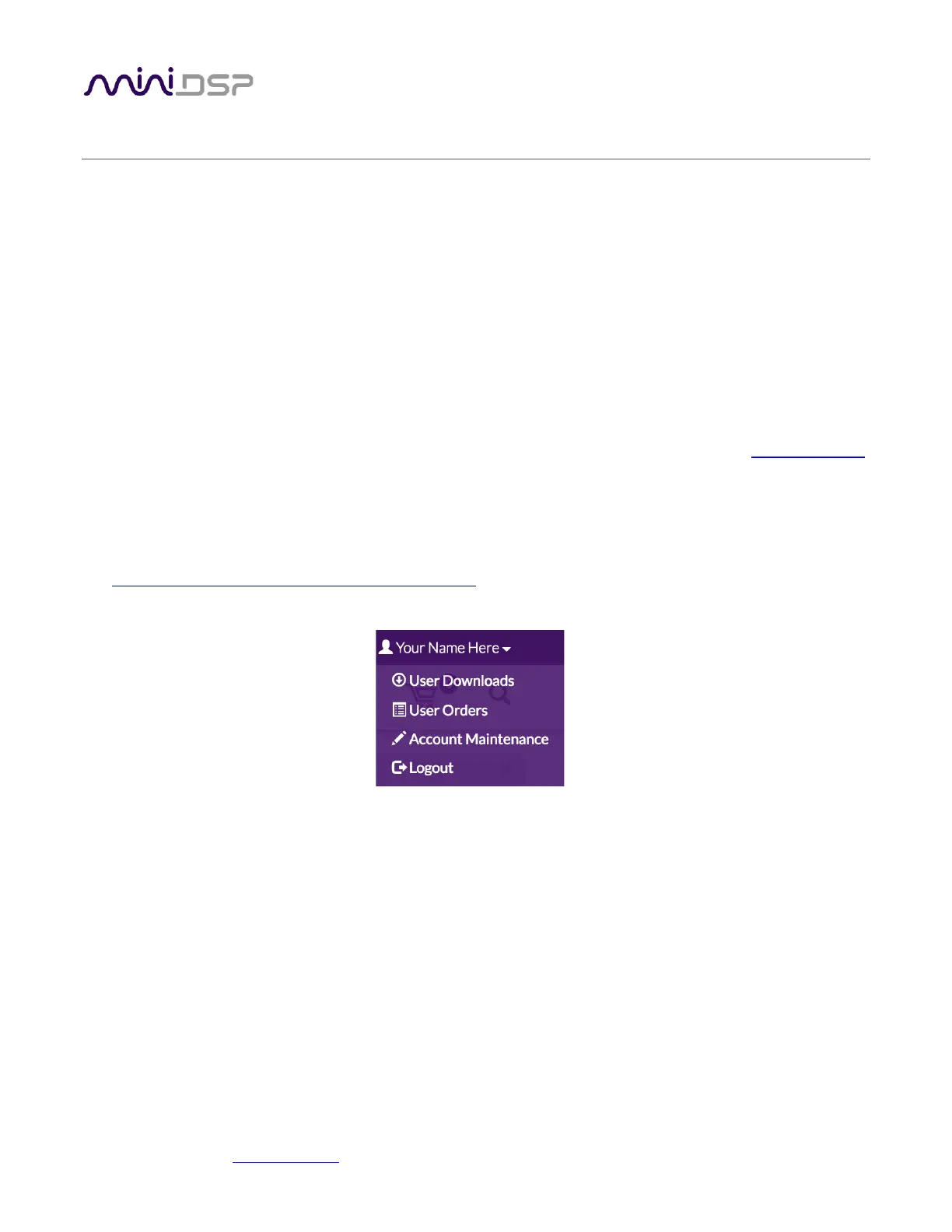
The User Downloads link is visible from the dropdown menu at the top right of the website:
Navigate to the miniDSP Flex section. Download the zip file under the heading miniDSP Flex.
After downloading, unzip the file (for Windows, right-click and select “Extract All...”; on Mac, double-click on it).
The unzipped download has a name like miniDSP2x4Flex_v1_01. (The version number embedded in the folder
name may be different.)


 To Next Page