Preliminary
miniDSP Ltd, Hong Kong / www.minidsp.com / Features and specifications subject to change without prior notice 43
7.2 SOFTWARE INSTALLATION FOR DIRAC LIVE
7.2.1 Download and install Dirac Live
Download the Dirac Live application for Windows or Mac from https://live.dirac.com/download/.
Windows
Double-click on the downloaded installer to run it. It will have a name like diraclive-v3.0.13-setup.exe. We
recommend that you accept the default installation settings. Do not run the application yet.
Mac
Double-click on the downloaded file to unzip it. Then double-click on the unzipped installer file to run it. It
will have a name like DiracLive v3.0.13 Setup Darwin.app. We recommend that you accept the default
installation settings. Do not run the application yet.
7.2.2 Install the DDRC-24 plugin
This procedure is the same as the initial plugin install, but you will install the DDRC-24 plugin instead:
1. Navigate to the DDRC-24 folder of the miniDSP software download.
2. Double-click on the plugin installer to run it. It will be named DDRC-24.exe (Windows) or DDRC-24.pkg
(Mac). We recommend that you accept the default installation settings. Do not run the plugin yet.
7.3 ACTIVATING DIRAC LIVE
If you purchase the Dirac Live upgrade from our webshop after your initial order of the Flex, you will need to
manually activate it using the steps below.
If you added Dirac Live to your order when you originally purchased the Flex, Dirac Live is already
activated on your Flex, and you do not need to do anything in this section.
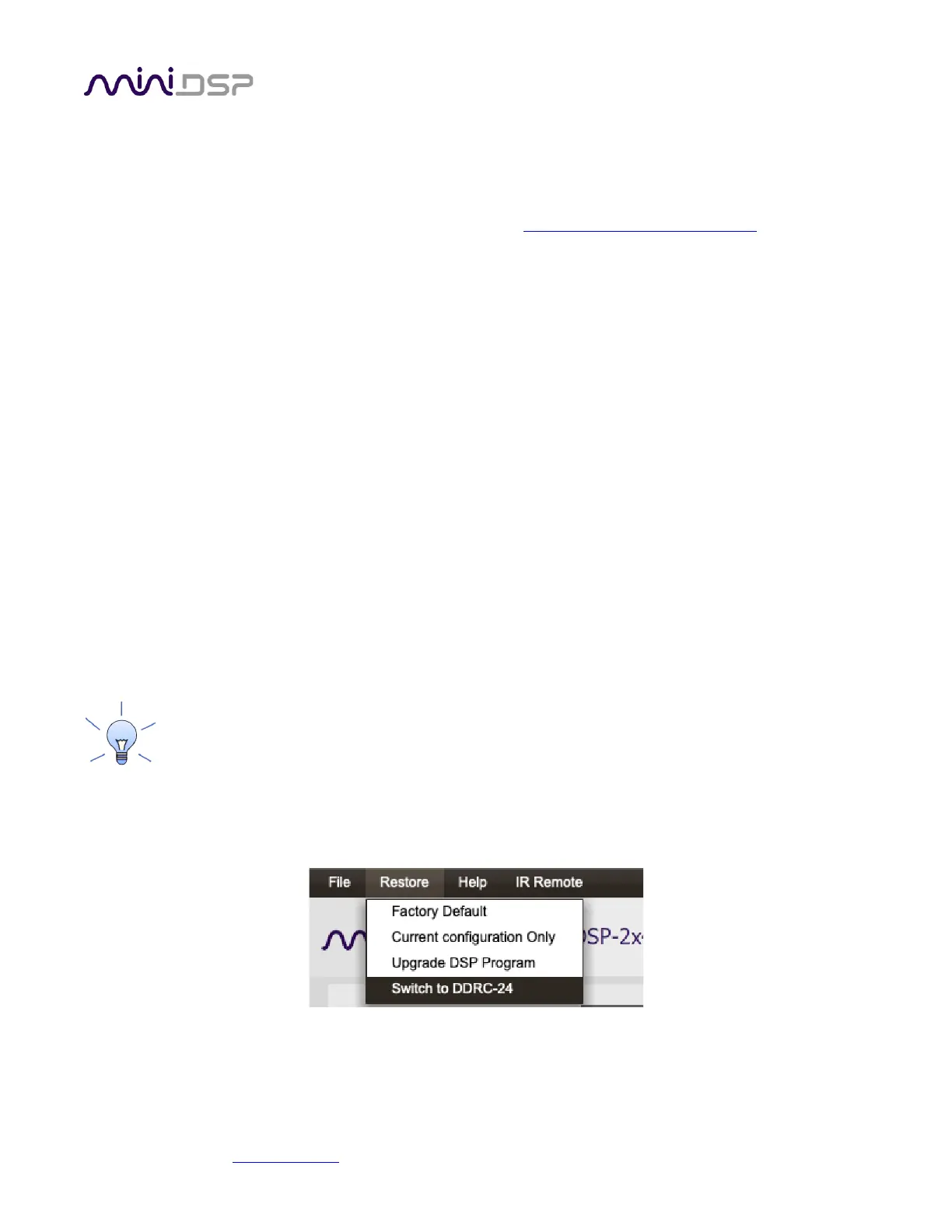
1. Start the miniDSP-2x4-HD plugin. (Make sure you start the miniDSP-2x4-HD plugin. The DDRC-24 plugin will
not work yet.)
2. Drop down the Restore menu and select “Switch to DDRC-24”:


 To Next Page