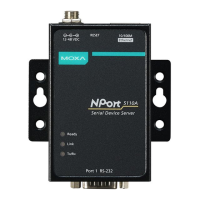
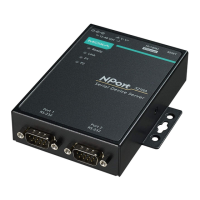
NPort 5100A Series Configuring NPort Administrator
2. The Broadcast Search window will open and display the Model, IP Address, MAC Address, and
Progress of the search for that particular device.
3. When the search is complete, the Broadcast Search window will close, and the NPort 5100As that were
located will be displayed in the right pane of the Administrator window. If you found more than one server
connected to this network, refer to the MAC address sticker on your server(s) to determine which server(s)
are the ones you wish to configure. To configure an NPort 5100A, place the cursor over the row displaying
that NPort 5100A’s information, and then double click the left mouse button.
ATTENTION
Before modifying
the NPort 5100A’s configuration, use Broadcast Search to locate all
NPort 5100As connected
to the LAN
, or use Specify by IP Address to locate a particular NPort 5100A.
Unlock Password Protection
If the NPort 5100A is password protected (indicated by “Lock” for Status), you will receive the following error,
and you will not be able to use the right click method to open the configuration page.
In this case, proceed as follows to “Unlock” the device server.
1. Select the NPort 5100A with “Lock” status, click the right mouse button, and then select Unlock.



 To Next Page
 Loading...