MX Series Voice Gateway User Manual
New Rock Technologies, Inc. 109
Step 1
Click
Tools
>
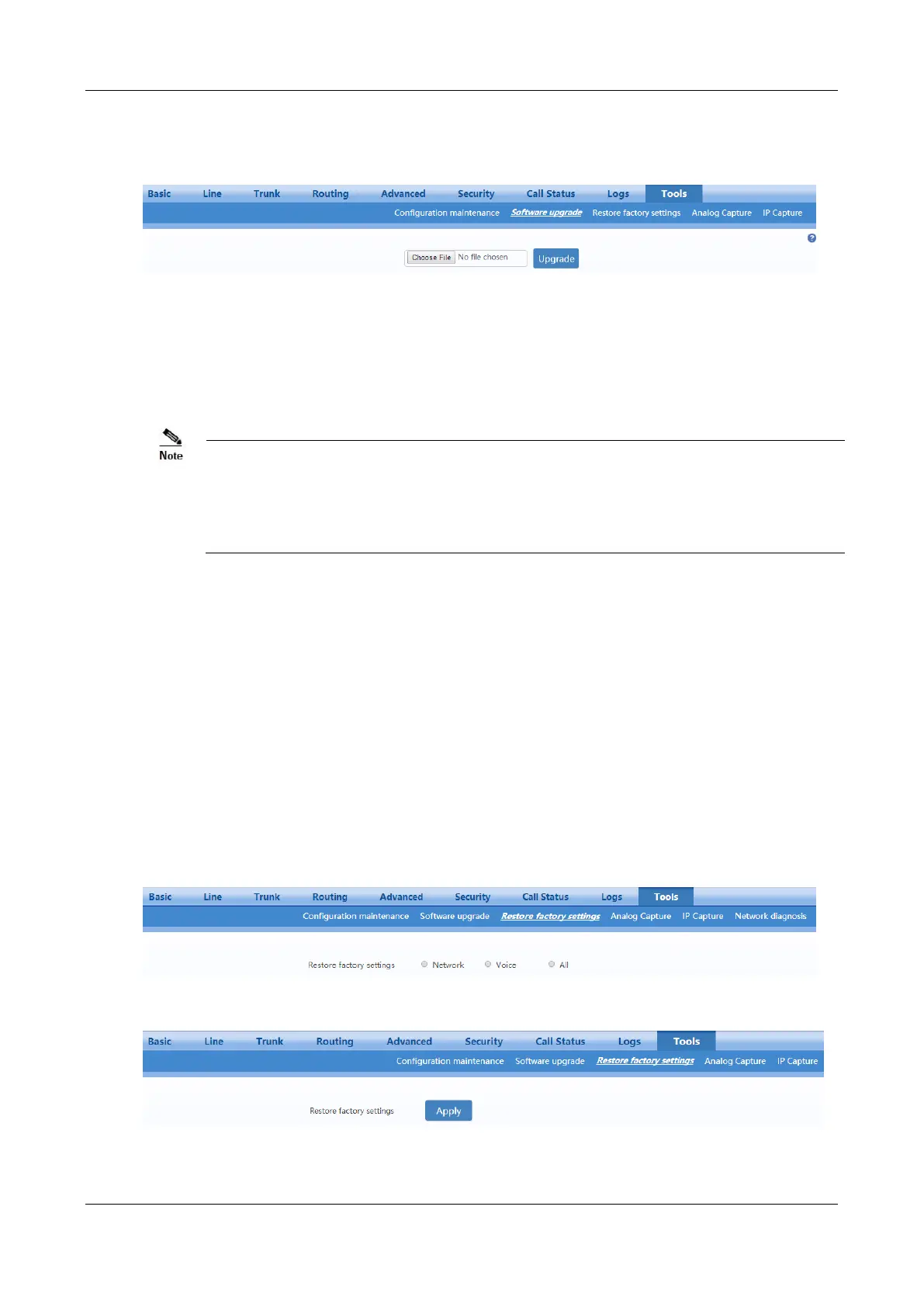
Software upgrade>Choose file
to choose a tar.gz file.
Figure 2-79 Upgrade Interface
Step 2
Click
Upgrade
.
Step 3
Follow prompts to complete the upgrade.
The device upgrade process may last for several minutes. Do not power off, disconnect (from the
network), or restart the device during the process. Otherwise, the system may be damaged, and the device
cannot be started.
After the upgrade is successful, the device automatically restarts. Access the gateway management system
interface again, click Info to view and check whether the software version is the upgrade target version.
2.10.3 Restore Factory Settings
After login, click Tools>Restore factory settings.
The factory settings are designed based on common applications, and therefore, there is no need to
modify them in many deployment situations.
For HX4E/MX8A, you can choose to restore network or telephony related factory settings, or both. For
MX60/MX60E/MX120G, only restoring both is available. Restoration takes effect after the system is
restarted.
Figure 2-80 Restore Factory Settings Interface (HX4E/MX8A)
Figure 2-81 Restore Factory Settings Interface (MX60/MX60E/MX120G)



 To Next Page