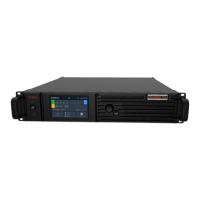
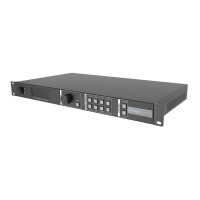
MCTRL660 PRO Independent Controller
User Manual
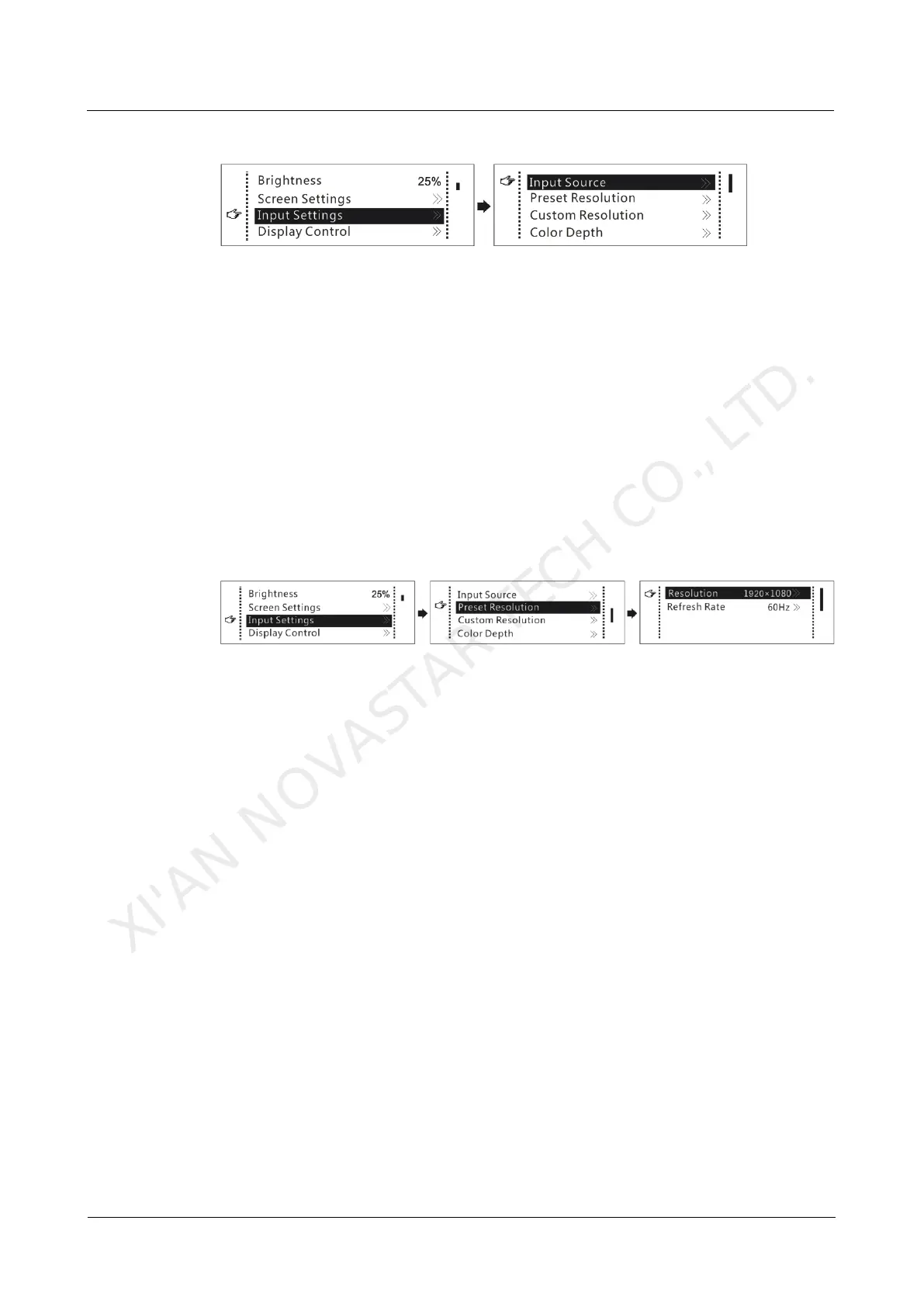
Figure 7-1 Input source settings
Step 1 On the home screen, press the knob to enter the menu.
Step 2 Chose Input Settings > Input Source to enter its submenu.
Step 3 Select the target video source and press the knob to enable it.
7.1.2 Step 2 Setting Input Resolution
Note: SDI input sources do not support input resolution settings.
The input resolution can be set through either of the following methods.
Method 1: Selecting a Preset Resolution
Select an appropriate preset resolution and refresh rate as the input resolution.
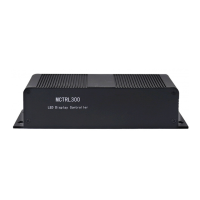
Figure 7-2 Preset resolution
Step 1 On the home screen, press the knob to enter the menu.
Step 2 Choose Input Settings > Preset Resolution to enter its submenu.
Step 3 Select a resolution and a refresh rate, and press the knob to apply them respectively.
The MCTRL660 PRO supports the following preset resolutions.
1024×768@(24/30/48/50/60/72/75/85/100/120)Hz
1280×1024@(24/30/48/50/60/72/75/85)Hz
1366×768@(24/30/48/50/60/72/75/85/100)Hz
1440×900@(24/30/48/50/60/72/75/85)Hz
1600×1200@(24/30/48/50/60)Hz
1920×1080@(24/30/48/50/60)Hz
1920×1200@(24/30/48/50/60)Hz
2560×960@(24/30/48/50)Hz
2560×1600@(24/30)Hz
Method 2: Customizing a Resolution
Customize a resolution by setting a custom width, height and refresh rate.
XI'AN NOVASTAR TECH CO., LTD.



 To Next Page