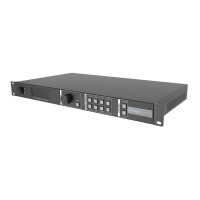
MCTRL660 PRO Independent Controller
User Manual
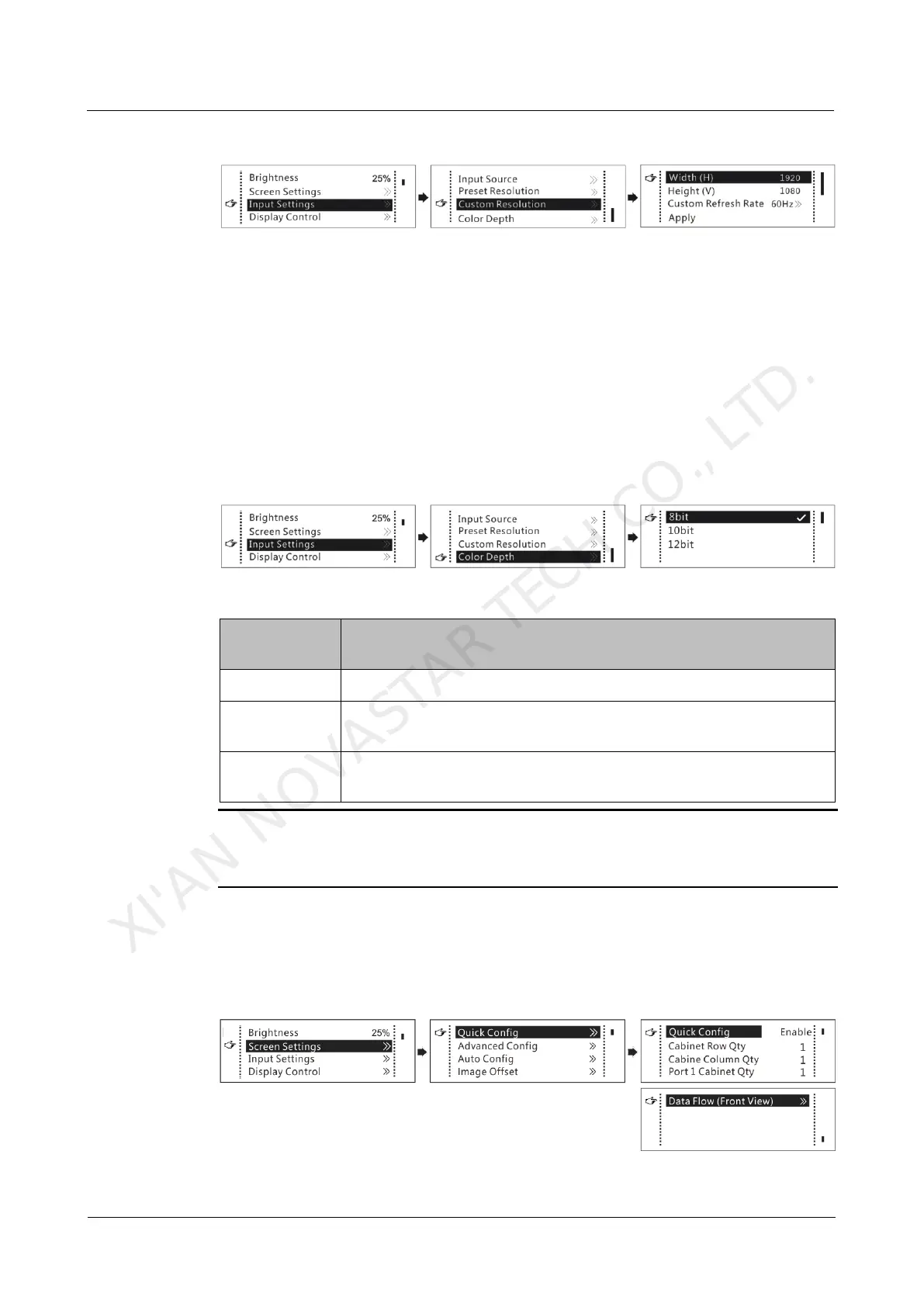
Figure 7-3 Custom resolution
Step 2 On the home screen, press the knob to enter the menu.
Step 3 Choose Input Settings > Custom Resolution to enter its submenu and set the
screen width, height and refresh rate.
Step 4 Select Apply and press the knob to apply the custom resolution.
7.1.3 Step 3 Setting Color Depth
Set the color depth of input source, including 8-bit, 10-bit and 12-bit.
Constraints: SDI video sources do not support color depth adjustment.
Figure 7-4 Color depth
Table 7-1 Input color depth adjustment
Color Depth of
Input Source
The loading capacity of the controller will not be reduced.
The loading capacity of the controller will be reduced by half. The
color depth must be set.
The loading capacity of the controller will be reduced by half. The
color depth must be set.
Note:
Video sources with different color depths support different input resolutions. For
details, see 2.2 Video Source Features.
7.1.4 Step 4 Quickly Configuring Screen
This function is used to quickly configure a screen.
Figure 7-5 Quick configuration
XI'AN NOVASTAR TECH CO., LTD.



 To Next Page