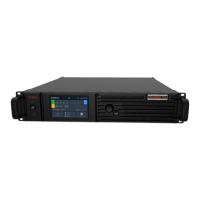
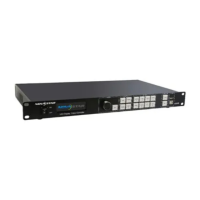
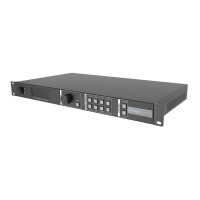
MCTRL660 PRO Independent Controller
User Manual
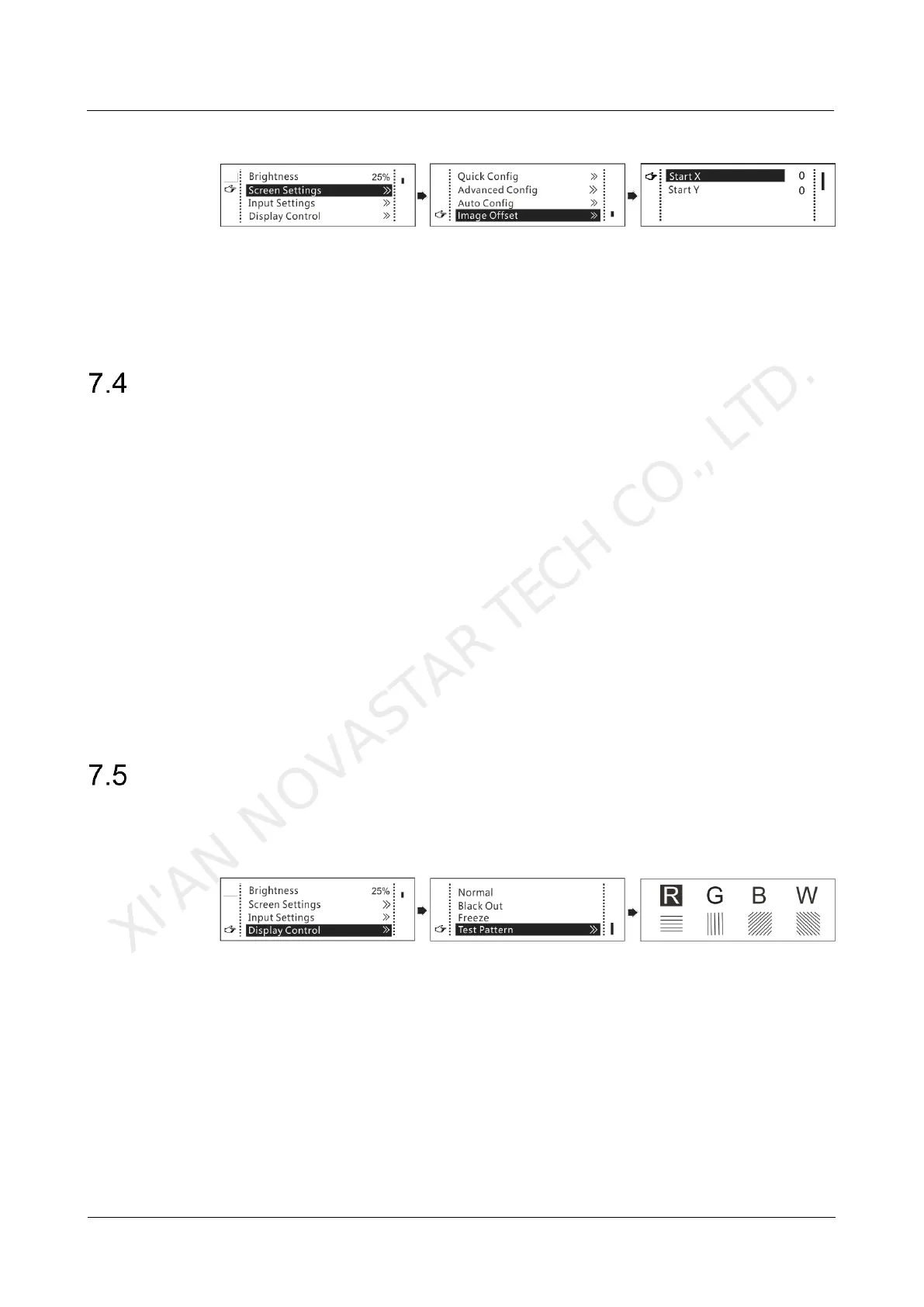
Figure 7-11 Image offset
Step 1 On the home screen, press the knob to enter the menu.
Step 2 Choose Screen Settings > Image Offset to enter its submenu.
Step 3 Set the Start X and Start Y values.
Input Settings
Set the input source and input resolution.
7.4.1 Input Source Settings
On the OLED menu screen, select an input source that matches the type of the
inputted external video source. Only one video input source can be selected at the
same time. For details, see 7.1.1 Step 1 Setting Input Source.
7.4.2 Input Resolution Settings
Set a preset or custom resolution for the selected input source. For details, see 7.1.2
Step 2 Setting Input Resolution.
7.4.3 Color Depth Settings
Set the color depth of input source. For details, see 7.1.3 Step 3 Setting Color Depth.
Display Control
Control the status of display on the LED screen.
Figure 7-12 Display control
Normal: The LED screen displays the current input source normally.
Black Out: The LED screen goes black and does not display input source still being
played in the background.
Freeze: The LED screen always displays the frame when frozen. The input source is
still being played in the background.
Test Pattern: Test patterns are used to check the display effect and pixel operating
status. There are 8 test patterns, including pure colors and line patterns.
Step 1 On the home screen, press the knob to enter the menu.
XI'AN NOVASTAR TECH CO., LTD.



 To Next Page