EXPLORER BALANCES EN-111
7. PRINTING
7.1 Connecting, Configuring and Testing the Printer/Computer Interface
Use the built-in RS-232 Port to connect either to a computer or a printer.
If connecting to a computer, use HyperTerminal or similar software.
(Find HyperTerminal under Accessories/Communications in Windows XP.)
Connect to the computer with a standard (straight-through) serial cable.
Choose New Connection, “connect using” COM1 (or available COM port).
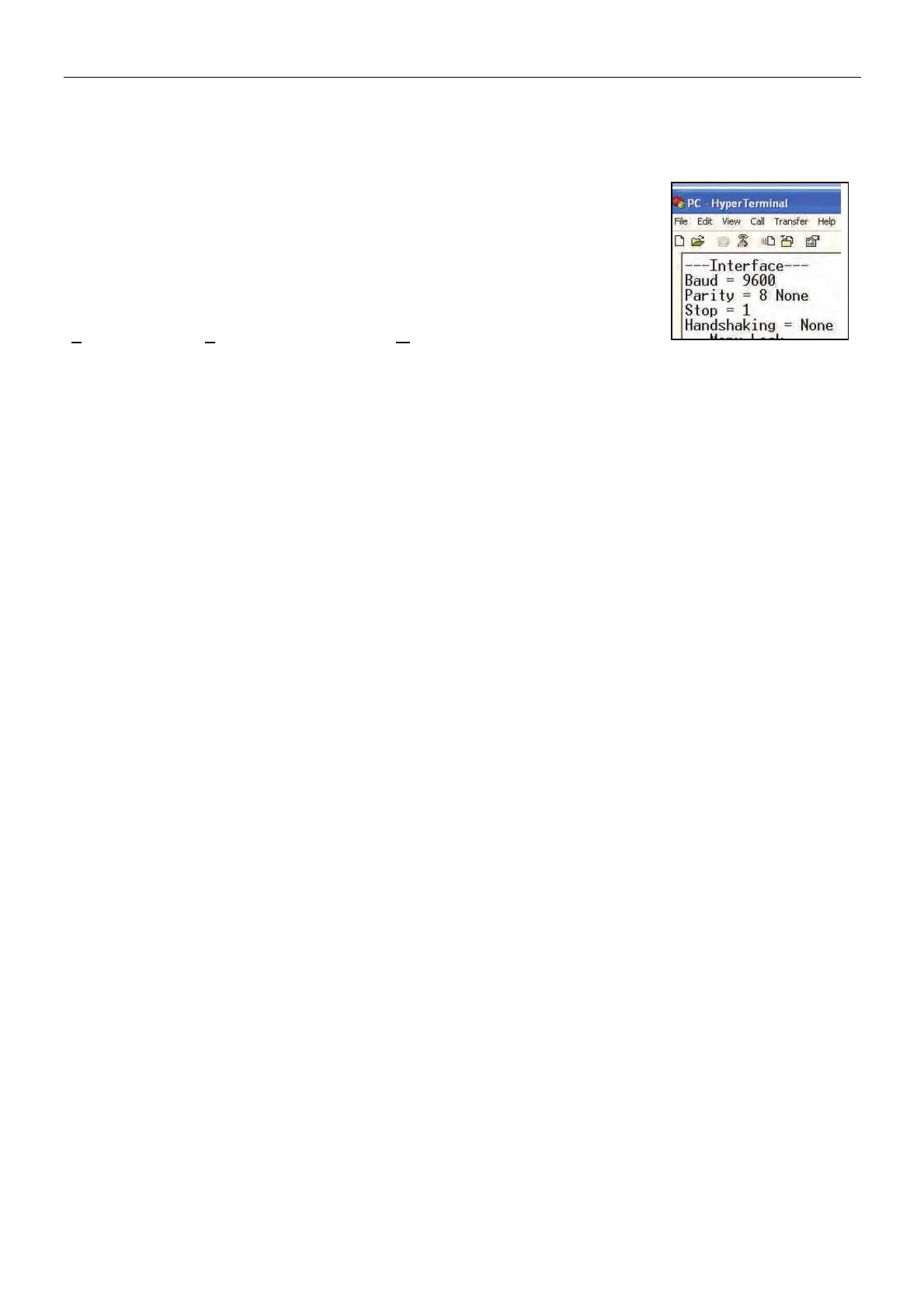
Select Baud=9600; Parity=8 None; Stop=1; Handshaking=None. Click OK.
Choose Properties/Settings, then ASCII Setup. Check boxes as illustrated:
(S
end line ends…; Echo typed characters…; Wrap lines…)
Use RS232 Interface Commands (Section 9.6.1) to control the balance from a PC.
Note: When the HyperTerminal configuration is complete, it will automatically
print the results of a Cal Test operation, and echo print commands sent to the scale.
Printer Connection
Two printers compatible with Explorer Balances are available from Ohaus.
(See Section 9.) Connect a straight-through serial cable to the scale’s RS232 port,
or connect using the scale’s USB port.
See sample Print Output Formats below.



 To Next Page