100 The Information Company
4. Review the log details to confirm this is the job that was running when power was lost
that you intend to resume. Note that logs for completed jobs that experienced a
power loss event will have a message at the top of the log indicating *** POSSIBLE
POWER LOSS EVENT DETECTED ***. However, that message is added only after
the power loss paused job has been resumed, so it will not be present when you
initially view the paused log, prior to resuming that job.
Verifying that the source and destination drives shown in the log represent the
desired drives is recommended. When you are comfortable that this is the log for the
job you want to resume, tap the Resume Job button at the bottom of the Log Details
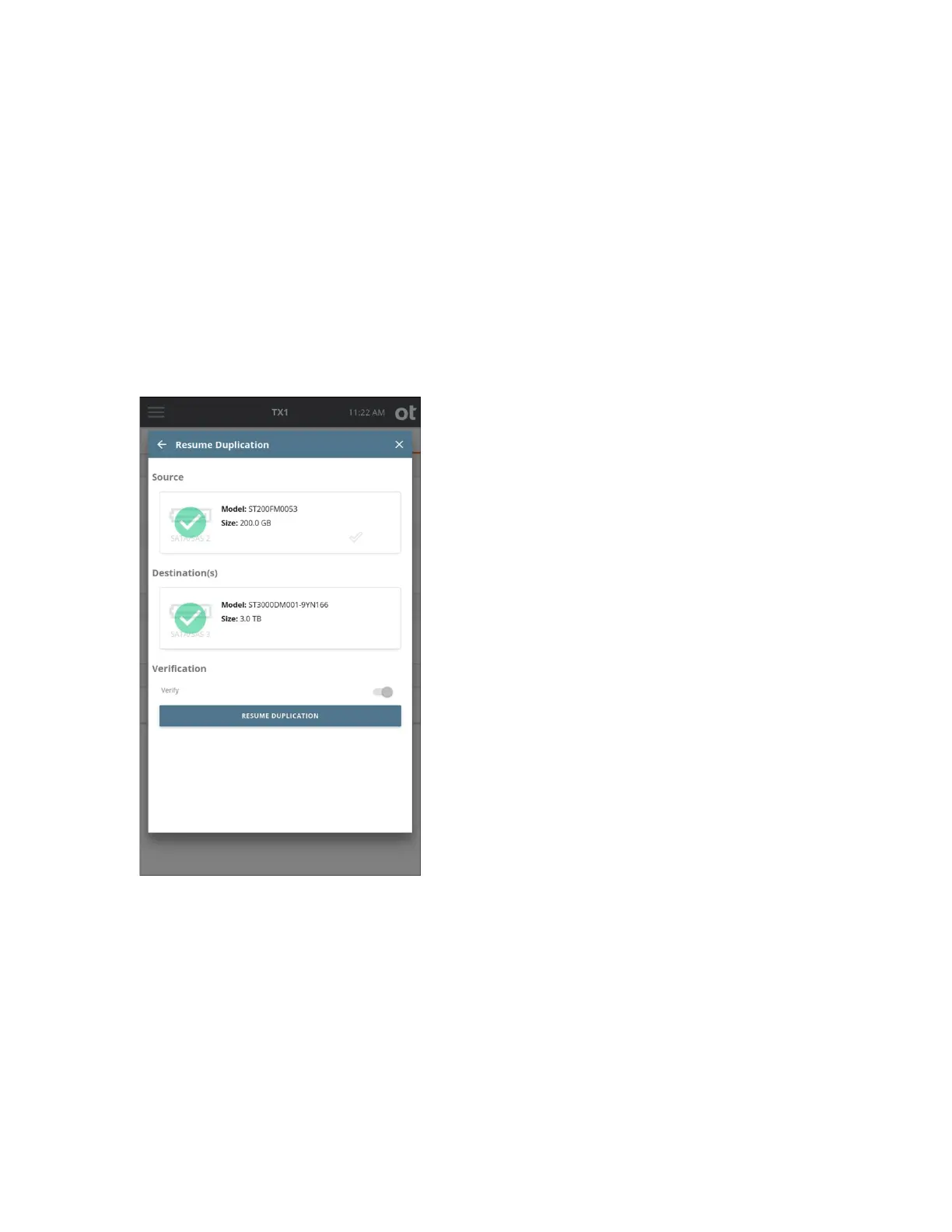
screen. The Resume Duplication screen for the paused job will appear, as shown
below.
5. If
the original drives are present and available to TX1, they will be shown with green
checkmarks and the Resume Duplication button will be lit up. If your original job did
not have Verification enabled, you can enable it on this screen if desired. Tap the
Resume Duplication button to resume the job. The Job Status screen for the
resumed job will be shown. From this point on, the job will carry on as if it had never
been paused, with the exception of logged pause/resume events.
The forensic logs for paused and resumed jobs will provide some specific and unique
information. The information differs slightly depending on the source of the pause event
(manual or power loss). In the case of a manual pause event, a line will be added to the
Copyright © 2022 Open Text. All rights reserved. Trademarks owned by Open Text.



 To Next Page