OpenText Tableau Forensic TX1 Imager
The Information Company 35
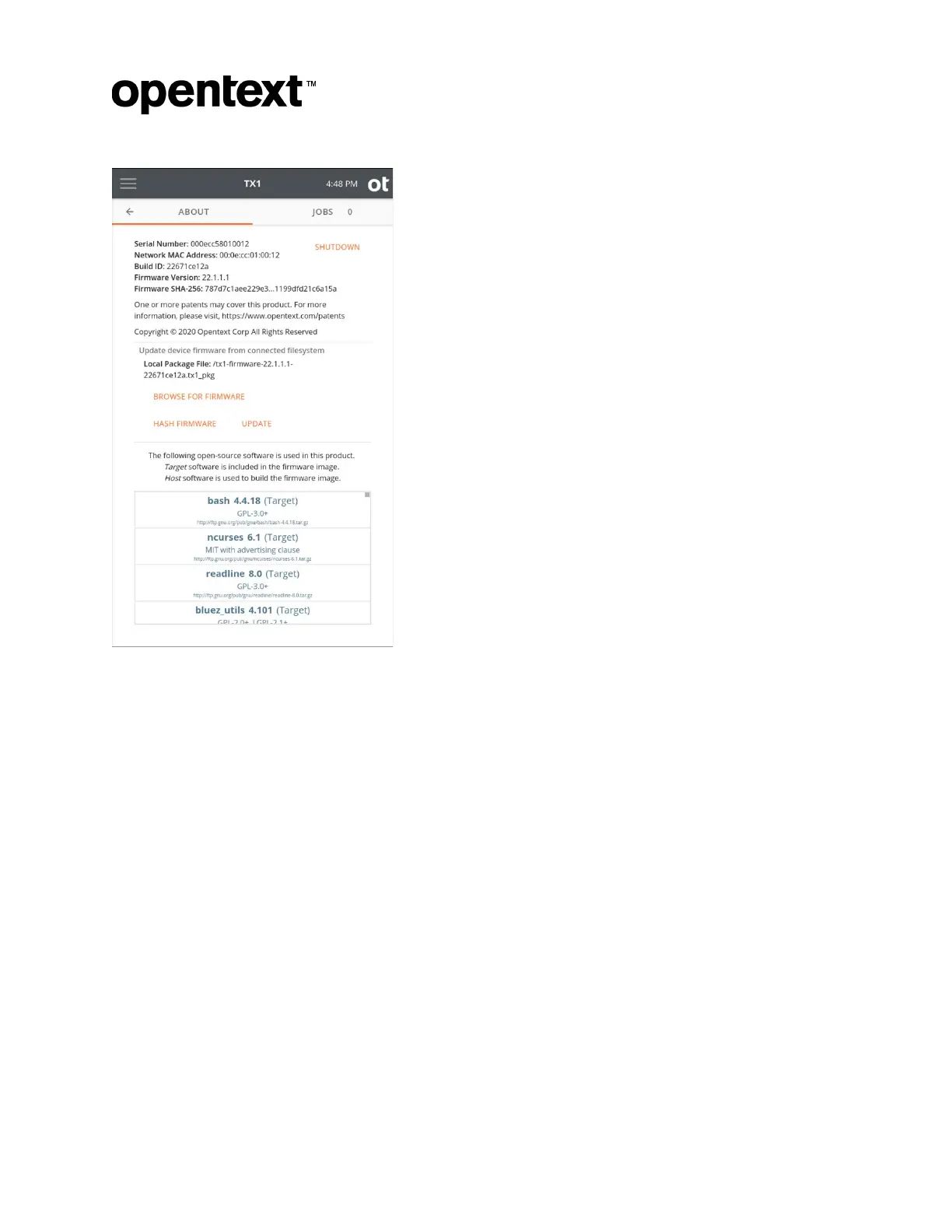
A browse screen appears that lists all mounted drives/shares. Tap on the desired
drive/share and then use the Browse window to navigate to the folder that contains the
TX1 firmware package file. Select the desired .tx1_pkg file, and then tap the Select
button in the bottom right corner. The browse screen will automatically close, showing the
name of the local package file that was selected. At that point, you may choose to hash
the selected firmware package file or use it to update the unit’s firmware. Note that
tapping the Update button will automatically begin the update process, which takes over
the TX1 unit allowing no user interactions until the unit successfully reboots itself after the
firmware update.
Note: This package file update method performs an update of the SD card without
reformatting it. Since the card was not reformatted, all previously stored user data
(settings, logs, etc.) are retained. If a reformatted SD card is desired, use the TFU
Prepare New TX1 SD Card feature to format and program your card.
• Remote firmware update method – Note that the SD card does NOT need to be
removed for this option. On a remote browser window that is connected to the TX1 to
be updated, open the side navigation menu, and select the About option. The
remote About screen is shown below. Note that the Upload device firmware area is
shown only in the remote user interface version of this About screen.
Copyright © 2022 Open Text. All rights reserved. Trademarks owned by Open Text.



 To Next Page