36 The Information Company
The fir
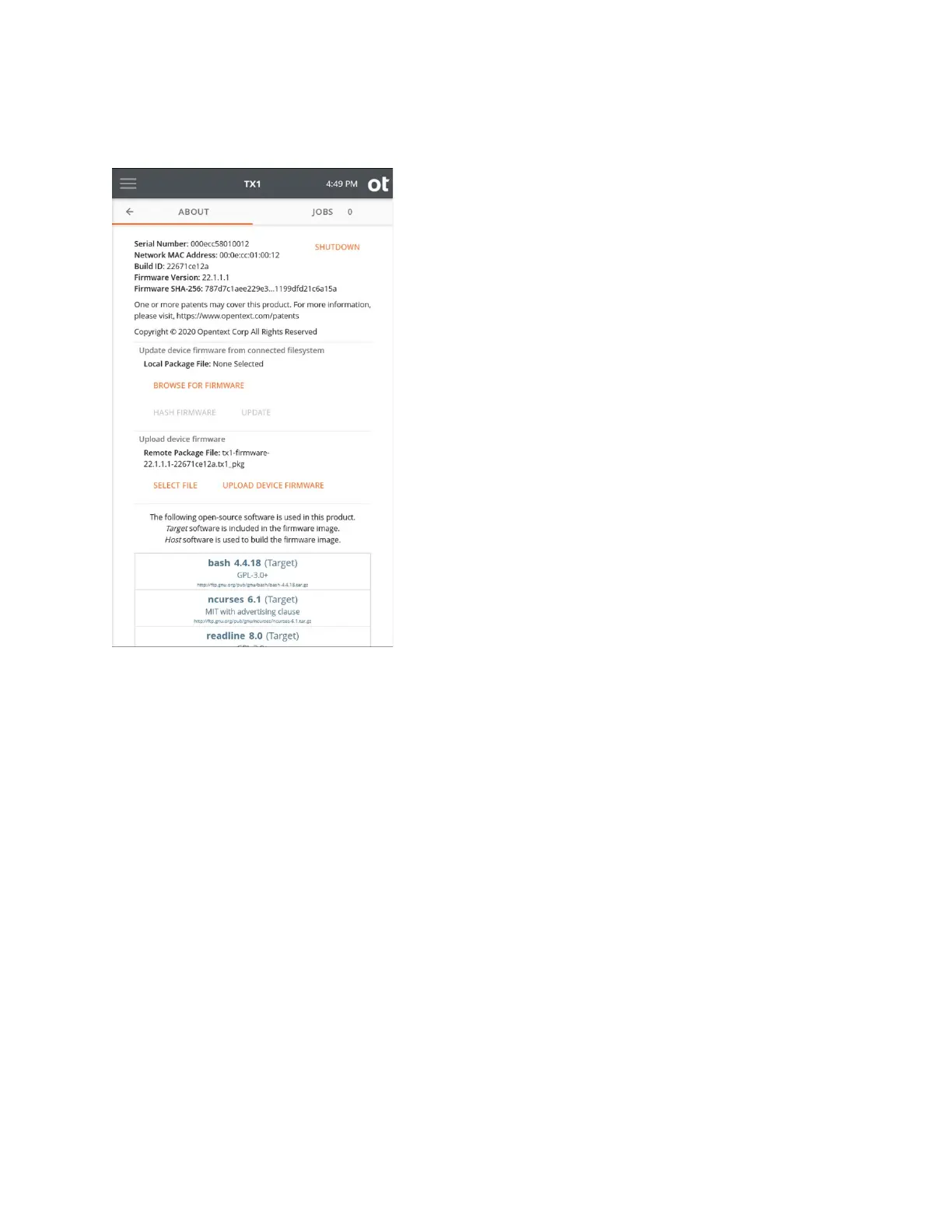
st step in a remote firmware update is to select the new TX1 firmware package file
on your local computer. To initiate this, tap the SELECT FILE button in the Upload
device firmware area. This will launch a file browser window on your host system,
allowing you to navigate to and select the desired firmware package file. The second step
in this process is to upload the selected firmware package file to TX1. After checking the
name of the selected package file in the Upload device firmware area, tap the UPLOAD
DEVICE FIRMWARE button to initiate the firmware file upload. A progress bar will
appear indicating that the file upload is in progress. Note that navigating away from this
page when a firmware file upload is in progress will abort the firmware update process.
Once the file has been fully received by TX1, it will automatically update its local firmware
and reboot the unit.
Note: This remote firmware update method performs an update of the SD card without
reformatting it. Since the card was not reformatted, all previously stored user data
(settings, logs, etc.) are retained. If a reformatted SD card is desired, use the TFU
Prepare New TX1 SD Card feature to format and program your card.
Note that, regardless of the firmware update method used, the hash of the currently
loaded firmware package is calculated and displayed in the top portion of the About
screen. This allows for at-a-glance verification that the proper firmware version is running
and that it has not been altered.
Copyright © 2022 Open Text. All rights reserved. Trademarks owned by Open Text.



 To Next Page