EasyManua.ls Logo

Panasonic NV-RX37A - Selecting the Size of the Pre-Programmed Title

Panasonic NV-RX37A
79 pages
Print Icon
To Next Page IconTo Next Page
To Previous Page IconTo Previous Page
Loading...
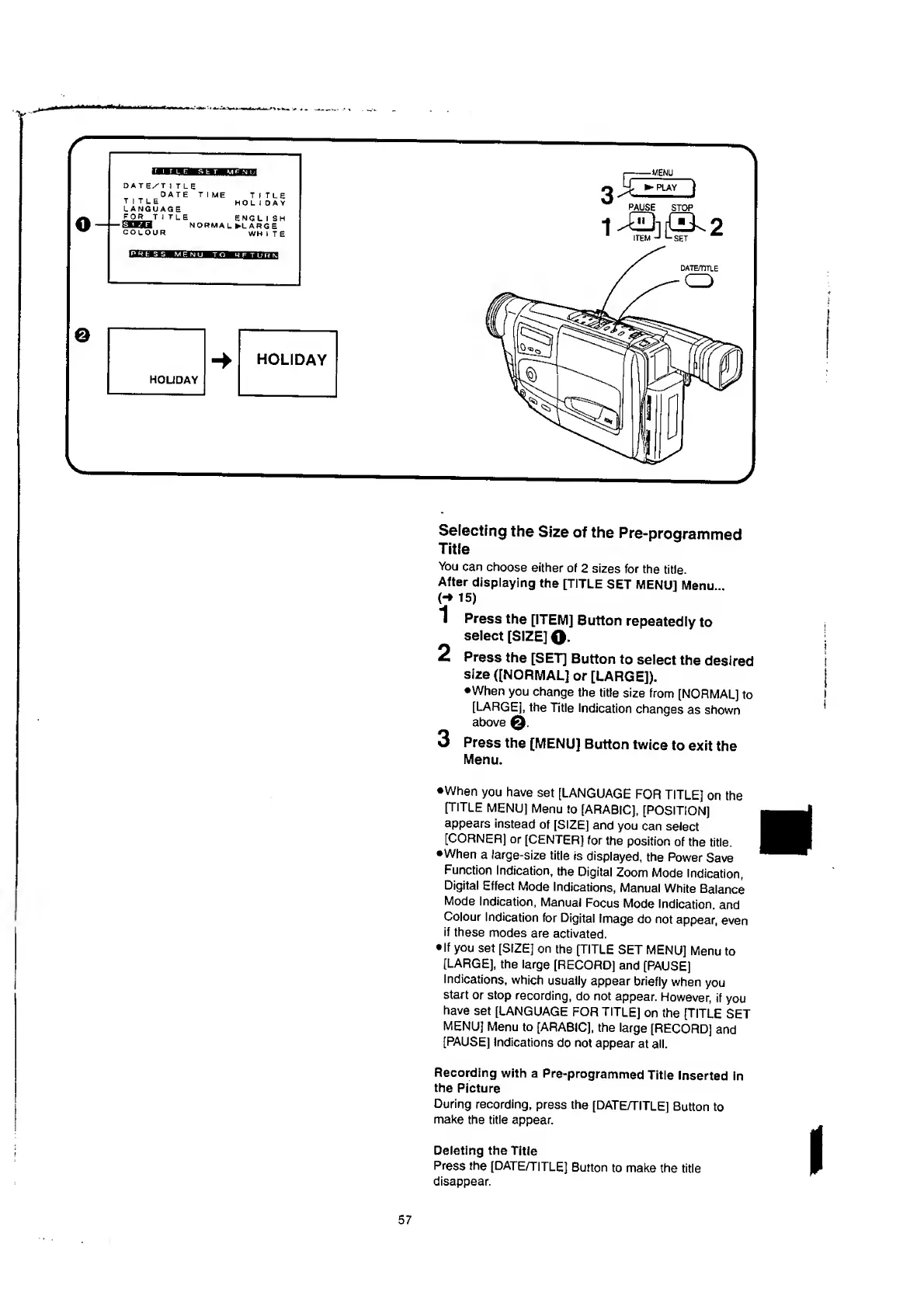
Selecting
the
Size
of
the
Pre-programmed
Title
You
can
choose
either
of
2
sizes
for
the
title.
After
displaying
the
[TITLE
SET
MENU]
Menu...
(“>
15)
1
Press
the
[ITEM]
Button
repeatedly
to
select
[SIZE]
Q.
2
Press
the
[SET]
Button
to
select
the
desired
size
([NORMAL]
or
[LARGE]).
•When
you
change
the
title
size
from
[NORMAL]
to
[LARGE],
the
Title
Indication
changes
as
shown
above
3
Press
the
[MENU]
Button
twice
to
exit
the
Menu.
•When
you
have
set
[LANGUAGE
FOR
TITLE]
on
the
[TITLE
MENU]
Menu
to
[ARABIC],
[POSITION]
appears
instead
of
[SIZE]
and
you
can
select
[CORNER]
or
[CENTER]
for
the
position
of
the
title.
•When
a
large-size
title
is
displayed,
the
Power
Save
Function
Indication,
the
Digital
Zoom
Mode
Indication,
Digital
Effect
Mode
Indications,
Manual
White
Balance
Mode
Indication,
Manual
Focus
Mode
Indication,
and
Colour
Indication
for
Digital
Image
do
not
appear,
even
if
these
modes
are
activated.
If
you
set
[SIZE]
on
the
[TITLE
SET
MENU]
Menu
to
[LARGE],
the
large
[RECORD]
and
[PAUSE]
Indications,
which
usually
appear
briefly
when
you
start
or
stop
recording,
do
not
appear.
However,
if
you
have
set
[LANGUAGE
FOR
TITLE]
on
the
[TITLE
SET
MENU]
Menu
to
[ARABIC],
the
large
[RECORD]
and
[PAUSE]
indications
do
not
appear
at
all.
Recording
with
a
Pre-programmed
Title
inserted
in
the
Picture
During
recording,
press
the
[DATE/TITLE]
Button
to
make
the
title
appear.
Deleting
the
Title
Press
the
[DATE/TITLE]
Button
to
make
the
title
disappear.

Table of Contents

Related product manuals