73
Fn40 – Product category
This function can only be used with keys98 and enables operators to link product categories with a selection price.
Considering that it is necessary to recognize product type for each selection number, it is preferable to set Price
Holding mode for systems in EXE protocol.
For each price you are required to enter product category (up to 16 product categories).
Once product categories have been generated, it is possible to compose up to 5 bonus menus in Fn29.
Every menu is composed of five different product categories selected among the 16 categories available.
Remember that product categories must be associated to specific products:
e.g.
Coffee Product category 1
Sandwiches Product category 2
Water Product category 3
Soft drinks Product category 4
…... do the same for each product you want to give a product category code, so that you can later compose bonus
menus.
When more VMs contain the same products in a location, the same product categories must be programmed on
VMs.
A bonus menu is given when a menu is complete. A menu is considered complete when a product has been sold for
each category. When more products are sold belonging to the same category, one product is only considered.
Example (list with 100 prices)
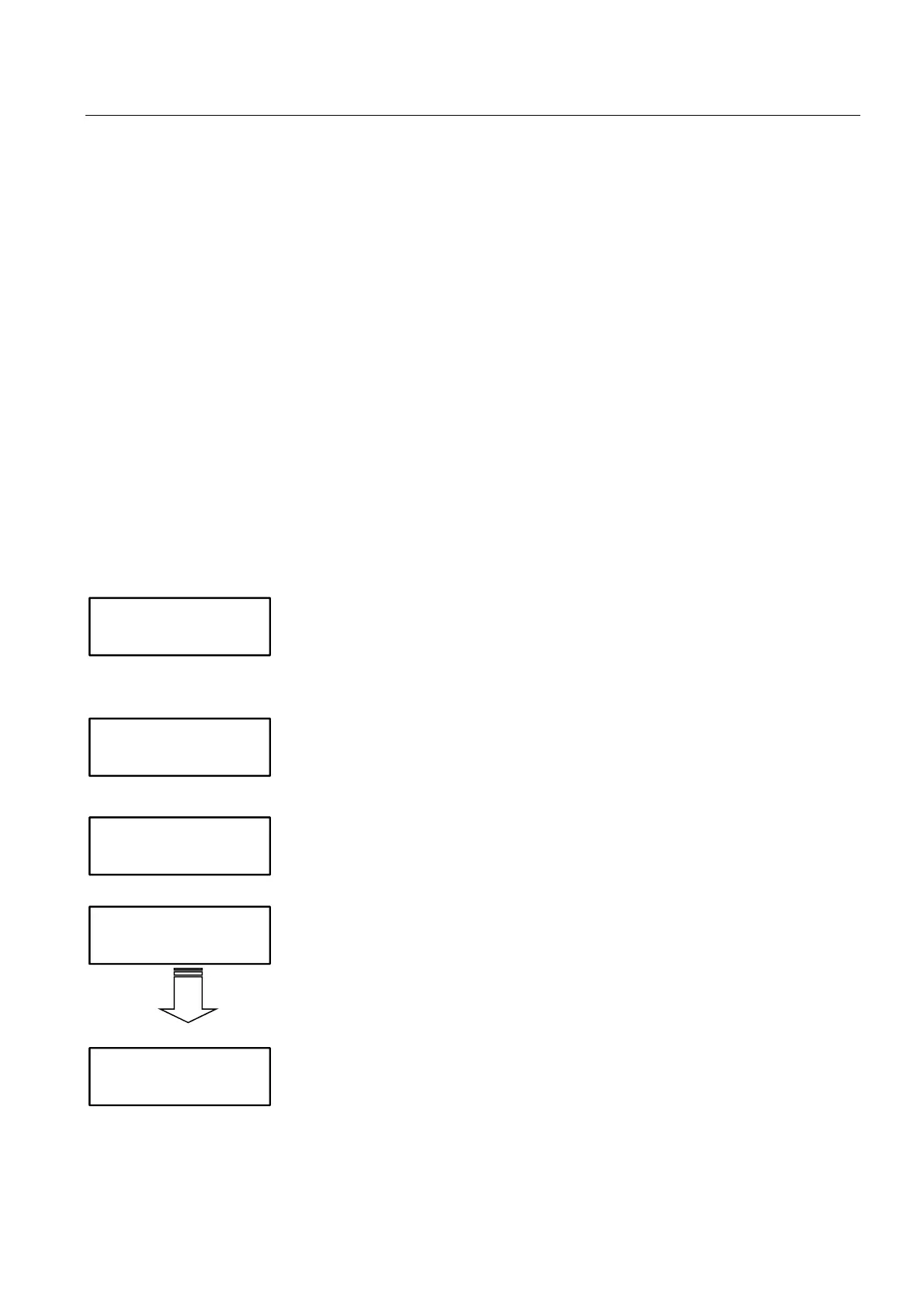
Enter the 1
st
price number you wish to link with a product category (e.g.”1”).
The product with price no.1 will be associated with the product category
here below (it is therefore important to enable Price Holding mode with
protocol Executive).
Press to confirm and scroll parameters
Enter product category for price no. 1 (e.g. “1”).
Enter the 2
nd
price number ….
Enter product category for price no. 2 (e.g. “4”).
… do the same for the other prices...
Leave “0” (zero) if you don’t wish to link a price with any product categories.
(When using a list with 10 prices, the option “Price Number” is not
displayed in Fn40. You can scroll the price list.).
1
1^ Price
Product cat. 1
2
2^ Price
100


 To Next Page