48
About AUDIT
Audit data are compliant with the Standard indicated by protocol EVA-DTS. You can select "extended Audit” to
get more details on vends with key (this causes the file to be heavier, though). If you wish more information on
extended Audit, please contact Payment Technologies S.r.l.
Data processing tools
• Paytec Audit Control
This is a software application (Windows
®
) created to display Audit data from Paytec systems.
The application converts the List EVA-DTS and permits to print data.
Paytec Audit Control can be downloaded from www.paytec.eu
• Paytec Audit View
This is a software application (Windows
®
) created to process data from extended Audit in Paytec systems.
Data are downloaded from extended Audit with an AuditKey, a Palmtop or a PC and then transferred to a PC
where they are stocked in a database for later processing. Remember that all the systems from which data
are downloaded must be updated with a firmware release where AuditView is implemented with dates
expressed in seconds.
Paytec Audit View can be downloaded from www.paytec.eu
Data readout tools
Palmtop via IrDA
Data are transmitted via the IrDA port, which is located on the selector faceplate. When a Paytec key reader has
been connected (e.g. CAIMAN), the IrDA port on board the reader can be used (see Fn00).
An external IrDA interface is also available (optional), which can be installed within the VM in a point that can be
easily reached with a palmtop IrDA.
Always use palmtops compatible with protocol DDCMP EVA-DTS.
Data transmission is compliant with Standard EVA-DTS protocol DDCMP.
In order to complete data readout successfully, keep the sensors of your palmtop facing the IrDA port (at a
distance of 10-20 cms). Read the User Guide supplied by the manufacturer for more information on how to use
your palmtop.
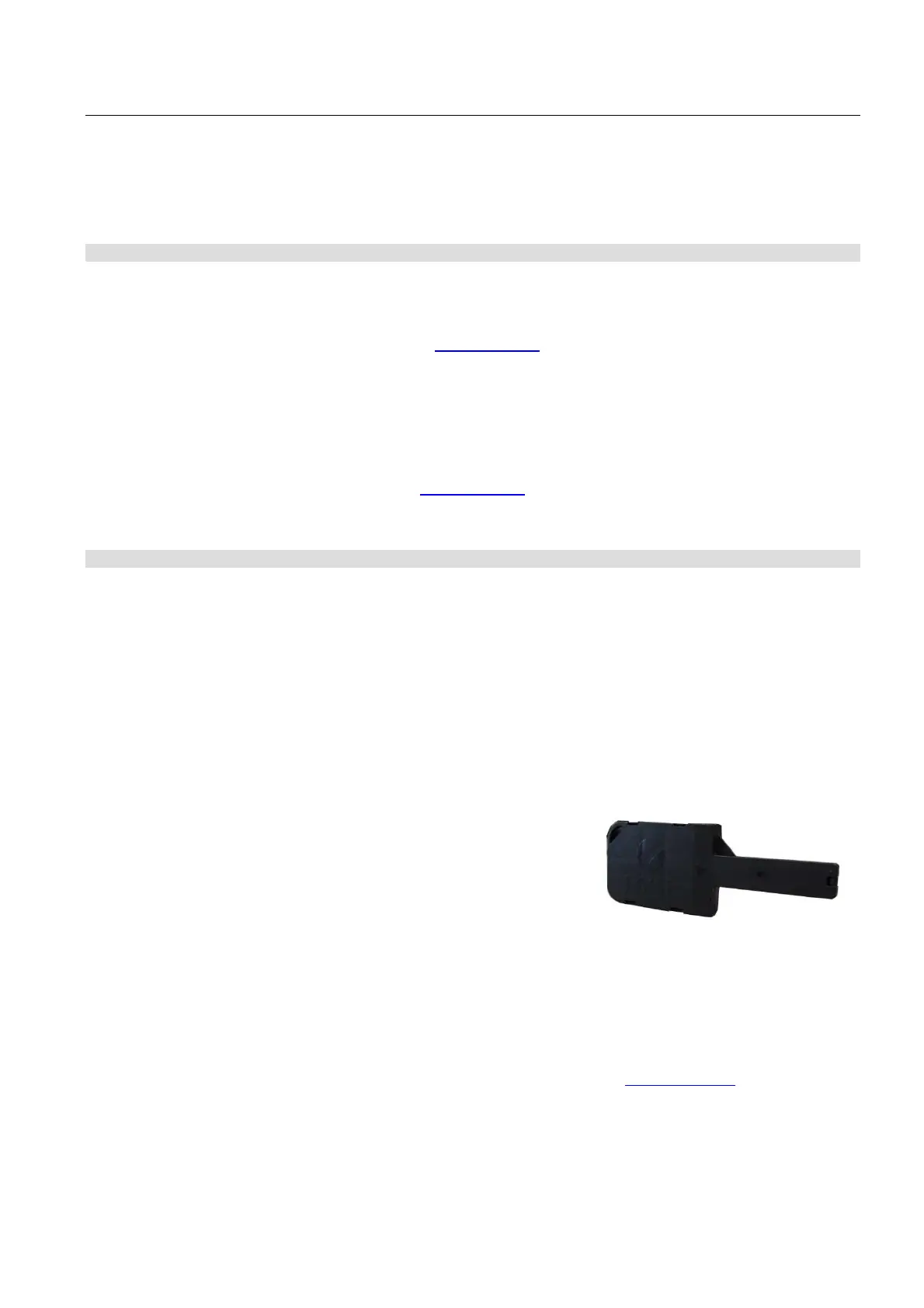
Paytec Data Key
If you wish to use a Data Key, you need to connect a Paytec PIT
key reader.
Remember that the key and the changegiver must be
programmed with the same password (Data Keys are
programmed with CAIMAN Programmer).
Paytec Mifare
®
Data Card
If you wish to use a Mifare
®
Data Card, you need to connect a Paytec Mifare
®
Key/Card reader.
Remember that the card and the changegiver must be programmed with the same password (Mifare
®
Data Cards
are programmed with Caiman Mifare
®
Programmer).
Paytec software applications
When using a PC, you can download “Paytec Configurator” (Windows
) from www.paytec.eu and then install it
on your PC. For connection to your PC, you need the USB cable UIC1.
When using a Smartphone Android, download the APP PayTools from Google Play Store (to enable data
transmission you need the device Bluetooth
BT6002 – see p.19).


 To Next Page