18 Document Number: PD196-103 Rev 1
Connections
1.
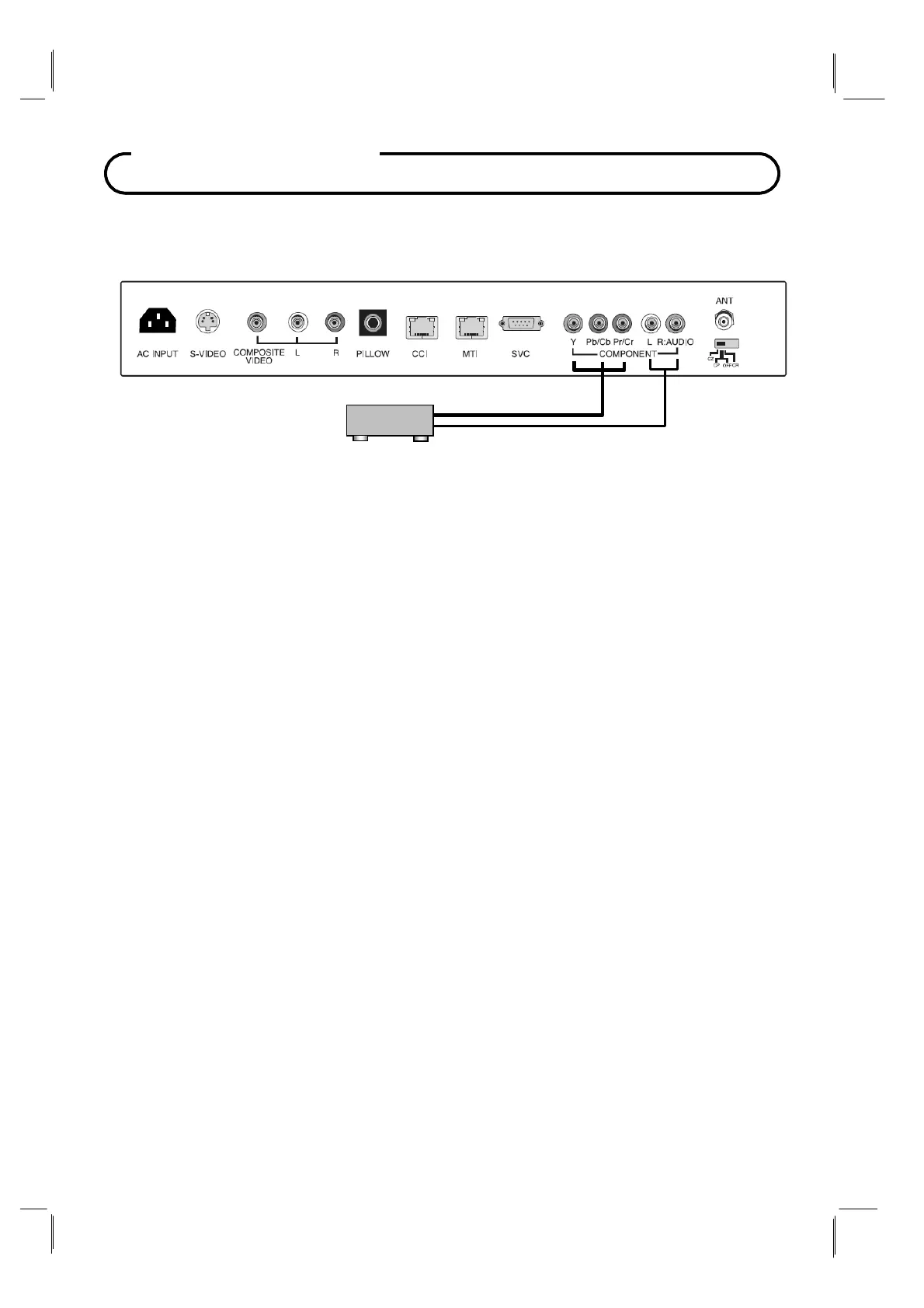
Use a component video cable to connect the DVD player’s
Y/Pb/Pr jacks to the
TV's
component Y/Pb(Cb)/Pr(Cr) jacks.
NOTE: The
Y/Pb/Pr jacks on your DVD player are
sometimes labeled
Y/Cb/Cr or
Y/B-Y/R-Y. If so, connect the cables to like colors.
2.
Use an audio cable to connect the DVD player’s
Audio OUT
jacks to the
TV's
Audio IN
jacks. Be sure to use the appropriate audio inputs adjacent to the corresponding
Video input.
3. Verify that the appropriate Component source is enabled in the “Source Setup” menu.
Please see “Source Setup” instructions elsewhere in this manual for details.
4. Press the TV/AV button repeatedly until COMPONENT appears in the lower right corner
of the screen indicating selection of the component input.
5.
Activate the DVD. The DVD playback picture appears on the screen.
Component IN
The TV supports devices with component video signals such as a DVD.
DVD


 To Next Page