Using the Spectrometer with Spectrum . 45
Scanning samples
When you connect to your spectrometer the instrument settings will default to appropriate
values for your instrument type and accessory.
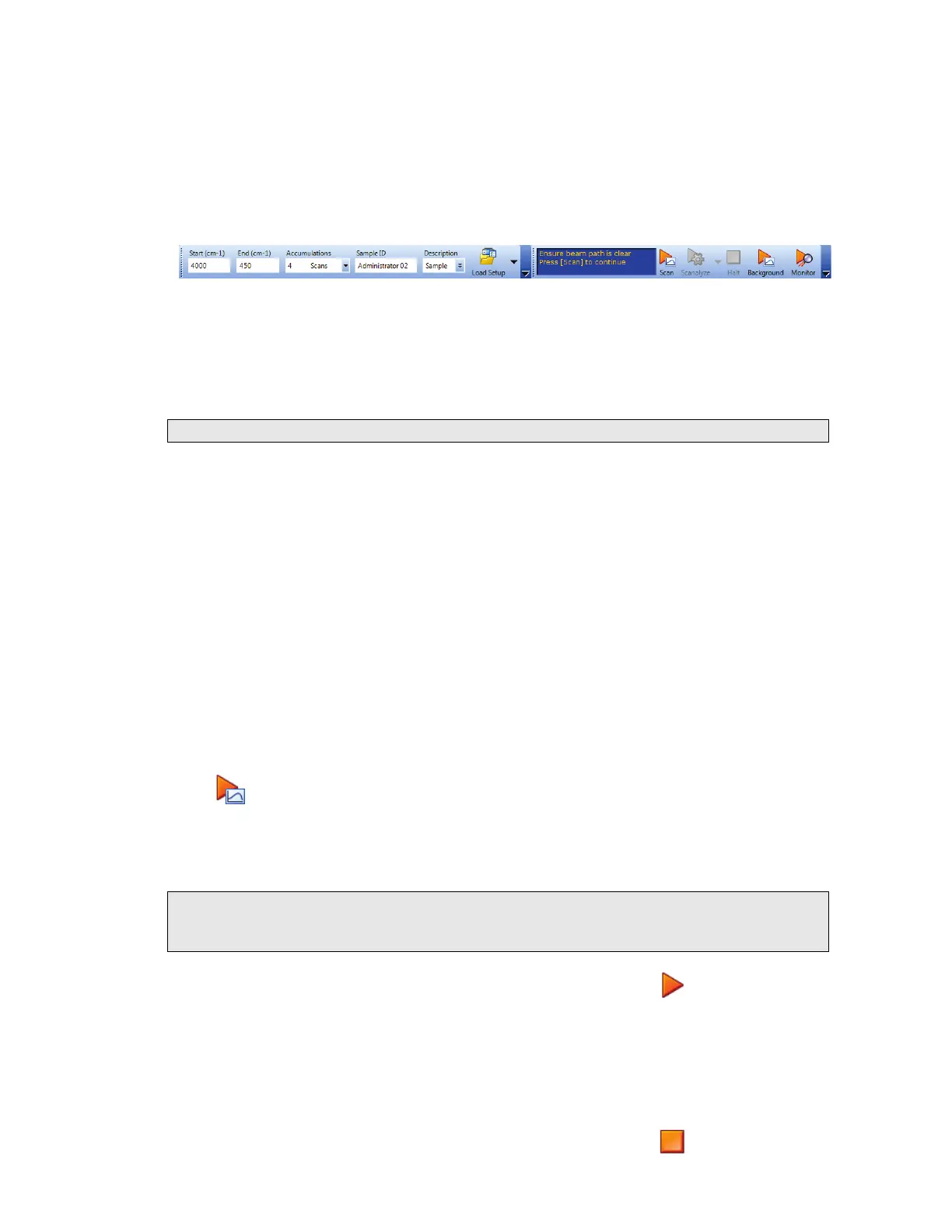
The configurable Scan toolbars at the top of the workspace include the tools you need to
collect a sample spectrum (Figure 14).
Figure 14 Frontier IR Single-Range systems default scan toolbars
By default, the Measurement bar includes Scan, Halt, Background and Monitor buttons.
You can also select Scanalyze and then choose one of the scan and then process options
Scan and Compare, Scan and Search or Scan and Quant. All these commands can be
selected from the Measurement menu.
NOTE: The Scan toolbars are not displayed if you have chosen to work offline.
To scan a sample:
1. Check and set the instrument parameters.
Here you set the Start and End points of the scan range (by default in wavenumbers,
but the abscissa units can also be set to nanometers or microns on the Setup
Instrument Basic tab) and the Accumulations required, either as a number of scans,
or as a length of time. You can enter a unique Sample ID and Description for the
sample. You can also set the Resolution (in cm
−1
). This will set the J-Stop size
(in mm) to the default for that resolution, which you can then edit.
By default, sensible values for the scan and instrument parameters are entered in the
Instrument Settings toolbar. The values applied depend on your instrument and
accessory. To amend any value, select the parameter and then enter your new value, or
select a value from the drop-down list.
2. If a background scan is required, the Scan button includes a small background flag.
Clear the instrument beam path, or insert a suitable background material, and then click
to collect a background spectrum.
The background spectrum is displayed briefly, and then the Viewing Area is prepared
for data collection from your sample.
We recommended that you run a background scan before every sample.
NOTE: If you wish to run a background scan with a filter in place, you must set the Scan
Type to Background on the Setup Instrument Basic tab, rather than using the
toolbar button. See the Spectrum on-screen Help for more information.
3. Place your sample in the instrument or accessory and then click to begin scanning
your sample.
By default, during scanning the sample data is displayed on the Live tab in the Viewing
Area.
The completed spectrum is displayed on the Graph tab, and added to the current
Samples View in the Data Explorer.
4. If, for any reason, you want to stop scanning your sample, click .



 To Next Page