User Manual Philips MultiOne
© Philips Lighting B.V. 2014 Page 17 / 81
A specific user-defined group. Expand User-defined groups and select the
desired user-defined group. All commands will now be sent to devices that
belong to this specific user-defined group.
9.2.3 Managing user-defined groups
Using the Network, devices can temporarily be grouped into user-defined groups.
The purpose of user-defined groups is that they facilitate easy clustering so that a
number of devices can be addressed simultaneously.
The user-defined groups are lost when MultiOne is closed.
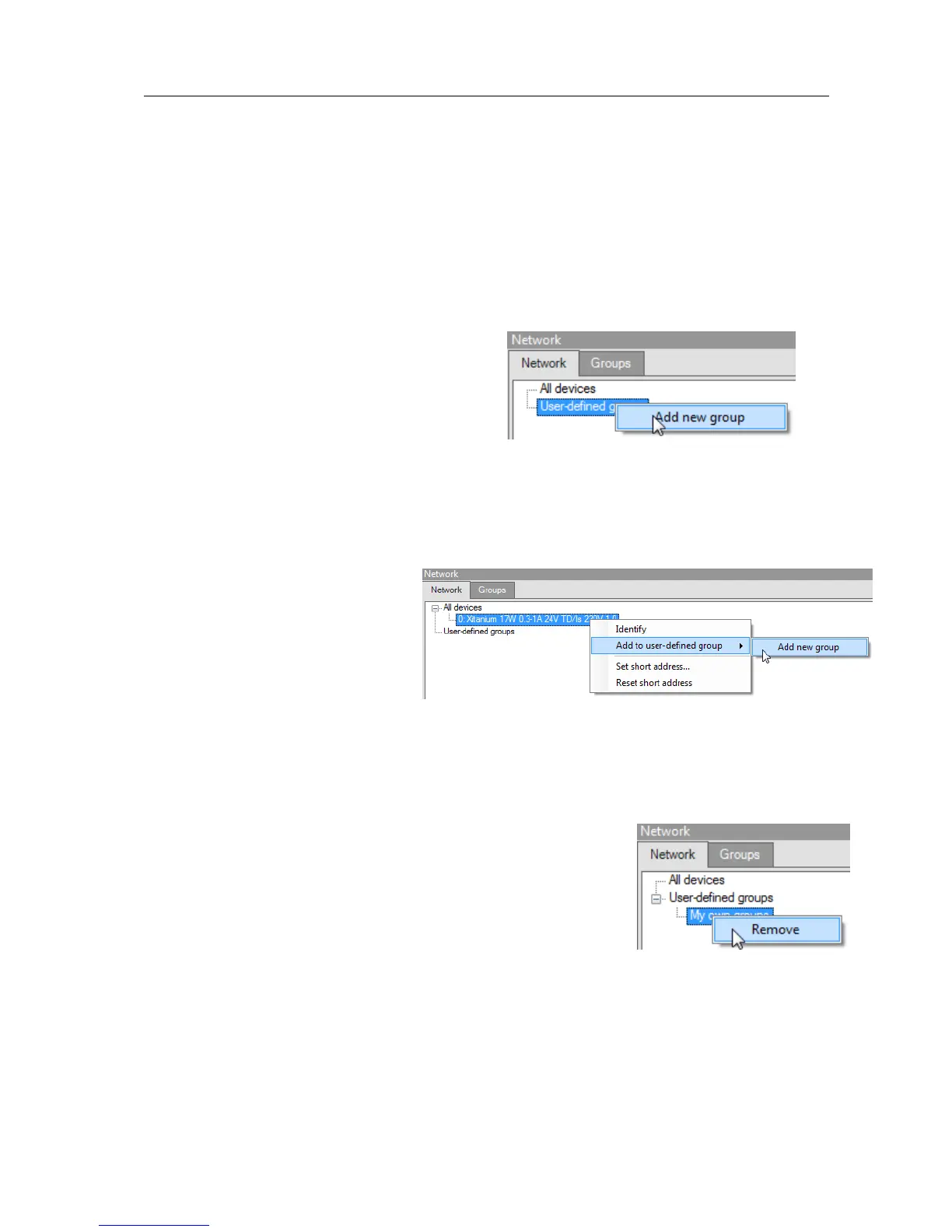
A new user-defined group can be created by
right-clicking User-defined groups and
selecting Add new group. Alternatively
choose Actions Add user-defined
group. A new group is created with a default
name, but it can be renamed by clicking it once. To add a device to a user-defined
group, right-click the device, select Add to custom group and select one of the
available user-defined groups. Alternatively, the device can be dragged onto the
desired user-defined group to add it to that group.
To immediately add a device to a
new user-defined group, right-
click a device and select Add to
user-defined group and select
Add new group. The user-
defined group will be created and
the selected device will be added to the newly created user-defined group.
To remove a device from a user-defined group, right-click the device in the group
and select Remove.
To remove an entire user-defined group (including its
devices), right-click the group and select Remove.
The number of devices in a user-defined group is limited to
64.


 To Next Page