User Manual Philips MultiOne
© Philips Lighting B.V. 2014 Page 28 / 81
12 Working with MultiOne
12.1 Viewing device properties
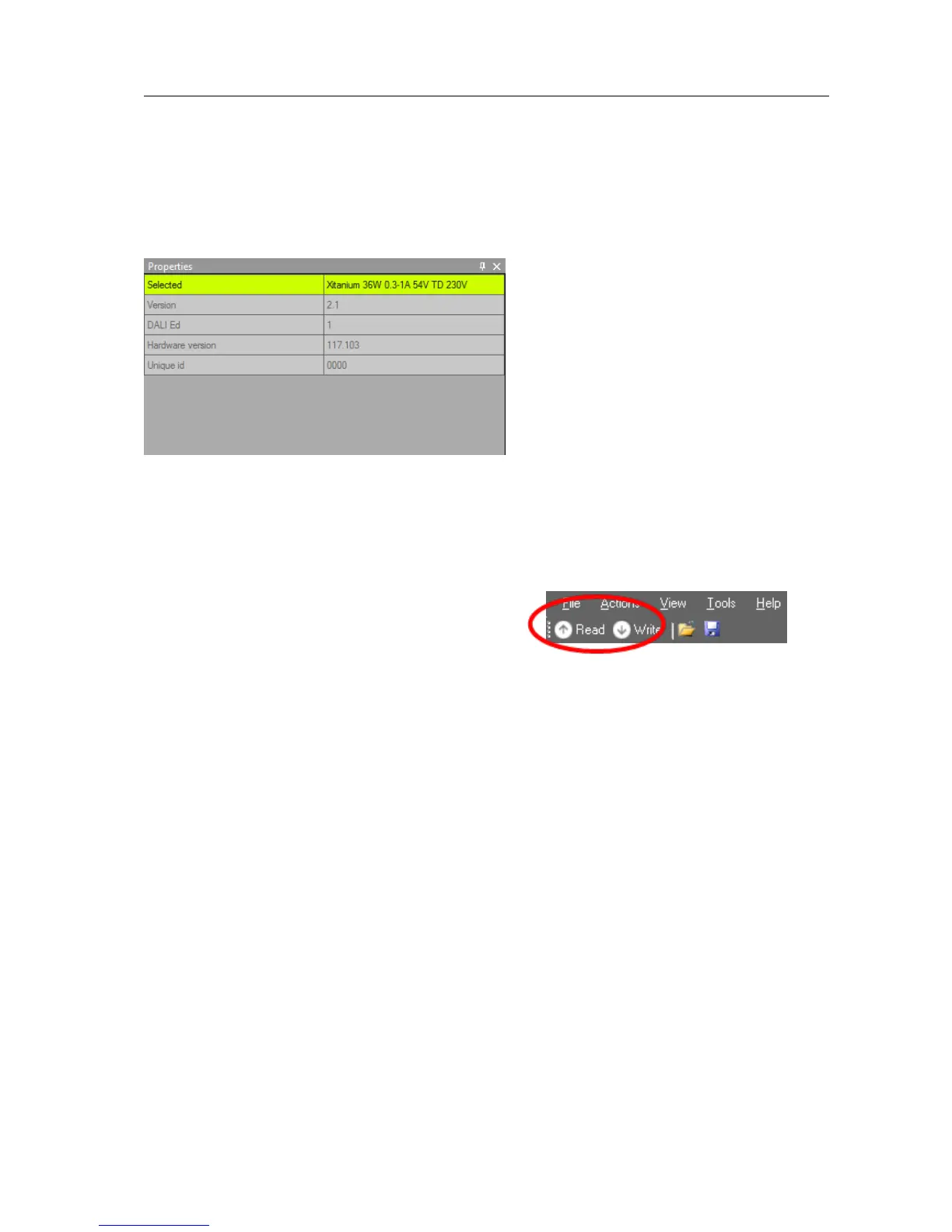
Whenever a device is selected in Network, the Properties display a number of
details for the selected device.
12.2 Communicating with a device
Initiating communication with a device is done by first selecting the device (left-click
the device in Network) and then clicking Read or Write on the toolbar. When the
Commands tab or the Scheduler tab is active, these buttons are unavailable. When
the Query tab is active, all queries are executed
when clicking Read. When the Diagnostics tab is
active, all diagnostics information is read (if
available in the selected device) when clicking Read. When the Device features tab is
active, both Read and Write actions are available.
Reading and writing will always take a few seconds. Operation progress is shown on
the status bar of the main application window. On the Device features tab, per-
feature progress is shown on each of the feature selection tabs. When all information
has been successfully read or written, a green tick mark will appear and the text
Status: OK is shown. If anything goes wrong, a red icon and the text Status: failed is
shown. When on the Device features tab, point your mouse to each status icon to
see a more detailed description of the communication result.
Apart from using Read and Write on the toolbar, you can directly send DALI
commands. This can be done on the Commands tab and the Scheduler tab.
In the Preferences window it is possible to enable extra verification when writing (see
chapter 12.15).


 To Next Page