User Manual Philips MultiOne
© Philips Lighting B.V. 2014 Page 55 / 81
12.6 Configuring a single device
There are situations in which only one device will be configured at the time. In this
case it is not necessary to have the full functionality of the Network, including Scan
and Commission buttons. To optimize the workflow for single device configuration,
select Single device programming in the Application Mode Selector.
When Single device programming has been selected, MultiOne will automatically
scan the DALI network and select the connected device for communication. In this
mode, the Network panel is collapsed by default. If multiple devices have been
found, MultiOne will show a message and switch to regular configuring mode.
12.7 Configuring multiple DALI devices (simultaneously)
There are situations in which multiple devices need to be configured at the same
time. The procedure to simultaneously configure multiple devices of the SAME TYPE
AND VERSION is as follows (Note: this method will not work with MultiOne Basic):
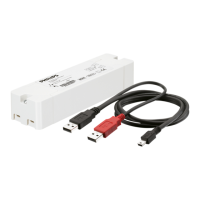
1. Connect maximum 64 devices of the SAME TYPE AND VERSION, in parallel to
the DALI connectors of the USB2DALI interface
2. Connect the USB2DALI interface to the USB port (both black and red USB
plugs (USB-A)).
3. Connect the devices to the mains.
4. Start MultiOne
5. Choose Tools Preferences
6. Clear the Write & verify checkbox and click OK
7. Click the Commission button on the Network panel to start commissioning.
8. Choose Actions Add virtual device.
9. Select the device of the same type and version as the ones connected on the
Network panel.
10. Select the Device features tab
11. Change any of the features.
12. Click Write on the toolbar.
Note: There will not be an individual confirmation for every device. So if any of
them failed to be configured, it is not known which one.
Note: Remember that applications can be affected by the availability of the short
address.


 To Next Page