User Manual Philips MultiOne
© Philips Lighting B.V. 2014 Page 22 / 81
10.3.2 Managing networks
The options are:
With a right-click on an unassigned device you can:
o Add to, move the device to an existing network or move the device to a
new network
With a right-click on a device in a network you can:
o Add to, move the device to an existing network or move the device to a
new network
o Reset, from network, the device will become unassigned. If the network
becomes empty, the network will be removed
With a right-click on a network you can:
o Query network, to find all devices in the network, including the devices
that are out of range of the USB2ZigBee interface
o Open network, to add more devices
10.3.3 Managing zones
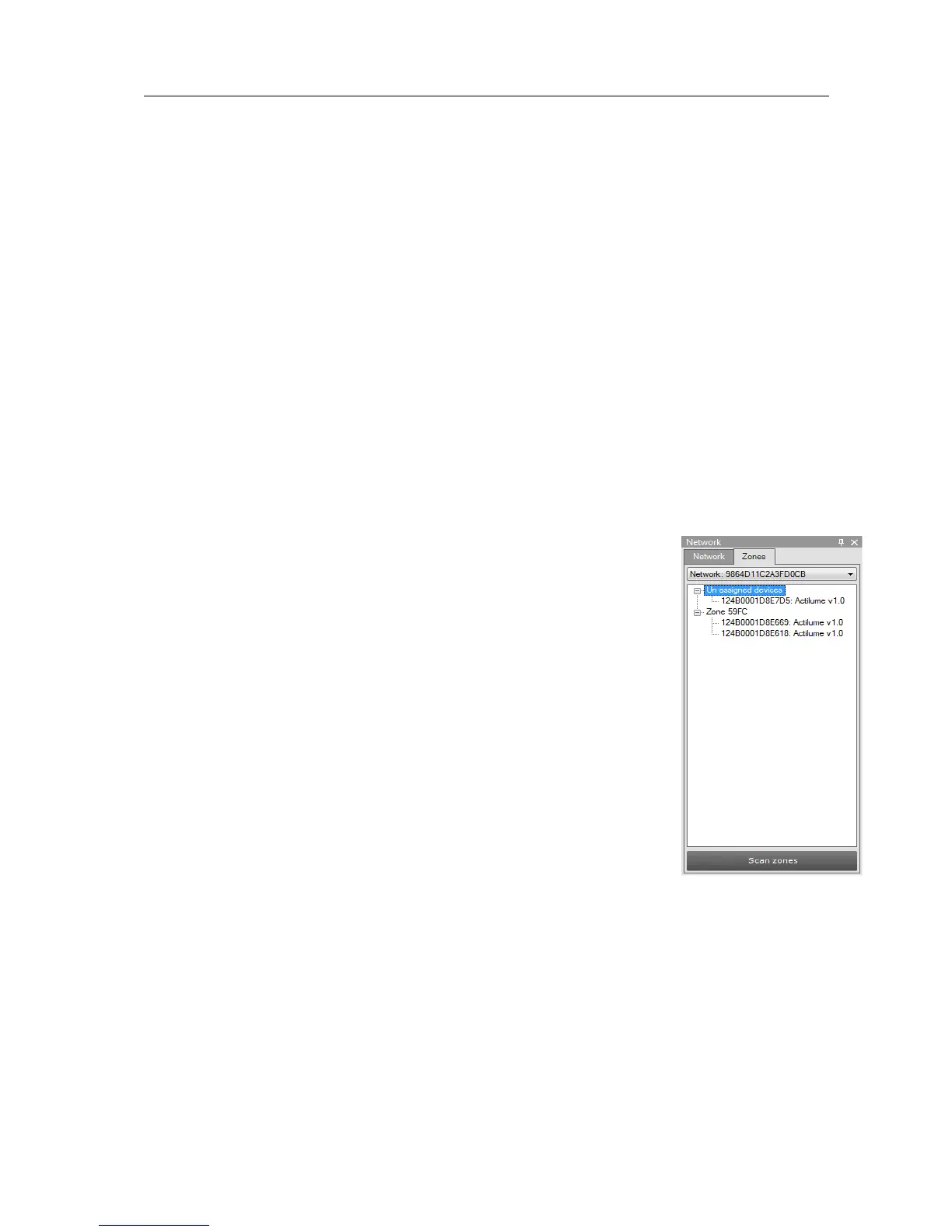
Once you have scanned the area and found devices and networks
in range, it is possible to scan a specific network for zones. Select
the Zones tab, select the Network and press Scan zones. After
having scanned the network, the Zones tab shows the found
devices and zones within the specified network.
By clicking on a device or zone you will make that particular device
or zone the active one, meaning that all actions will be performed
on this device or zone only, and will be ignored by all other devices.
With a right-click on an unassigned device you can:
o Identify the device
o Add to, move the device to an existing or new zone
With a right-click on a device in a zone you can:
o Identify the device
o Add to, move the device to an another or new zone
o Configure…, move the device to another zone


 To Next Page