User Manual Philips MultiOne
© Philips Lighting B.V. 2014 Page 68 / 81
received values differ from the parameters that were written, MultiOne will
alert you that there is a deviation between MultiOne and the device.
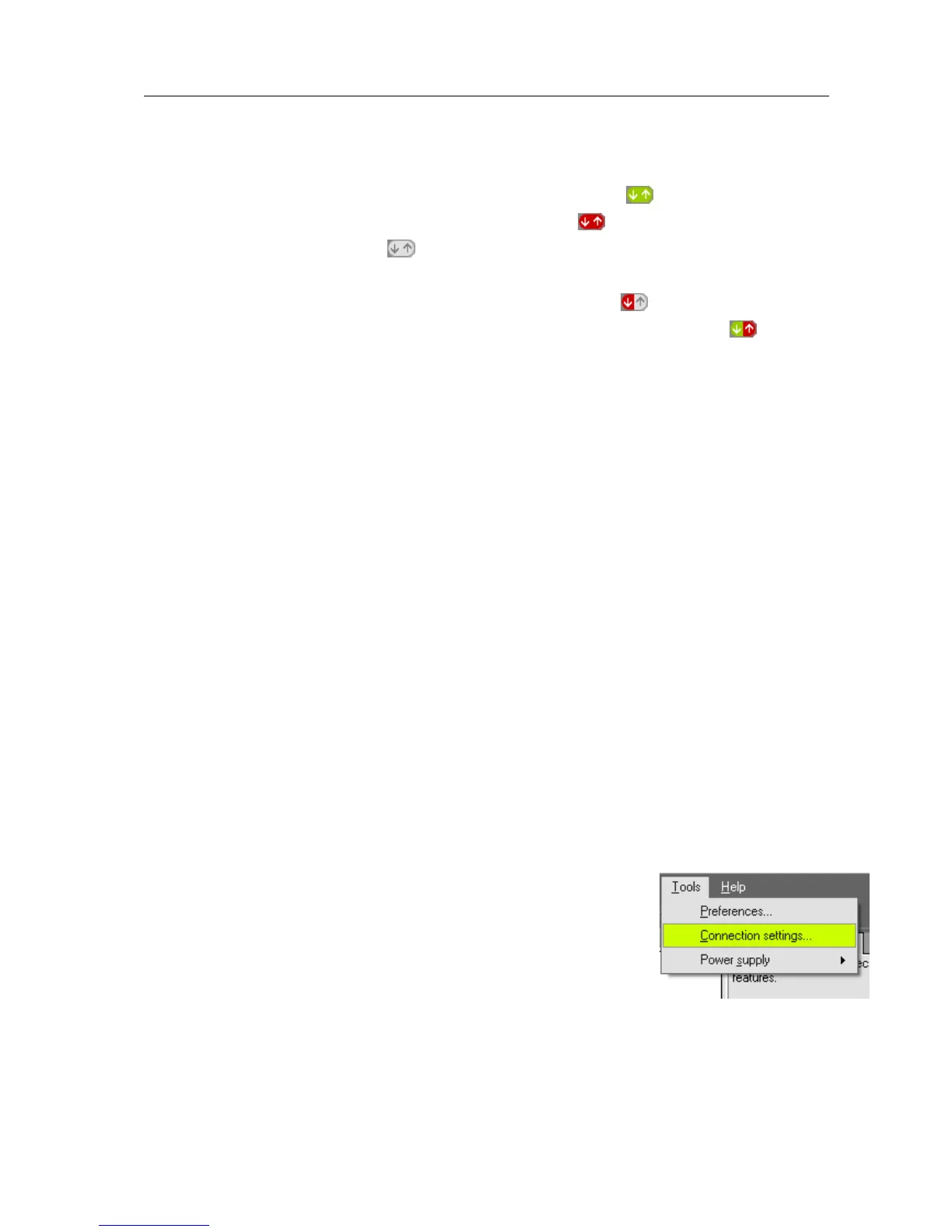
The Write & verify uses different status icons then Write. When a Write &
verify action is successful the icon will be totally green . When the verify
action has failed the entire icon will become red. A pending action will be
displayed is a grey icon. It is also possible that a part of the Write &
verify fails. To help indicate where the action failed, two extra icons exist. If the
first half of the icon is red and the second part is grey, then the write
action failed. When the first part is green and the second part is red, then
the read action has failed.
MultiOne updates. Changing this setting allows the user to control the
update method of MultiOne. The following options are possible:
Automatic – Check, download, install: MultiOne will automatically check for
updates and if available download and install them automatically.
Automatic – Check, download only: MultiOne will automatically check for
updates and if available download them. The user then has to agree to let
MultiOne update itself.
Automatic - Check only: MultiOne will automatically check for updates and
notify the user if a new version is available. The user can then allow MultiOne
to download and install the update.
Manual: MultiOne will do nothing and the user has to force MultiOne to
check, download and install any update.
Re-enable all warnings. MultiOne produces a number of warnings that you
can disable by checking their Don’t show this message again checkbox. If
you would like to reset all suppressed warnings click the Re-enable all
warnings button.
12.16 Manually selecting the USB2DALI interface
MultiOne will automatically detect the USB2DALI interface that is
connected to the PC. However when multiple interfaces are
connected it will use the interface on the port that is found first.
It is possible to manually change the port that is used by
selecting Tools Connection settings.


 To Next Page