User Manual Philips MultiOne
© Philips Lighting B.V. 2014 Page 67 / 81
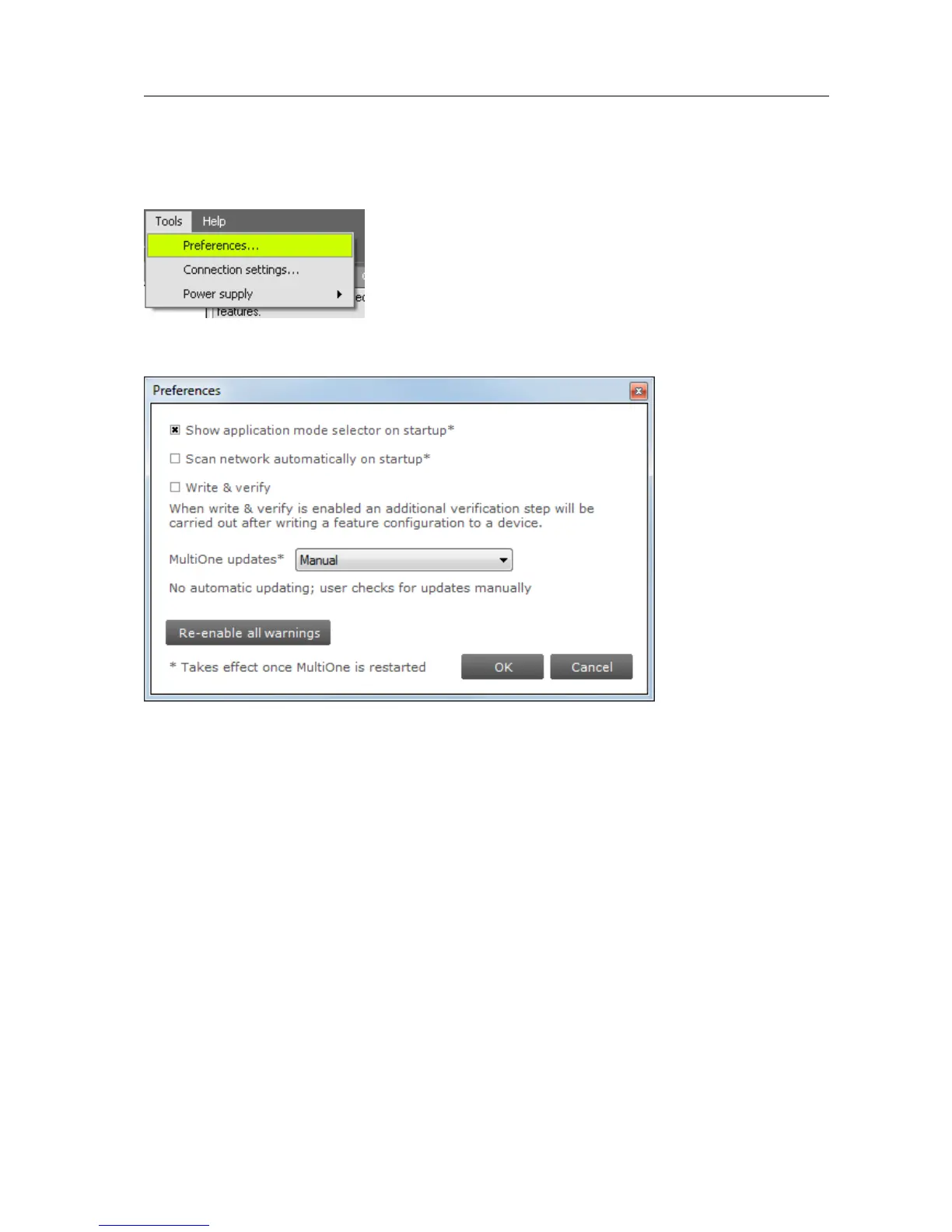
12.15 Setting preferences
MultiOne has a preferences window that allows you to customize the way MultiOne
works. To access the preferences window select Tools Preferences.
The Preferences window that pops up allows you to set MultiOne preferences.
The following list summarizes the available preferences and gives an explanation for
each.
Show application mode selector on startup. When MultiOne is started you
are presented with a screen that allows you choose an application mode,
based on the tasks you would like to perform. You can disable this screen by
clearing the Show application mode selector on startup checkbox. Changing
this settings only takes effect one MultiOne is restarted.
Scan network automatically on startup. By checking this checkbox MultiOne
will automatically initiate a network scan on startup. Changing this settings
only takes effect one MultiOne is restarted.
Write & verify. By default, MultiOne will write parameters to the connected
device(s) without checking the state of the device afterwards. By enabling
Write & verify you force MultiOne to perform an additional verification step
by reading back the written parameters immediately after writing. If the


 To Next Page