User Manual Philips MultiOne
© Philips Lighting B.V. 2014 Page 43 / 81
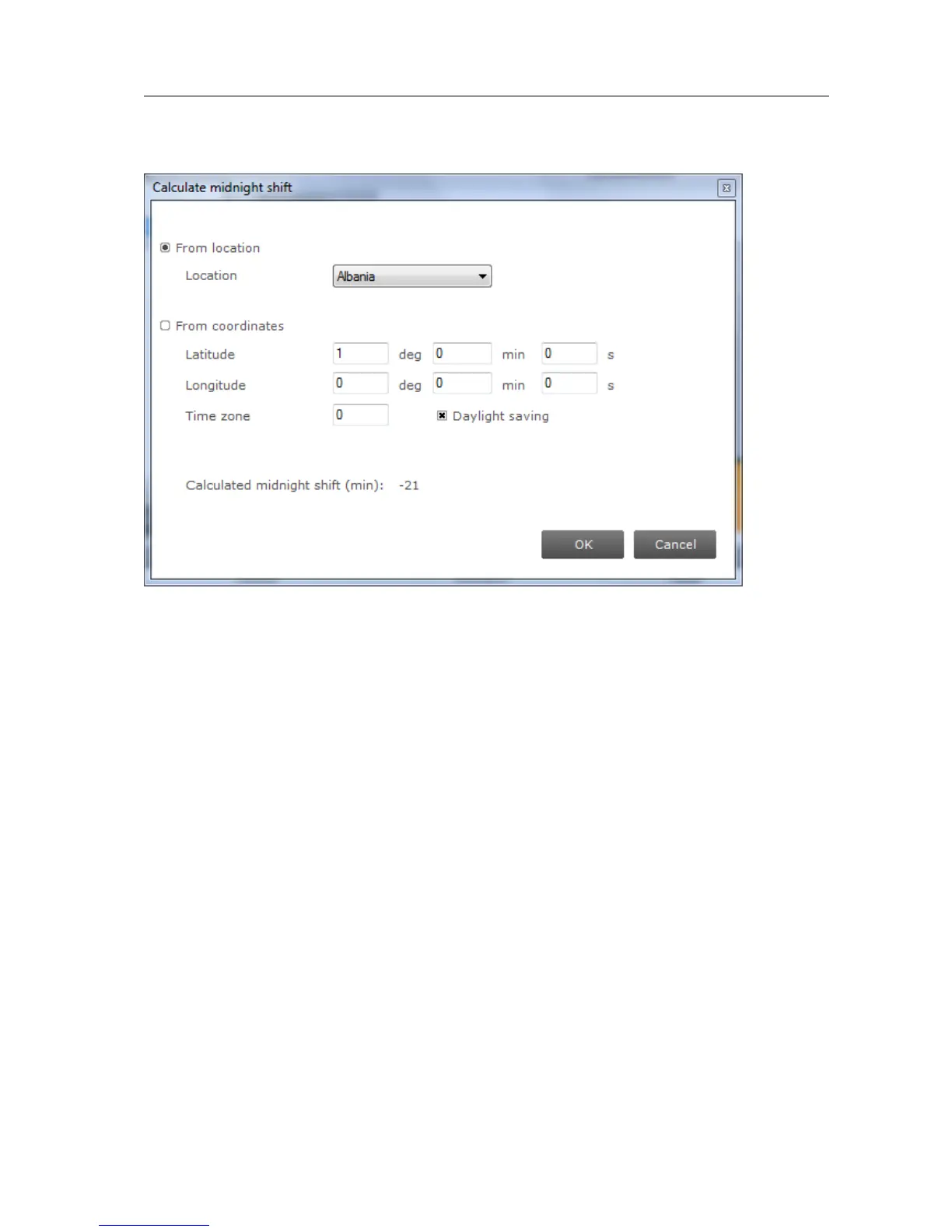
The midnight shift calculation dialog window looks as follows:
Location: a name that identifies this custom location.
Latitude: the latitude of the location in degrees, minutes and seconds. The
value that represents the degrees can be negative.
Longitude: the longitude of the location in degrees, minutes and seconds. The
value that represents the degrees can be negative.
Time zone: the time zone of the location. For GMT+1 enter 1, for GMT-1 enter
-1, and so on.
Daylight saving: indication whether daylight saving should be dealt with or
not.
You have two choices for calculation of midnight shift. If your location is available in
the location list you can use it. Some locations are not listed. For those unlisted
locations use the geographical coordinates to calculate the correct midnight shift.
Click OK to save result of your calculation as the new midnight shift. Note that
clicking OK is not directly saving your data to the driver. To save midnight shift to a
driver you will have to write the whole feature. Note also that the location is not
written into the driver, the midnight shift is written instead.
Click the New button to create a default schedule or click the Plus button to add
scenes individually. Drag the points or the lines in the graph to create the desired


 To Next Page