Selecting the color from the preset
colors
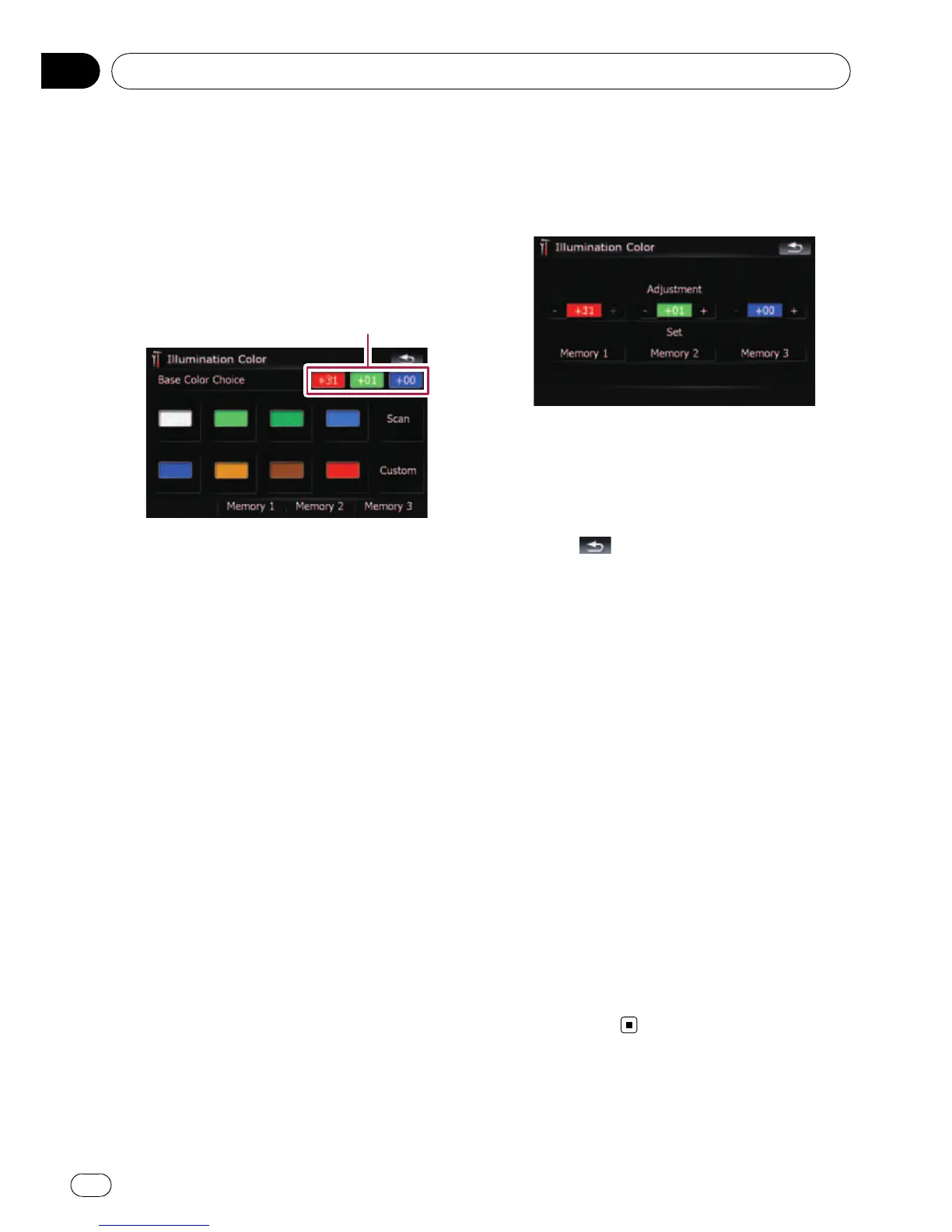
1 Touch [Illumi Color] on the “System Set-
tings” menu.
= For details, refer to Displaying the “System
Settings” menu on page 134.
2 Touch desired color.
Current color balance
Available options;
! Colored keys — Selects the desired preset
color
! Memory 1/Memory 2/Memory 3 — Col-
ors registered in the memory
= For details, refer to Creating a favorite
color and storing it to memory on this
page.
! Scan — Shifts between the eight default
colors in sequence gradually.
Creating a favorite color and storing
it to memory
You can create a favorite color and set it as the
illumination color.
1 Touch [Illumi Color] on the “System Set-
tings” menu.
= For details, refer to Displaying the “System
Settings” menu on page 134.
2 Touch [Custom].
p If [Scan] is set, [Custom] cannot be se-
lected.
3 Touch [+] or [– ] to adjust the values for
Red, Green and Blue to create a favorite
color.
Watch the illumination of hardware keys while
adjusting the color.
Each time you touch [+]or[–] increases or de-
creases the value of selected item. +31 to +00
is displayed as the value is increased or de-
creased.
p An entry cannot be stored with all of the va-
lues set to 0.
4 Touch [Memory 1], [Memory 2] or
[Memory 3] to store the illumination color.
5 Touch
to return to the previous
screen.
Checking the version information
1 Touch [Service Information] on the
“System Settings” menu.
= For details, refer to Displaying the “System
Settings” menu on page 134.
2 Check the version information.
Turning off the screen
By turning off the backlight of the LCD screen,
you can turn off the screen display without
turning off the voice guidance.
% Touch [Screen Off] on the “ System Set-
tings” menu.
= For details, refer to Displaying the “System
Settings” menu on page 134.
The screen is turned off.
p To turn on the screen, touch anywhere on
the screen.
Customizing preferences
En
138
Chapter
25



 To Next Page
 Loading...