p Moving MULTI-CONTROL left or right
enables you to perform the equivalent
operations.
6 Playback and Pause
Touching [f] switches between “playback”
and “pause”.
7 Switch the display
Touching [Disp] changes the information as
follows:
Disc information display — Repeat range dis-
play
8 Displaying the map screen
9 Display the title list
Displays the title list recorded on the disc.
a Switch next page of touch panel keys
b Stop playback
c Hides the touch panel keys
Touching [Hide] hides the touch panel keys.
Touch anywhere on the LCD screen to display
the touch panel keys again.
d Change audio language and audio sys-
tems (Multi-audio)
Each touch of [Audio] switches between
audio language and audio system.
p Display indications such as MPEG-A
and Mch indicate the audio system re-
corded on the DVD. Depending on the
setting, playback may not be with the
same audio system as that indicated.
e Skip the title forward or backward
Touching [d] skips to the start of the next title.
Touching [c] skips to the start of the previous
title.
f Change the subtitle language (Multi-sub-
title)
Each touch of [S.Title] switches between the
subtitle languages.
g Frame-by-frame playback (or slow-motion
playback)
= For details, refer to Frame-by-frame play-
back on the next page.
= For details, refer to Slow motion playback
on the next page.
h Fast reverse or forward
Touching [m]or[n] to perform fast re-
verse or forward.
If you keep touching [m]or[n] for five
seconds, fast reverse/fast forward continues
even if you release either of these keys. To re-
sume playback at a desired point, touch
[f], [m]or[n].
i Specify the chapter you want to play back
or the time to start playback by entering a
number
= For details, refer to Searching for a de-
sired scene and starting playback from a
specified time on this page.
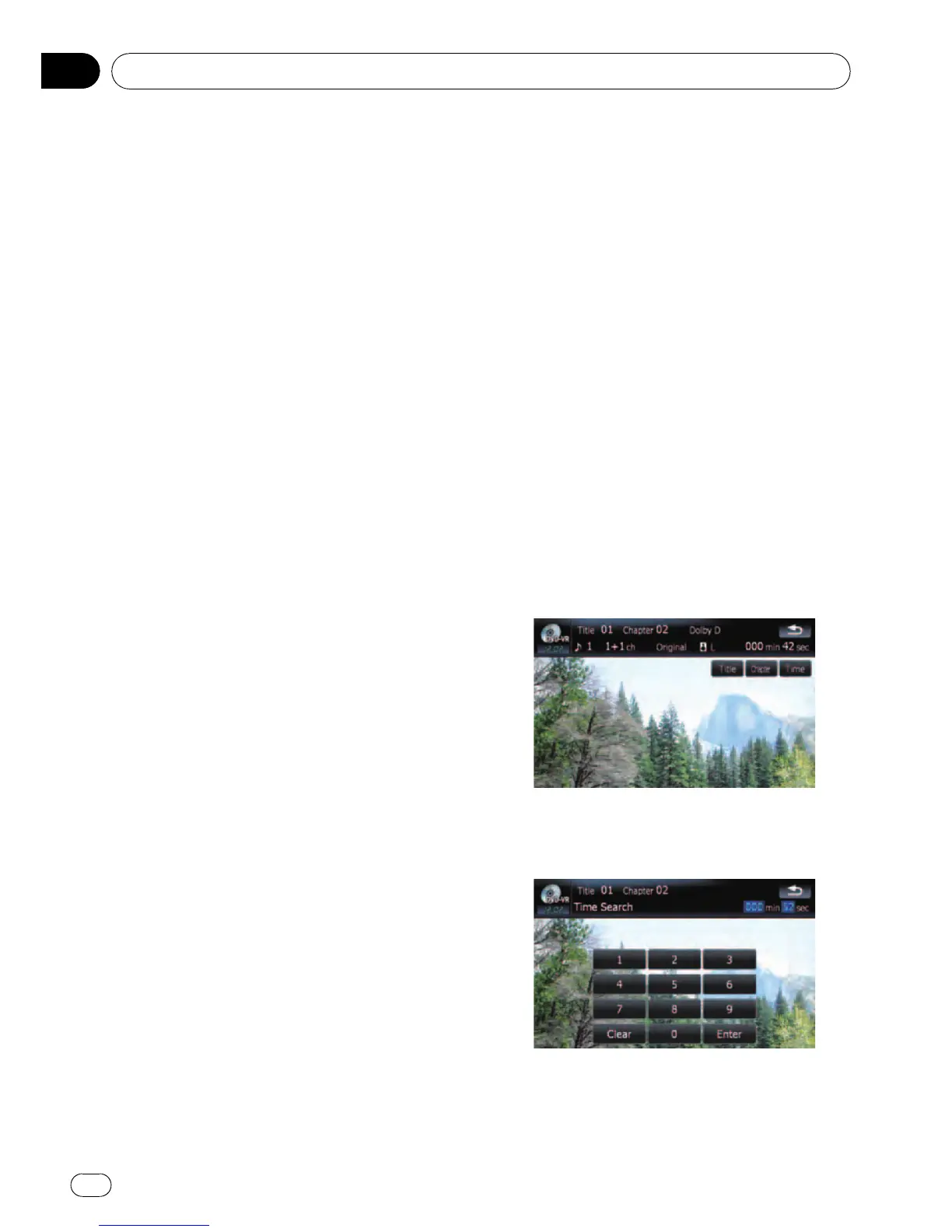
Searching for a desired scene
and starting playback from a
specified time
You can search for a desired scene by specify-
ing a title or a chapter, and the time.
p Chapter search and time search are not
possible when disc playback has been
stopped.
1 Touch [Search] and then touch [Title]
(title), [Chapter] (chapter), [Time] (time).
2 Touch the keys to input the desired
number or time and then touch [Enter].
For titles, chapters
! To select 3, touch [3] and [Enter] in order.
Playing a DVD-VR
En
76
Chapter
12


 To Next Page
 Loading...