What you can do on each menu
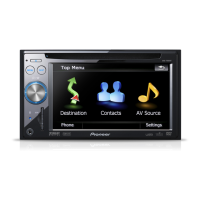
1 Top Menu
Press MENU button to display the “Top
Menu”.
This is the starting menu to access the desired
screens and operate the various functions.
2 Destination Menu
You can search for your destination on this
menu. You can also check or cancel your set
route from this menu.
p [MSN Direct] is available for AVIC-
F900BT and AVIC-F90BT.
3 Contacts screen
You can access the list of contacts to call up
an entry.
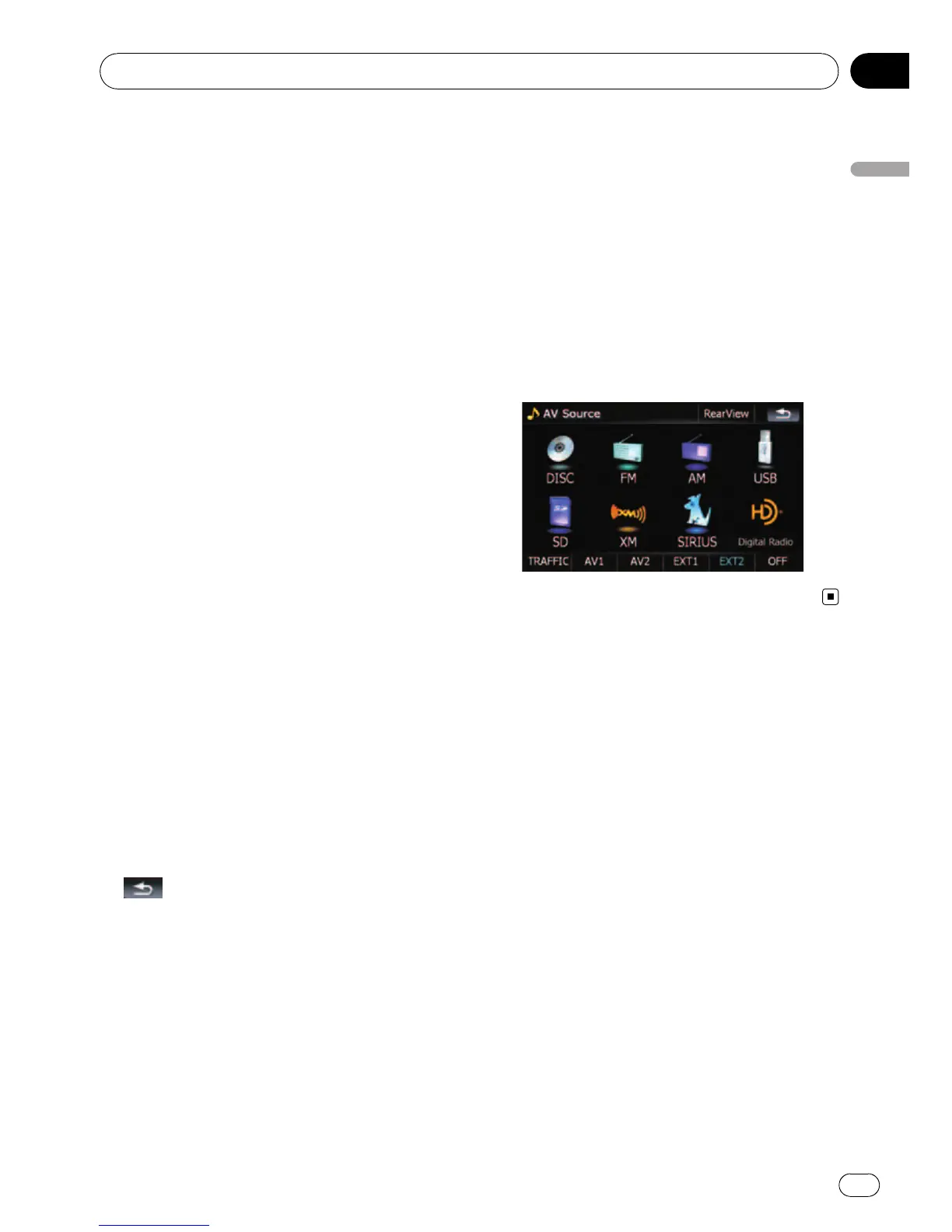
4 AV Source menu
You can access the screen for selecting the
audio and visual source to play.
5 Phone Menu
You can access the screen that is related to
hands-free phoning to see call histories and
change the settings on the Bluetooth wireless
technology connection.
6 Settings Menu
You can access the screen to customize set-
tings.
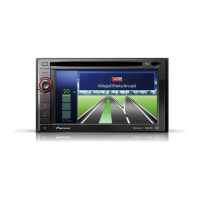
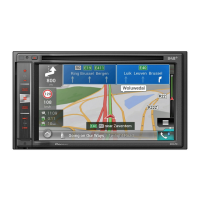
7 Map screen
Press MAP button to display the navigation
map screen.
8 AV operation screen
When you play the AV source, this screen ap-
pears regularly. Touching the icon on the top
left corner displays the “AV Source” menu.
p To return to the previous screen, touch
.
Displaying the rear camera image
[RearView] can be displayed the full-screen
rear camera image. [RearView] is useful if
you want to monitor an attached trailer, etc.
= For details, refer to Setting the rear view
camera on page 136.
1 Press MENU button to display the “Top
Menu”, and then touch [Settings].
2 Touch [System Settings] and then touch
[Back Camera].
3 Touch [On] next to “Camera” to acti-
vate the camera setting.
4 Press MENU button to display the “Top
Menu” and then touch [AV Source].
5 Touch [RearView] on the “AV Source”
menu.
Basic operation
En
19
Chapter
02
Basic operation


 To Next Page
 Loading...