955725_4
30
Next, select what system type the Prescription file(s) will be used for. Options include
• Seeding
• Liquid
• Granular
• Depth
Finally, Select what prescription files need imported. If prescription files are being used for
multiple systems, complete the above process for each system type.
Assigning Prescription Files
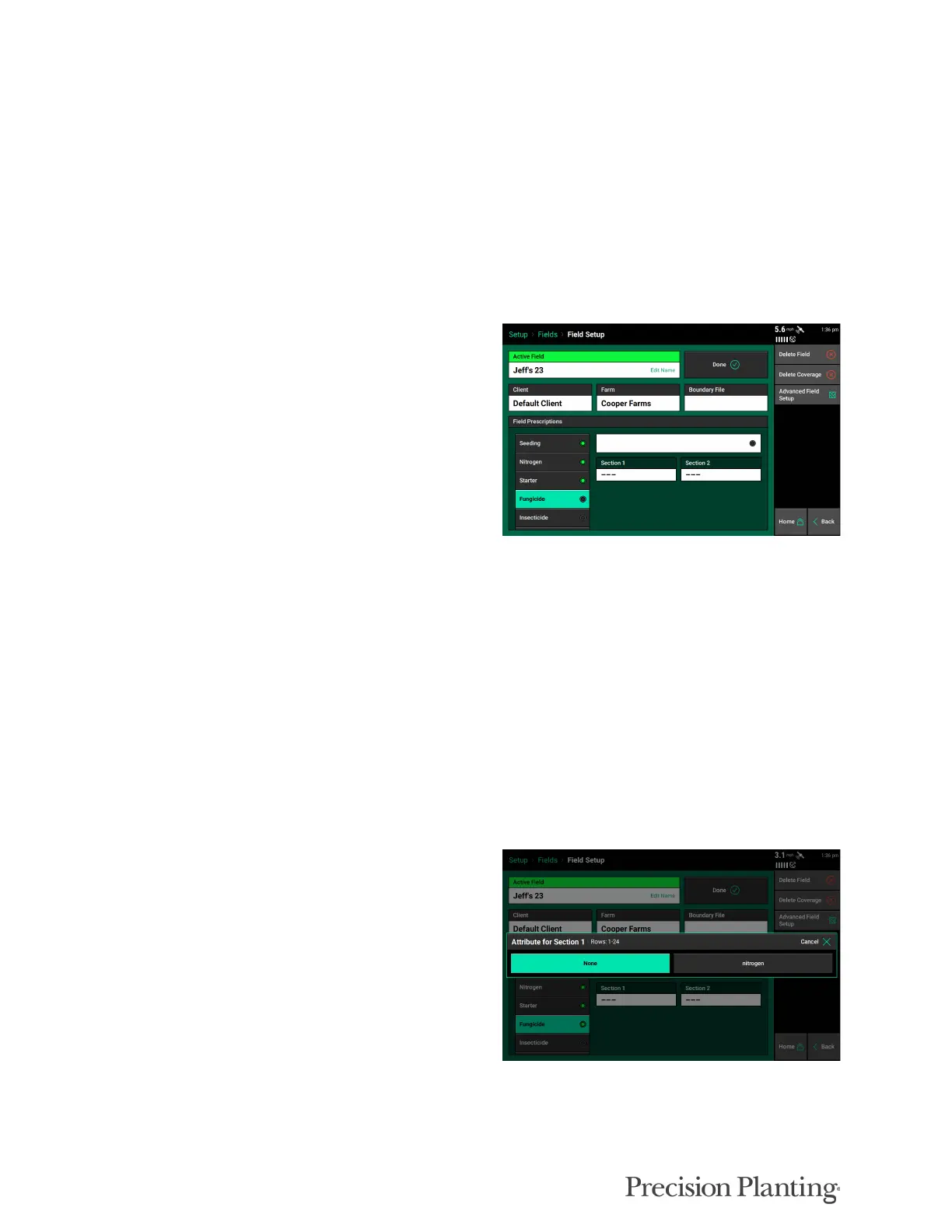
Once Prescription files have been imported into
the 20|20, each file will need to be assigned to its
intended field. This can be done on the Field
Setup page.
1. Navigate to Setup - Fields
2. Select the Client, Farm, and Field that will be
using a prescription
Next, select what system type the Prescription file(s) will be used for. Options may include
• Seeding
• Liquid
• Granular
• Depth
Once the system is selected, tap on the prescription file box to look through existing prescription
files and select the one that will be used for this field. After the prescription is selected, confirm
that this is the desired prescription file, and if necessary, adjust the target zones before making it
active on this field.
An attribute selection box can be used on the top
right corner of the screen, and either individual
zones or the whole file can be adjusted by either a
percent or number bump. Press 'Save' once you
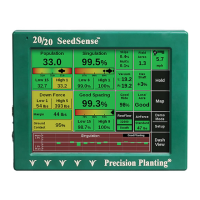
are ready to assign the prescription. Finally,
select what attribute will be used for each drive
section. Complete the above process for each
field that will be using a prescription file.


 To Next Page