955725_4
31
Controlling to Prescription Files
After the active field has a prescription file assigned to it, the system can use a prescription file
for control. This applies to the following systems:
• Seeding
• Liquid
• Granular
• Depth
To switch to prescription control, follow the below steps:
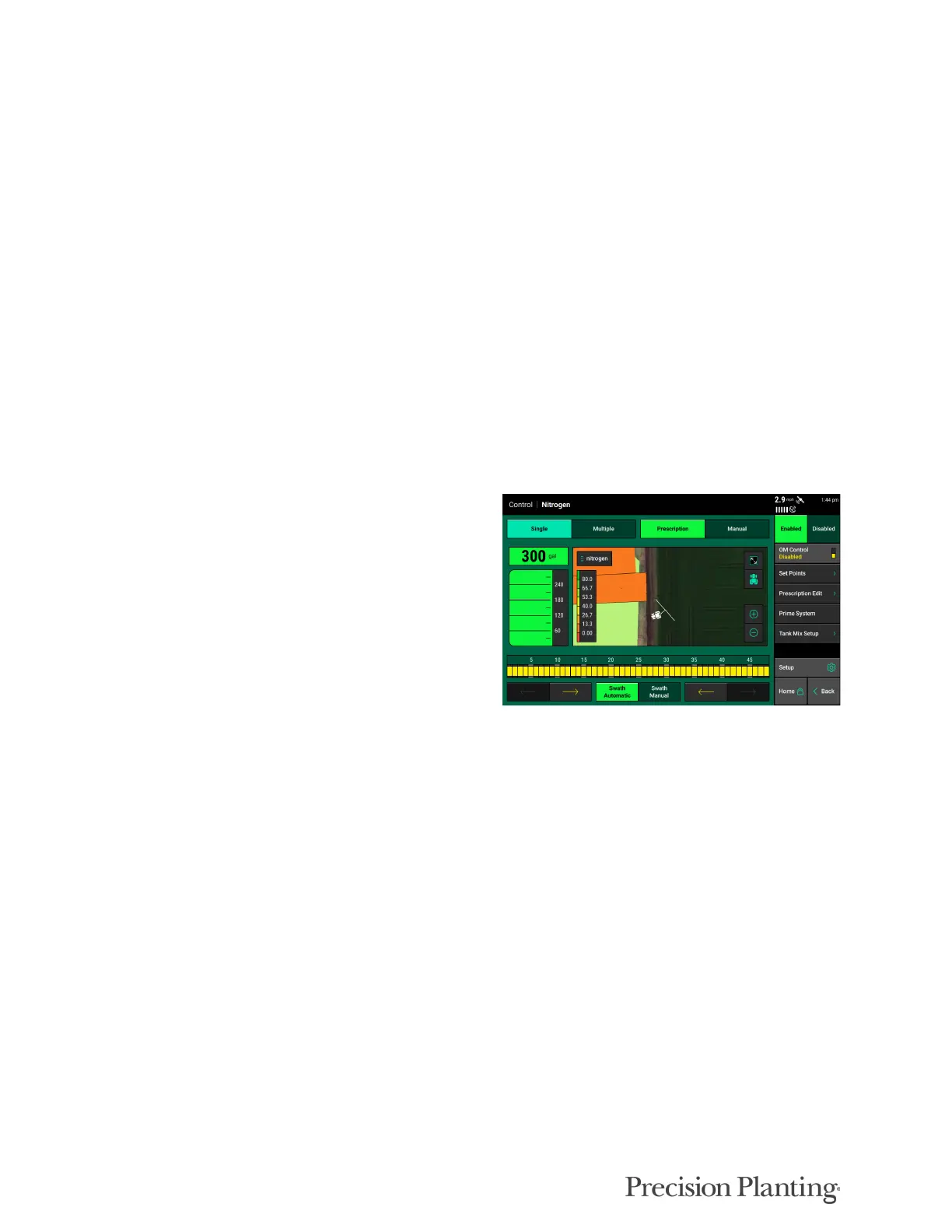
1. From the Home screen, tap on the control button for the system. Some examples may include
vDrive, mSet, Nitrogen, Depth, and Granular.
2. Toggle the system from 'Manual' to 'Prescription' control at the top of the screen.
The system will now control to the assigned prescription file.
Editing Prescription Files
The Prescription file can be edited either during
the assignment process to the field, or from the
system control screen. To edit a prescription
already assigned to the field:
1. From the Home screen, tap on the control
button for the system. Some examples may
include vDrive, mSet, Nitrogen, Depth, and
Granular.
2. Tap on the 'Prescription Edit' button on the
right side of the screen.
Once within the Prescription edit page, The below options are available
• Switch between attributes on the top right corner of the screen.
• Select any combination of zones on the right side of the page, ranging from individual,
multiple, to all.


 To Next Page