User Manual
149
11.4 Upgrading System
Purpose:
The firmware on your device can be upgraded by local backup device or remote FTP server.
11.4.1!Upgrading!by!Local!Backup!Device!
Steps:
1. Connect your device with a local backup device where the update firmware file is located.
2. Enter the Upgrade interface.
Menu > Maintenance > Upgrade
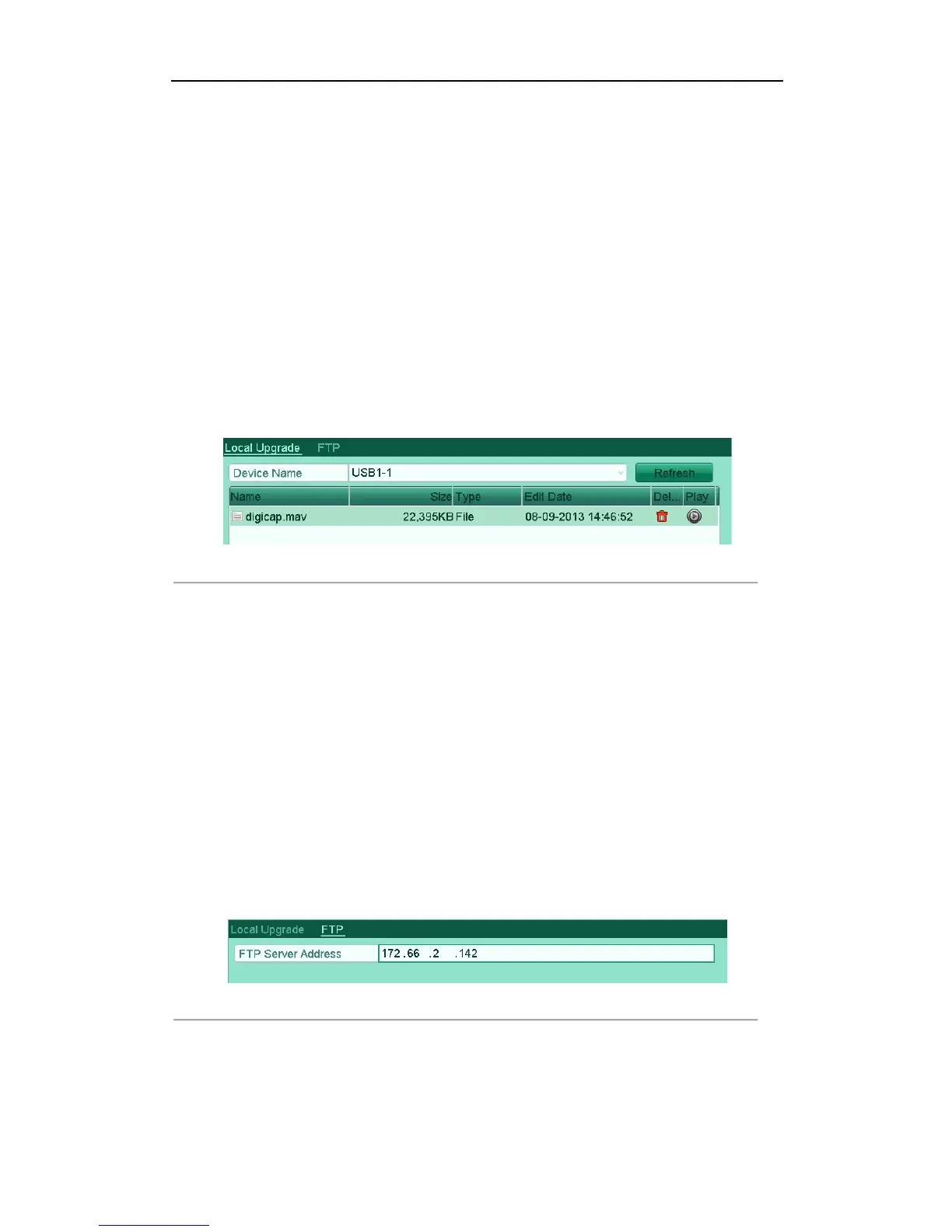
3. Click the Local Upgrade tab to enter the local upgrade menu.
Figure'12.12'Local'Upgrade'Interface'
!
4. Select the update file from the backup device.
5. Click the Upgrade button to start upgrading.
6. After the upgrading is complete, reboot the device to activate the new firmware.
11.4.2!U pg ra ding !by !F TP !
Before you start:
Ensure the network connection of the PC (running FTP server) and the device is valid and correct. Run the FTP
server on the PC and copy the firmware into the corresponding directory of your PC.
Note: Refer to the user manual of the FTP server to set the FTP server on your PC and put the firmware file into
the directory as required.
Steps:
1. Enter the Upgrade interface.
Menu > Maintenance > Upgrade
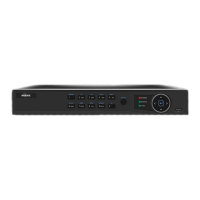
2. Click the FTP tab to enter the local upgrade interface.
Figure'12.13'FTP'Upgrade'Interface'
!
3. Enter the FTP Server Address in the text field.
4. Click the Upgrade button to start upgrading.
5. After the upgrading is complete, reboot the device to activate the new firmware.


 To Next Page